Practical Demo: Read eBooks and Create Visual Summaries in Obsidian
Based on Zsolt's Visual Personal Knowledge Management's video on YouTube. If you like this content, support the original creators by watching, liking and subscribing to their content.
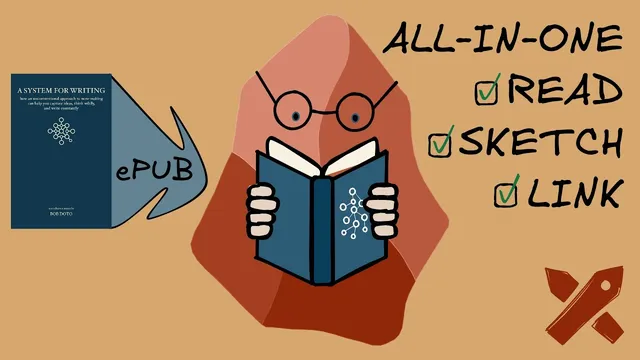
Import an ePub into Obsidian using a dedicated import vault, then move the cleaned chapter folder into the main vault.
Briefing
A practical Obsidian reading workflow turns a full-text eBook into a tightly linked, chapter-by-chapter knowledge system—complete with visual summaries that connect directly to the reader’s existing notes. The core payoff is immediacy: highlights added while reading become navigation links into a personal vault, while each chapter also gets a mind-map style “visual summary” that helps the reader remember what mattered and how it connects to other ideas.
The workflow centers on importing an ePub version of a book into Obsidian and then splitting the reading experience across two linked layers. On the left, the imported chapter text sits inside the vault, with highlights created in-place. On the right, a separate visual summary file (a mind map) is built for that same chapter. When an interesting idea appears in the text, the reader adds it to the visual summary and also links it back to the exact location in the chapter. That bidirectional linking means context is preserved: clicking from a mind-map node jumps to the relevant passage in the book, while the book passage can point back to the broader network of notes.
To make this work, the reader uses an ePub importer plugin in Obsidian and creates a dedicated “import vault” whose only job is to ingest ePub files. The import step is mostly out-of-the-box, but it requires post-processing. Links inside the imported book often don’t resolve correctly, so they need cleanup. Image filenames can also be awkward (for example, “main note 01300”), so the reader renames images after copying them into the main vault. Once cleanup is done, the imported chapter folder is dragged into the main vault, where the book’s structure is preserved.
Navigation is reinforced at the chapter level. Each chapter note includes “previous” and “next” links so reading and later review can move through the book like a connected sequence. In the mind-map overview, the chapter’s visual summary also references other parts of the vault—literature notes, permanent notes, and even images used as reusable connection cues. The result is a reading environment where the book doesn’t sit apart; it becomes part of the same network used for writing.
The approach is demonstrated using Bob Doto’s book (the reader received an ePub version from Bob Doto). While the reader recommends the book overall—especially for its ideas about Zettelkasten and note-making—they note a personal preference: the later, more writing-oriented sections felt less visual and less engaging. Still, the chapter-by-chapter integration and the “trains of thought” metaphor are treated as the key mechanism: chains of linked notes can later be harvested as raw material for drafts, with the reader “slicing” away unnecessary beginnings and endings.
The workflow is positioned as a way to internalize reading without relying on third-party highlight tools like Readwise. Instead, highlights and links live inside Obsidian, and the visual summaries provide fast recall of each chapter’s role in the larger idea network. The reader also points to related tools and courses—such as an “Excal draw writing machine” for a more visual take on the drafting process and a “Visual Thinking Workshop” for deeper guidance on building similar visual summaries across media.
Cornell Notes
The workflow integrates an ePub book into Obsidian so reading and note-making happen in the same place. Each chapter becomes a linked pair: the imported chapter text (with highlights) and a separate mind-map style visual summary for that chapter. When an idea is captured in the mind map, it’s linked back to the exact highlighted passage, creating bidirectional navigation and preserving context. Importing uses an ePub importer plugin in a dedicated import vault, followed by cleanup of broken links and renaming of images. The payoff is a connected “reading environment” where book ideas immediately attach to existing literature and permanent notes, supporting later writing through “chains of notes” or trains of thought.
How does the workflow keep reading and note-taking from becoming two separate activities?
What role do the chapter-level visual summaries play beyond quick recall?
Why create a separate “import vault” when bringing in ePub files?
What post-import problems must be fixed for the system to work smoothly?
How does the system support later writing using “trains of thought”?
What makes the approach different from using external highlight tools like Readwise?
Review Questions
- What bidirectional linking step turns a highlighted passage into a node in the chapter’s visual summary network?
- Which two kinds of cleanup are typically required after importing an ePub into Obsidian, and why do they matter for navigation?
- How do chapter “previous/next” links and mind-map references work together to support both reading flow and later retrieval for writing?
Key Points
- 1
Import an ePub into Obsidian using a dedicated import vault, then move the cleaned chapter folder into the main vault.
- 2
Create a separate mind-map style visual summary for each chapter and link its nodes back to the exact highlighted passages in the chapter text.
- 3
Add “previous” and “next” links inside chapter notes to navigate through the book as a connected sequence.
- 4
Plan for post-import cleanup: fix broken internal links and rename images with meaningful titles for later reuse.
- 5
Reference existing literature and permanent notes directly from each chapter’s visual summary so the book becomes part of the vault’s idea network.
- 6
Use in-place highlights inside Obsidian so reading, linking, and retrieval happen in one system rather than via external highlight tools.
- 7
Harvest “chains of notes” formed during reading as raw material for drafts, then slice away unnecessary sections when writing.