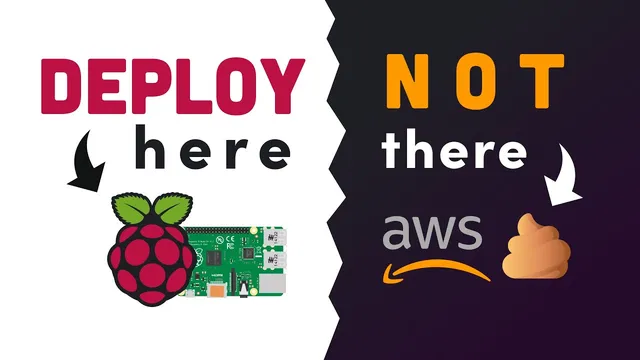
Raspberry Pi versus AWS // How to host your website on the RPi4
Based on Fireship's video on YouTube. If you like this content, support the original creators by watching, liking and subscribing to their content.
Build a basic Express app on the Raspberry Pi that increments a page-view counter stored in a local text file.
Briefing
Amazon’s serverless migration of a fast-growing social app highlights a harsh reality for businesses: getting “kicked off” a major cloud can force a painful reverse migration, and tech monopolies can shape what companies can practically build. For people who want independence—or just want to understand what cloud infrastructure really does—this walkthrough turns a Raspberry Pi 4 into a self-hosted mini web stack that serves a live Node.js app to the public internet.
The build starts with a Raspberry Pi 4 (quad-core, 8GB RAM) running Linux from the Raspberry Pi NOOBS installer, with only VS Code added. The goal is simple but instructive: create a Node.js web application that serves HTML and tracks page views. Using npm to initialize a project and install Express.js, the setup creates a server.js file that increments a view counter stored in a local text file. Express listens on localhost:5000 and exposes a root endpoint that reads the counter, increments it, writes it back, and returns HTML with the updated count.
To make the app production-like, traffic is routed through nginx. Since nginx isn’t installed by default, the system updates package lists and installs nginx, then edits the default nginx site configuration so requests to the root URL are proxied to the Node.js process on localhost:5000. After restarting nginx, the site works on the Pi’s internal network address.
The next challenge is making the service reachable from the wider internet. A home ISP typically assigns a dynamic external IP that can change, which would break access unless DNS updates automatically. The walkthrough uses noip.com to monitor the Pi’s external IP and update DNS records so a chosen domain continues to resolve correctly. Even with DNS working, the router acts like a firewall: inbound traffic must be allowed through port forwarding. The app is served on port 80, so the router needs a forwarding rule that maps external port 80 to the Pi’s internal IP on port 80.
The result is a functioning self-hosted website that doesn’t depend on AWS for hosting—an instructive alternative that also clarifies why cloud platforms are attractive. On-prem hosting trades away managed convenience for manual work: scaling requires adding more Pis and distributing load, security becomes the operator’s responsibility, and reliability depends on hardware and infrastructure that can fail. Still, the exercise shows the core mechanics behind “cloud hosting” in a tangible way: application runtime (Node.js), web routing (nginx), public addressing (DNS/IP), and network access (port forwarding).
Cornell Notes
A Raspberry Pi 4 can be turned into a self-hosted web server that serves a Node.js/Express app and exposes it to the public internet. The setup builds a simple page-view counter stored in a local text file, runs the app on localhost:5000, and then uses nginx to proxy external HTTP traffic to that Node.js service. To keep the site reachable despite a dynamic ISP IP, noip.com updates DNS records automatically. Finally, router port forwarding opens inbound traffic on port 80 to the Pi’s internal IP. The tradeoff is clear: this approach avoids cloud lock-in but requires manual configuration, scaling work, and security responsibility.
How does the Node.js app track and display page views in this setup?
Why put nginx in front of the Node.js server?
What problem does a dynamic external IP create, and how is it solved here?
What does port forwarding accomplish, and why is port 80 specifically mentioned?
What scaling and reliability limitations come with running this on a single Raspberry Pi?
Review Questions
- What exact sequence of components makes the site reachable from the internet (application, proxy, DNS, router)?
- How would you modify the architecture if the view counter needed to survive Pi replacement or multiple Pis?
- What risks increase when security is handled manually on a home-hosted server compared with a managed cloud environment?
Key Points
- 1
Build a basic Express app on the Raspberry Pi that increments a page-view counter stored in a local text file.
- 2
Run the app on localhost:5000 and use nginx as a reverse proxy so standard HTTP traffic reaches the Node.js service.
- 3
Use noip.com to keep a domain pointing to a dynamic ISP IP by automatically updating DNS A records.
- 4
Open inbound access by configuring router port forwarding for external port 80 to the Pi’s internal IP.
- 5
Expect manual overhead for on-prem hosting: scaling requires adding hardware and load distribution, and security becomes the operator’s responsibility.
- 6
Self-hosting can reduce dependence on cloud monopolies, but it trades away managed reliability and convenience.