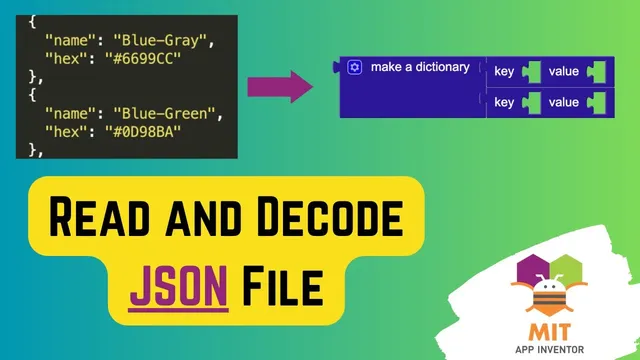
Read JSON in MIT App Inventor | How to Decode JSON File | MIT App Inventor File #json #appinventor
Based on Obsidian Soft's video on YouTube. If you like this content, support the original creators by watching, liking and subscribing to their content.
JSON is a common, language-independent data format built from key–value pairs, using curly braces for objects and square brackets for lists.
Briefing
JSON—short for JavaScript Object Notation—is a lightweight data format built around key–value pairs. In practice, it lets programs store and exchange structured information in a way that’s easy for humans to read and for software to parse. Curly braces mark an object, square brackets mark a list, and arrays can hold repeated values like strings. That structure is why JSON shows up so often in APIs, where different systems need a common language for sending and receiving data.
A concrete example drives the lesson: a downloaded JSON file containing 1,302 colors, each represented by a dictionary with a hex code and a color name. The file begins with a square bracket, indicating the top-level list. Inside that list sit multiple objects (curly braces), each carrying key–value pairs such as a “hex” field and a corresponding “name” field. The goal in MIT App Inventor is straightforward: let a user enter a color hex code, press a button, and display the matching color name.
The build starts with a new MIT App Inventor project and a simple user interface: a text box for the hex input, a submit button, and a label to show the resulting color name. A File component is added for reading the JSON text from the project’s uploaded media. During the screen’s Initialize event, the app reads the file as raw text (not yet interpreted), using File1’s “read from” procedure with the uploaded filename (colors.Json). When the read completes, the “File1 got text” event fires, storing the entire file content into a global variable.
Next comes the decoding step. The raw JSON text is converted into a usable data structure with Web’s “JSON text decode,” producing a list of dictionary objects—matching the file’s list-of-objects structure. A global empty list is prepared to hold that decoded result.
To find a color name, the lesson adds a procedure called “find color.” It uses a local variable (so it stays scoped to the procedure) and a for-each loop that iterates through the decoded color list. Before searching, the color name is initialized to “color name was not found,” covering cases where a given hex code has no match. Inside the loop, an if condition checks whether the current item’s “hex” value contains the user-provided hex code. To make the search case-insensitive, the user input is converted to uppercase before comparison. When a match is found, the procedure sets the local “name” variable to the matched item’s “name” field, then breaks out of the loop immediately to avoid unnecessary scanning.
Finally, the submit button triggers the “find color” procedure, and the label is updated with either the found color name or the default “not found” message. The workflow ties JSON’s structure directly to app logic: read text, decode into lists/dictionaries, then search through decoded objects by key values.
Cornell Notes
JSON (JavaScript Object Notation) organizes data using key–value pairs, with curly braces for objects and square brackets for lists. In this MIT App Inventor workflow, a colors.Json file containing 1,302 color entries is first read as plain text, then decoded using Web’s “JSON text decode” into a list of dictionary objects. A “find color” procedure loops through that decoded list, initializing the result to “color name was not found.” For each dictionary item, it checks whether the item’s “hex” value contains the user-entered hex code (converted to uppercase for case-insensitive matching). On the first match, it sets the result to the item’s “name” field and breaks the loop, then updates the label when the submit button is pressed.
How does JSON’s structure (objects vs lists) map to what MIT App Inventor needs to work with?
Why does the app read the JSON file as text first, and what changes after decoding?
What’s the purpose of initializing the result to “color name was not found”?
How does the app make hex-code matching case-insensitive?
Why does the procedure break out of the loop after finding a match?
What triggers the search and how does the result reach the user?
Review Questions
- What JSON elements (curly braces vs square brackets) correspond to objects and lists, and how does that affect the decoded data structure in MIT App Inventor?
- In the “find color” procedure, which dictionary key is used for matching, which key is used for the displayed result, and why is uppercase conversion applied?
- Why is the break block placed inside the if condition rather than after the loop?
Key Points
- 1
JSON is a common, language-independent data format built from key–value pairs, using curly braces for objects and square brackets for lists.
- 2
To use JSON in MIT App Inventor, the file is first read as raw text via a File component, then converted into usable structures with Web’s “JSON text decode.”
- 3
A JSON file structured as a list of objects decodes into a list where each item behaves like a dictionary, enabling key-based lookups.
- 4
Searching for a match is implemented with a for-each loop over the decoded list, with a default result set to “color name was not found.”
- 5
Hex-code matching is made case-insensitive by converting the user’s input to uppercase before comparing against each item’s “hex” value.
- 6
When a match is found, the app extracts the corresponding “name” value and breaks out of the loop to stop further scanning.
- 7
The submit button triggers the lookup procedure, and the label is updated with the final result for the user.