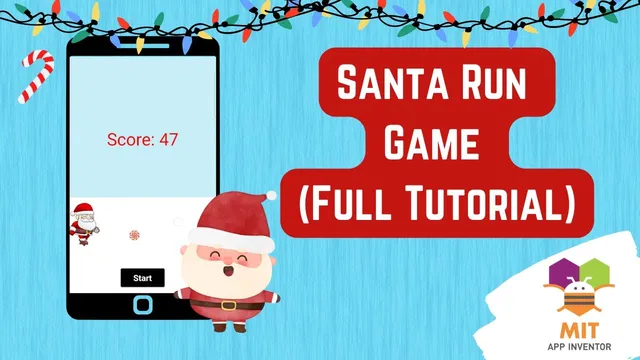
Santa Run Game in MIT App Inventor (Full Tutorial) | MIT App Inventor game | App Inventor Santa game
Based on Obsidian Soft's video on YouTube. If you like this content, support the original creators by watching, liking and subscribing to their content.
Trim sprite PNGs to remove transparent padding so collision detection matches what players see.
Briefing
A Santa Run game built in MIT App Inventor turns a simple side-scrolling mechanic into a playable avoidance challenge: Santa must jump over incoming candies, and any collision ends the run. The core design hinges on three timed systems—one for Santa’s running animation, one for candy movement, and one for score updates—plus a jump routine triggered by screen touches.
The tutorial starts with assets and a practical fix for collision accuracy. Santa sprites are downloaded from OpenGameArt, then trimmed to remove extra transparent pixels using an online “trim” tool. That cropping matters because App Inventor collision detection can behave as if the sprite’s invisible padding is still part of the hitbox. The background is kept intentionally simple (white snow and a blue sky) to sell the illusion of motion without needing to scroll the scene.
In the MIT App Inventor setup, a portrait screen is created with a canvas for drawing, a Start button, and three Clock sensors: a run timer (50 ms) to cycle Santa through 11 running costumes, a jump timer (800 ms) to control the up-and-down arc, and a score timer (200 ms) to increment and redraw the score. Two image sprites are placed on the canvas: Center Sprite (Santa) and Candy Sprite. Santa’s sprite is sized larger (114×80) and uses the idle image plus run1 through run11 PNGs; the candy sprite is smaller (30×30) and uses a single candy image. Candy is positioned to the right side of the canvas, while Santa starts on the left.
Gameplay begins when the Start button is pressed. Santa’s running animation is enabled by turning on the run timer, and candy movement starts by setting a positive speed so it travels left. When candy reaches the left edge (detected via EdgeReached), it snaps back to its starting position so the stream continues indefinitely until a collision occurs.
Jumping is handled by a touch event on the canvas. Touching the screen triggers a custom jump procedure: Santa’s speed and heading are adjusted to move upward, a “jump up” flag is set to true, and the jump timer is enabled. When the jump timer fires, the logic checks that flag: if Santa is still going up, the heading flips downward (270 degrees) and the flag is cleared; otherwise, the jump ends by resetting speed to zero, disabling the jump timer, and returning Santa to his original Y position.
The game ends in the SantaSprite “collided with” event when Santa hits the candy sprite. At that moment, candy speed is set to zero and the run timer is disabled so the character stops moving. The score system resets on Start, increments every 200 ms, and redraws the score text centered on the canvas. On collision, the tutorial also redraws a “Game Over” message below the final score, using the same canvas drawing functions so the result updates immediately.
Cornell Notes
The Santa Run game in MIT App Inventor is built around timed animation and simple physics: Santa runs in place using 11 costume frames, candy moves left continuously, and screen touches trigger a timed jump. Collision detection is made reliable by trimming sprite images to remove transparent padding that would otherwise create false “misses.” The Start button enables the run timer and candy motion, while the jump timer controls the up/down arc using a jump flag. Score is updated every 200 ms by incrementing a global score variable and redrawing text on the canvas. A collision between Santa and candy stops movement and displays “Game Over.”
Why does trimming transparent pixels from sprites matter for collision detection in this game?
How does the run animation work without moving Santa across the screen?
What triggers Santa’s jump, and how is the jump duration controlled?
How does the candy keep moving continuously even though it reaches the edge?
How is the score displayed and updated during gameplay?
What exactly ends the game when Santa hits a candy?
Review Questions
- How do the run timer and the costume count variable combine to select the correct Santa running frame?
- What role does the jump up boolean flag play when the jump timer fires?
- Which specific events stop gameplay, and what properties are changed in those events?
Key Points
- 1
Trim sprite PNGs to remove transparent padding so collision detection matches what players see.
- 2
Use three Clock sensors: 50 ms for Santa’s running frames, 800 ms for jump timing, and 200 ms for score updates.
- 3
Cycle Santa’s run animation by updating the sprite picture to run1.png through run11.png based on a global costume count.
- 4
Move candy left using speed and reset its position when EdgeReached detects contact with the left boundary.
- 5
Trigger jumping from a canvas touch event and control the up/down motion using a jump timer plus a jump-up flag.
- 6
End the game on SantaSprite collision with Candy Sprite by stopping candy movement and disabling the run timer.
- 7
Redraw score and “Game Over” text by clearing the canvas and using Canvas.DrawText with centered coordinates.