Set up a POWERFUL Obsidian Task and Time Management System with Morgen
Based on John Mavrick Ch.'s video on YouTube. If you like this content, support the original creators by watching, liking and subscribing to their content.
Add a unique ID, due date, and priority to each Obsidian task so Morgen can import and match tasks reliably.
Briefing
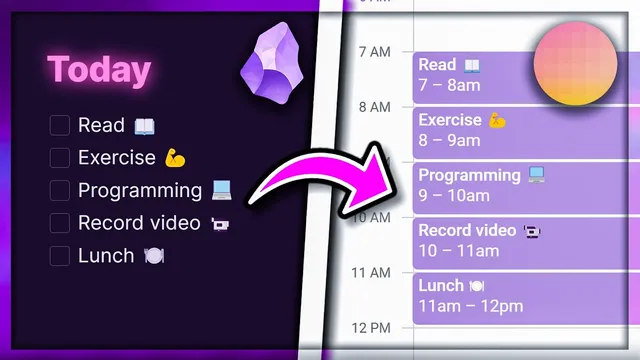
A new integration between Obsidian and Morgen turns plain-text markdown tasks into something you can actually plan like a calendar workflow—dragging tasks onto specific times, syncing due dates, and keeping task status consistent across notes. The core payoff is “best of both worlds”: tasks live in Obsidian where they’re easy to write, link, and structure, but they also appear inside Morgen where scheduling and day planning happens with minimal friction.
Instead of manually copying tasks into a calendar, the setup relies on Obsidian’s Tasks plugin plus a few required task properties. Each task needs a unique ID (so Morgen can match it reliably), a due date, and a priority. With those fields added, Morgen can import tasks from an Obsidian vault (either all tasks or only those modified recently, and optionally only tasks that already have IDs). After connecting the vault, tasks show up in Morgen with their note source and metadata, and planning becomes a drag-and-drop exercise: move tasks onto the calendar, adjust due dates, resize time blocks, and open the originating Obsidian note directly from a task.
The workflow then expands beyond basic syncing. A global hotkey capture system lets users add tasks into any Obsidian note without switching contexts. That requires QuickAdd for capture formatting, plus supporting plugins to generate unique timestamps and to interpret natural-language dates. The result is a one-keystroke pipeline: choose (or auto-create) the right section in a note, insert a task name, assign a priority preset, and attach a due date like “tomorrow”—with Morgen reflecting the new task once the ID and due date rules are satisfied.
For project planning, the tutorial emphasizes writing tasks as normal markdown—lists, sublists, links, and nested structure—then using the Outliner plugin to move through that hierarchy quickly. Outliner adds hotkeys for toggling checkboxes, creating list items, and moving tasks up or down while preserving parent/child relationships. Folding and unfolding nested lists helps manage large backlogs without losing structure.
To handle real-world task states, the setup goes further with Multi-State Checkboxes, defining statuses such as not started, in progress, canceled, and completed (and even an optional “question” state). Morgen’s display behavior depends on how the Tasks plugin maps those symbols to task types, so the configuration determines which statuses appear in Morgen when due dates are involved.
Finally, the system is used for both simple scheduling and more complex planning. A podcast project example shows how AI can generate a markdown task plan with time estimates, optional/interactive statuses, and nested subtasks. The user then copies the markdown into Obsidian, cleans it up, and schedules only what fits a realistic daily capacity (often around two hours per day). The day-to-day loop becomes: check Morgen’s due items, drag tasks into time blocks, open the corresponding Obsidian checklist, and mark items complete—keeping planning and execution tightly connected.
Cornell Notes
The Obsidian–Morgen integration makes markdown tasks schedulable: tasks stored in Obsidian sync into Morgen so they can be dragged onto calendar times and updated with due dates and completion status. The setup hinges on adding three task properties in Obsidian—unique ID, due date, and priority—via the Tasks plugin, then connecting the Obsidian vault inside Morgen. To capture tasks fast, QuickAdd plus global hotkeys lets users insert tasks into the right note section from anywhere, using timestamp-based IDs and natural-language date parsing. For managing complex projects, Outliner improves nested task navigation and movement with hotkeys, while Multi-State Checkboxes adds richer statuses like in progress, canceled, and optional “question” tasks. Together, the system supports both manual planning and AI-assisted task generation with time estimates.
Why does Morgen require task IDs, and what goes wrong without them?
How does the workflow avoid the “copy tasks into a calendar” problem?
What’s the purpose of QuickAdd and the global hotkey capture pipeline?
How does Outliner change task editing compared with standard Obsidian list behavior?
Why does adding custom checkbox states require careful mapping to Morgen?
How is AI-assisted planning integrated into the system in practice?
Review Questions
- What three task properties are required for Morgen to sync tasks from Obsidian, and why is each one important?
- How do Outliner and Outliner-specific hotkeys help maintain correct parent/child movement in nested task lists?
- When using Multi-State Checkboxes, what determines whether a custom status (like “question” or “canceled”) appears in Morgen?
Key Points
- 1
Add a unique ID, due date, and priority to each Obsidian task so Morgen can import and match tasks reliably.
- 2
Connect the Obsidian vault inside Morgen and choose an import strategy (all tasks vs. recently modified; optionally only tasks with existing IDs).
- 3
Plan by dragging synced tasks onto Morgen’s calendar, then open the originating Obsidian note for checklist execution and completion syncing.
- 4
Use QuickAdd plus global hotkeys to capture tasks from anywhere, generating timestamp IDs and parsing natural-language due dates like “tomorrow.”
- 5
Adopt Outliner to navigate and edit nested markdown task hierarchies with hotkeys that preserve structure.
- 6
Extend task states with Multi-State Checkboxes, but map symbols/status types carefully so Morgen displays the intended statuses.
- 7
Use AI-generated markdown plans by copying into Obsidian, cleaning tasks, and scheduling only what fits realistic time blocks based on provided estimates.