Sharing & Permissions
Based on Notion's video on YouTube. If you like this content, support the original creators by watching, liking and subscribing to their content.
Workspace roles control administrative capabilities, while Team Space roles and page-level sharing control who can view or edit content.
Briefing
Notion’s sharing and permissions system lets organizations fine-tune who can view, edit, comment on, or share specific pages—down to individual documents—while keeping workspace-wide roles separate from page access. The key idea is that workspace roles control administrative capabilities (like settings and membership management), but actual access to page content is governed by Team Spaces and page-level sharing rules.
Workspace owners can change major workspace settings such as the domain name, team space settings, security, and integrations, and they can add or remove members. Membership admins can also manage membership and groups, but they can’t alter workspace settings or invite new members. Guests (external contributors) are limited to pages explicitly shared with them, rather than receiving broad workspace access.
Team Spaces act as dedicated containers for each team’s information. Each Team Space has its own membership model: Team Space owners have full access to Team Space pages and can manage members and Team Space settings, while Team Space members can access only Team Space pages. Importantly, workspace roles and Team Space roles operate independently—someone can be a workspace owner yet have only member-level rights inside a particular Team Space.
Team Space settings determine how people can join and even whether the Team Space is visible. A Team Space can be default open, closed, or private. Open Team Spaces are visible and joinable by anyone in the organization. Closed Team Spaces are visible but require an invitation to join. Private Team Spaces are hidden from everyone except their members.
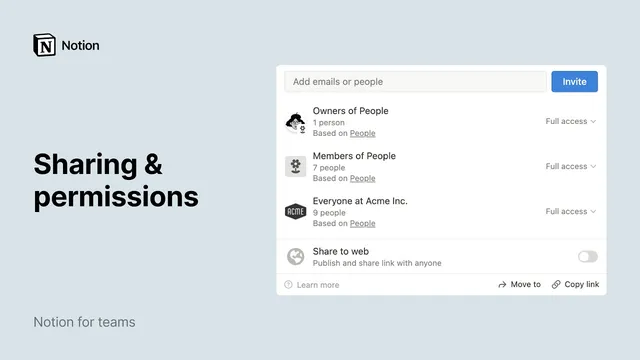
Within a Team Space, page access is controlled through sharing levels. The system supports four main permission tiers: Full access (edit and share), Can edit (edit but not share externally), Can comment (view and comment without editing), and Can view (read-only). Team Space defaults apply automatically to pages, but page-level settings can override them. A crucial rule governs conflicts: higher access wins. If a user receives full access through one path (like a group) but only view access through another (like Team Space defaults), they get full access.
Sharing is inherited from parent structures—Team Space defaults and parent pages—yet can be granted or revoked from a page’s share menu. Changes made at a page’s share menu also affect sub-pages. To restrict a page, admins can set “No access” for everyone, then selectively grant access to specific teammates or groups. The share menu also shows a “close eye” indicator when access is restricted and offers a “restore” option to revert to the original inherited permissions.
Beyond Team Spaces, Notion’s sidebar includes Shared and Private sections. Shared lists pages shared with the user or shared by them with specific people or groups, typically involving smaller collaboration groups. Private is for personal pages like drafts and to-do lists, which can remain private indefinitely or be shared later.
Finally, pages can be published to the web. Enabling “Share to web” generates a public link and publishes all pages within that page container. If the option is missing, public page sharing may have been disabled at the Team Space or workspace level. Together, these controls support both broad collaboration and tightly scoped confidentiality—whether a team has 10 people or thousands.
Cornell Notes
Notion separates administrative workspace roles from actual content access. Workspace owners and membership admins manage settings and membership, but page viewing and editing are controlled by Team Spaces and page-level permissions. Team Spaces can be open, closed, or private, which determines who can join or even see the space. Inside a Team Space, pages use permission tiers—Full access, Can edit, Can comment, and Can view—where higher access overrides lower access from different sources. Sharing is inherited from parent pages and Team Space defaults, but page-level settings can override it, including for sub-pages.
How do workspace roles differ from Team Space roles in controlling access?
What do open, closed, and private Team Spaces change for employees?
What are the page permission tiers, and what can each tier do?
How does Notion handle conflicting permissions from different sources?
How does inheritance work for page sharing, and how can it be overridden?
What’s the difference between the Shared and Private sections in the sidebar?
Review Questions
- If someone is a workspace owner, what determines whether they can edit a specific page inside a Team Space?
- When a page’s inherited permissions conflict with permissions granted via a group, which access level applies and why?
- How do open, closed, and private Team Spaces differ in who can see and join them?
Key Points
- 1
Workspace roles control administrative capabilities, while Team Space roles and page-level sharing control who can view or edit content.
- 2
Team Space settings (open, closed, private) determine visibility and join permissions across the organization.
- 3
Page permissions come in four tiers: Full access, Can edit, Can comment, and Can view, each with distinct sharing/editing rights.
- 4
Sharing permissions inherit from Team Space defaults and parent pages, but page-level settings can override them and apply to sub-pages.
- 5
When multiple permission sources apply, the higher access level always wins.
- 6
The sidebar’s Shared section aggregates pages shared with or by the user, while Private is reserved for personal pages.
- 7
Publishing to the web uses a share-to-web toggle and may be blocked if public page sharing is disabled at the Team Space or workspace level.