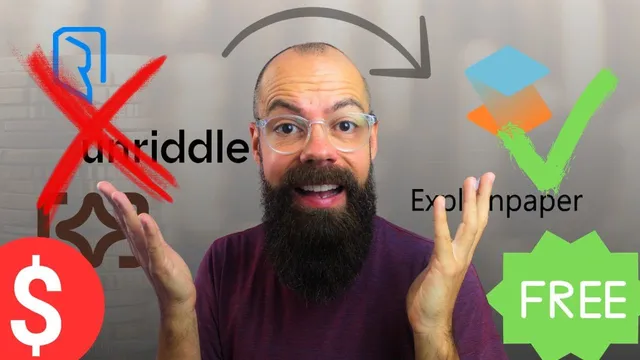
Summarize Articles: Free AI tools for Research Paper Understanding
Based on Andy Stapleton's video on YouTube. If you like this content, support the original creators by watching, liking and subscribing to their content.
Use S i space to upload PDFs and generate fast overviews like “too long didn’t read” bullet summaries and conclusions before diving deeper.
Briefing
Paywalls and subscription fees have made AI paper-reading tools feel like a recurring cost—so the practical takeaway here is a two-tool workflow that keeps research-paper understanding largely free. The core idea: use AI to generate fast “too long; didn’t read” summaries, extract key sections like conclusions, and then interactively ask questions or request explanations by highlighting specific text. That approach cuts the guesswork of where the important information lives and reduces the need to read every page end-to-end.
The first recommended tool is S i space (spelled “size space” in the transcript). After logging in, it provides a dashboard for tasks like literature reviews, extracting data from PDFs, and reading with an AI co-pilot. Its standout feature in the transcript is “extract data from PDFs,” which works by uploading a paper and then producing an at-a-glance view. Uploaded papers appear in a library with a “too long didn’t read” summary presented as a short, bullet-point overview. There are also section-focused views such as conclusions, which the narrator frames as an early stop for anyone working through many peer-reviewed articles.
S i space also includes a “read with AI co-pilot” mode. In this workflow, a user can upload a paper (especially if the first tool’s extraction isn’t sufficient), scroll through the document, highlight passages, and ask targeted questions. The co-pilot can then generate outputs such as “summarize,” “explain text,” or “related papers,” with follow-up questions supported after the initial response. The transcript emphasizes a reading strategy: start with the abstract, skim to build context, and highlight anything unclear to trigger simpler explanations. Notes can also be taken during this process.
The transcript notes that S i space’s interactive features have limits, but the speaker’s experience is that library capacity hasn’t been a problem. When those limits or credits become an issue, a second free option is recommended: “Explain Paper.” It’s described as completely free at the time of the transcript and focused on unlimited highlight explanations and follow-up questions, even though it lacks some of the broader features found in other tools. The workflow is similar: highlight a passage, choose an explanation level (ranging from “middle schooler” up to an expert), and receive a simplified paragraph that stays grounded in the text.
A key operational message ties everything together: repeatedly start at the abstract, then iterate through the paper by highlighting confusing or important sections and requesting explanations at an appropriate difficulty level (the transcript suggests aiming around high school to undergraduate for many readers). Over time, this builds a “sixth sense” for what a field is saying without needing to read every word. The overall promise is time savings—summarizing and explaining text interactively—while keeping the cost at zero using these two tools.
Cornell Notes
The transcript recommends a free, two-tool workflow for understanding academic papers without paying recurring subscription fees. S i space is used first for quick overviews—upload a PDF to get a “too long didn’t read” bullet summary, view conclusions, and extract key information. Its AI co-pilot mode supports highlighting text and asking questions, including “explain text,” with follow-up prompts and note-taking. When interactive limits or credits become an issue, Explain Paper offers unlimited highlight-based explanations for free, with adjustable difficulty levels from middle school to expert. The practical method is to start with the abstract, skim for context, then highlight unclear sections and request simpler explanations until the paper’s main ideas become clear.
Why does the transcript emphasize starting with the abstract and conclusions rather than reading from page one?
How does S i space turn a PDF into something usable quickly?
What does “read with AI co-pilot” enable, and how is it used while reading?
What limitation is mentioned for S i space, and what tool is offered as a workaround?
How does Explain Paper handle explanations, and why does difficulty-level control matter?
What is the repeated “loop” the transcript uses to build understanding over time?
Review Questions
- What specific outputs does S i space generate after uploading a PDF, and how do those outputs change the reading workflow?
- How do highlight-based explanations differ between S i space’s co-pilot mode and Explain Paper’s free mode?
- Why might adjusting explanation difficulty (middle schooler vs expert) improve comprehension of technical research text?
Key Points
- 1
Use S i space to upload PDFs and generate fast overviews like “too long didn’t read” bullet summaries and conclusions before diving deeper.
- 2
Rely on S i space’s AI co-pilot by highlighting passages and requesting “explain text” or “related papers,” then use follow-up questions to refine understanding.
- 3
Adopt a reading loop: start with the abstract, skim for structure, highlight unclear sections, and request explanations at an appropriate difficulty level.
- 4
When S i space limits or credits become a constraint, switch to Explain Paper for unlimited highlight-based explanations at no cost.
- 5
Choose explanation levels strategically (the transcript suggests high school to undergraduate as a common sweet spot) to match prior knowledge while staying grounded in the text.
- 6
Treat interactive summarization and explanation as a way to avoid reading every page end-to-end while still locating the paper’s key claims and evidence.