Super Simple Habit Tracker Template For Obsidian
Based on Prakash Joshi Pax's video on YouTube. If you like this content, support the original creators by watching, liking and subscribing to their content.
Daily Notes provides the base daily-note files, while Templater generates a consistent daily note template stored in a templates folder.
Briefing
A lightweight habit-tracking dashboard in Obsidian can be built entirely from built-in Daily Notes plus a few add-ons—then visualized with Data View tables that turn habit performance into color-coded cells. The core idea is to store each day’s habit metrics as metadata in daily note files, and let Data View read those fields to produce a “habit tracker” view that updates as new notes are created.
The setup starts with plugins. Daily Notes is used as a core plugin (no install needed). Templater is added to automate creation of daily note templates, and Data View is added to visualize the stored metadata. A templates folder is created to hold the daily note template, while a journal folder is used as the destination for daily note files. Daily Notes is configured so new daily notes land in the journal folder, and a template file (named daily node) is created under templates.
The daily note template uses YAML front matter and metadata fields for habits. The transcript uses a simple set of habits—sleep, slip reading, exercise, meditation, and writing—each initialized with a value of 0. The template is designed so habit values can later be updated per day (for example, recording minutes read, minutes exercised, or hours slept). The metadata approach is the key: Data View can only visualize what’s stored consistently in the front matter (or inline metadata).
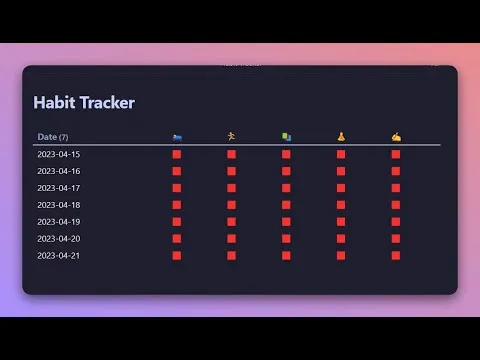
To make navigation easier, the Calendar plugin is installed so the user can quickly create daily notes across a date range. After generating a week of daily notes from the template, a new note called habit tracker is created. Inside it, a Data View query builds a table from the daily notes, using the file link as the date column. Then each habit column is rendered with conditional logic: a Data View “choice” query checks whether the stored value meets a threshold (for example, sleep greater than 7 hours). If the condition is met, the cell is shown as a green box with an associated emoji; otherwise it displays a red box and the “not completed” state.
The dashboard becomes functional once daily notes contain real metadata values. When a user edits a daily note to set sleep to 8, the habit tracker immediately shows a green cell for that date. Similar copy-and-paste queries are used for other habits, with thresholds tailored to the habit (e.g., reading for 30 minutes, meditation for 10 minutes, exercise for 30 minutes). The transcript also highlights a practical gotcha: missing commas between fields in the Data View query can break the visualization.
Finally, additional Data View queries sort entries by filename (treated as the day) and limit the displayed range to recent days. The default view shows past seven days, but adjusting the range to 14 days reveals earlier entries while excluding future-dated notes until they exist. The result is a simple, self-contained habit tracker inside Obsidian—no separate habit app required—driven by consistent metadata and Data View’s conditional table rendering.
Cornell Notes
The workflow builds a habit tracker inside Obsidian by storing daily habit metrics as YAML front matter in a Daily Notes template, then visualizing those fields with Data View. Daily Notes is configured to write files into a journal folder, while Templater automates creation of the daily note template stored in a templates folder. Each habit (sleep, reading, exercise, meditation, writing) starts with an initial value of 0 and is updated per day with real numbers (hours or minutes). A “habit tracker” note uses Data View tables and choice queries to color-code each day’s habits—green when thresholds are met (e.g., sleep > 7) and red otherwise. Sorting and date-range filters control which daily notes appear (e.g., past 7 or 14 days).
How does the template make habits trackable by Data View?
What does the habit tracker table actually do to show “done vs not done”?
Why does the habit tracker initially show all red cells?
What common query mistake can prevent the dashboard from working?
How is the time window for displayed habits controlled?
Why install the Calendar plugin if the tracker is built with Data View?
Review Questions
- What metadata fields must exist in each daily note for Data View to render the habit tracker correctly?
- How would you modify the sleep threshold logic if you wanted “done” to mean at least 8 hours instead of more than 7?
- What happens to the habit tracker when daily notes exist for future dates—why might they not appear in the table?
Key Points
- 1
Daily Notes provides the base daily-note files, while Templater generates a consistent daily note template stored in a templates folder.
- 2
Habit performance is recorded as numeric YAML front matter metadata (initialized to 0) so Data View can reliably query it.
- 3
A habit tracker note uses Data View tables with choice queries to render green vs red cells based on threshold checks (e.g., sleep > 7).
- 4
Conditional formatting relies on correct query syntax; missing commas between query parts can stop the visualization from working.
- 5
The Calendar plugin helps create daily notes across dates, which is necessary for the tracker to have data to display.
- 6
Sorting and date-range filters determine which daily notes appear (past 7 days by default, adjustable to 14 or 30).
- 7
Future-dated daily notes may be excluded until they fall within the selected time window (e.g., today and past only).