Taking ZETTLEKASTEN university school notes using Obsidian MD (concept mapping example and graph)
Based on John Mavrick Ch.'s video on YouTube. If you like this content, support the original creators by watching, liking and subscribing to their content.
Start with one main course note, then create only a few broad theme notes that act as launching pads for the rest of the map.
Briefing
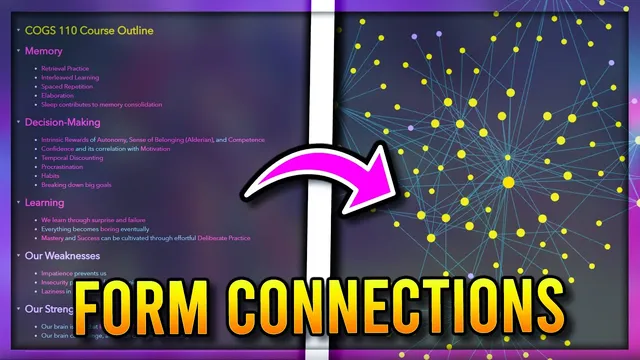
Obsidian can turn university notes into a living concept map by combining structured “parent” notes, smaller “principle” notes, and deliberate linking—then using the local graph view to reveal the bigger picture connections. The workflow starts with a single main note for the course concept being mapped (for example, a course outline). From there, a small set of broad themes acts as launching pads—such as three categories organized by a professor (memory, decision making, and learning). Each theme is then broken down into smaller, more specific principles, which can be built from existing notes (like spaced repetition and retrieval practice) or from new notes that capture a distinct idea (like learning through surprise and failure).
To make the network usable later, the notes are connected in a way that supports future retrieval. A default template helps: a status field tags “seedling” notes that still need growth, tags categorize the ideas, and links point back to the parent note so the structure holds together. After drafting principle notes, the next step is to scan sentences and link ideas that are compatible across the map. A concrete example is connecting the idea that “brains are impatient” to temporal discounting—preferring immediate gratification over long-term progress. The linking system can be granular: adding a hashtag after a note title targets a specific header, while using a caret symbol allows linking to a particular block of text.
Once the web of links exists, Obsidian’s local graph view becomes the diagnostic tool. The initial graph may look sparse, but the visualization can be tuned through settings: increasing “depth” shows not only directly linked notes but also notes linked through those neighbors (with a caution to avoid maxing it out, which can effectively display the entire vault). Enabling neighbor links surfaces indirect relationships, and filters can restrict what appears—such as showing only existing files, optionally including attachments or tags. Additional display controls help interpret the map: grouping notes by title, tags, or folder; showing link directions; adjusting text fade threshold so labels become readable; and resizing node text and link thickness for clarity.
The result is a navigable map where larger nodes represent major concepts (for example, arrows converging on a course note like “cogs” and branching into learning and decision-making), while smaller nodes represent the supporting principles. From there, users can click into any node to drill down into that sub-map. For deeper visualization of a single note’s internal structure, the mind map plugin can render headers and text blocks as branches, though long blocks may be harder to navigate.
Overall, the approach treats concept mapping as an iterative skill: there’s no one-size-fits-all process, so users adapt depth, grouping, and linking granularity to the course and their existing notes—then rely on graph and mind map views to keep the connections visible as the knowledge base grows.
Cornell Notes
The workflow builds a concept map in Obsidian by starting with one main course note, then adding a few broad theme notes (like memory, decision making, and learning). Each theme is decomposed into smaller principle notes, using existing notes where possible and adding new ones for specific ideas. A template supports long-term maintenance by tagging “seedling” notes, adding relevant tags, and linking each note back to its parent. After linking ideas across the map (including header-level and block-level links), the local graph view—tuned with depth, neighbor links, and display filters—reveals which concepts are central and how they connect. For a single note’s internal structure, the mind map plugin can visualize headers and text blocks as branches.
How does the workflow decide what notes become the “main” structure versus the “details” in a concept map?
What role does linking play, and how can links be made more precise than just “note-to-note”?
How does the template help keep the concept map maintainable over time?
Why might the local graph view look underwhelming at first, and what settings fix that?
What’s the difference between using the local graph view and using the mind map plugin?
Review Questions
- When building a concept map, what criteria should determine the number of theme notes under the main course note?
- Describe two ways to create more precise links in Obsidian (beyond linking one note to another).
- Which local graph settings would you adjust first if the graph appears too sparse or too hard to read?
Key Points
- 1
Start with one main course note, then create only a few broad theme notes that act as launching pads for the rest of the map.
- 2
Break each theme into smaller principle notes using both existing notes and new notes for specific concepts.
- 3
Use a template to tag “seedling” notes, apply relevant tags, and link each note back to its parent for long-term structure.
- 4
Connect ideas by scanning for compatible concepts across notes, including cross-links that support retrieval (e.g., impatience → temporal discounting).
- 5
Create precise connections using header-level links (hashtag after title) and block-level links (caret to target text).
- 6
Tune the local graph view with depth and neighbor links to reveal indirect relationships without flooding the entire vault.
- 7
Use the mind map plugin when you need a header-and-block visualization of a single note’s internal structure.