Tana Meeting Notes Tutorial - How Tana Enables Better Meeting Notes
Based on CombiningMinds's video on YouTube. If you like this content, support the original creators by watching, liking and subscribing to their content.
Tana treats meeting notes as structured nodes, not just text, enabling reuse and fast retrieval.
Briefing
Tana is positioned as a meeting-notes system that goes beyond simple note capture by turning meetings into structured, searchable data—then wiring that data into planning, collaboration, and action tracking. The core value is that meeting notes aren’t just text; they become reusable nodes that can be referenced later, filtered quickly, and connected to decisions, tasks, and related work. That matters because meeting notes often fail at the exact moments teams need them most: when someone tries to find “what we decided,” “what’s next,” or “what this relates to” weeks later.
The workflow starts with planning and structure. Before a meeting, Tana supports agenda/outcome thinking through dedicated nodes and fields, so the meeting has an intentional shape rather than a blank page. Afterward, the system emphasizes retrieval: notes are designed to be resurfaced and reused, not archived. Tana also includes a way to track action items, decisions, and insights—using structured “tasks” and related metadata so follow-ups don’t get lost.
Several features are highlighted as the practical reasons Tana can outperform log-seek-style approaches for this use case. First, collaboration: teams can share a workspace, and content can be pulled in from other workspaces (including super tags) to keep structures consistent. Second, sharing: notes can be published and viewed on the web via a link, enabling internal or external sharing without needing direct access to the workspace.
Third, structured inputs via fields. Fields behave like adding columns to a table: they let users define consistent attributes for meetings (and other node types), which then power filtering and display. Tana’s “super tag” concept is used to treat node types like database tables; meeting nodes can be named automatically from field values (for example, building a title from fields such as topic and date). This turns messy naming into a repeatable system.
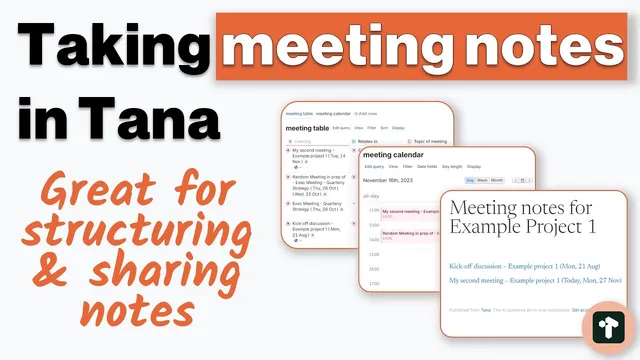
Fourth, planning support through calendar views. Meetings can be dragged onto a calendar view to enable time blocking and day planning. The transcript notes that integrations with major calendar providers aren’t available yet, but the drag-and-drop planning is still presented as a major usability win.
Fifth, fast retrieval and querying. Users can create search nodes and run visual queries, including finding nodes by tag (e.g., meetings) and filtering by related fields such as “relates to” a project.
Finally, action tracking with status checklists. Tasks can be represented as tickable items tied to super tags, with “done” vs “not done” views. The system also distinguishes between action items and reference items (including insights), and it supports “information flow” by letting agenda items and related nodes surface through both fields and search.
Trade-offs are acknowledged. Tana lacks offline access, relies on cloud storage via Google Cloud/Firebase, and is closed source. It also has a less “natural” experience for bidirectional linking compared with other tools, and it carries a steeper learning curve—though onboarding is described as polished. Recommendations focus on keeping workflows simple, building repeatable structures using super tag inheritance, and avoiding premature automation. The overall message: Tana’s strength for meetings comes from treating notes as structured, connected data that supports planning and follow-through, not just documentation.
Cornell Notes
Tana is presented as a meeting-notes system that turns meetings into structured, searchable data. Instead of storing only text, it uses super tags and fields (like table columns) to standardize how meetings are named, filtered, and connected to projects, agendas, decisions, and tasks. Published notes and shared workspaces support collaboration and web-based sharing. Calendar views and query/search nodes help with time blocking and fast retrieval, while tickable task views make action tracking practical. The main drawbacks are no offline access, cloud-based storage (Firebase/Google Cloud), closed-source concerns, and a less seamless bidirectional linking experience plus a learning curve.
What makes Tana’s meeting notes more useful than plain text notes?
How does Tana support collaboration and sharing for meeting notes?
How do fields and super tags work together to organize meetings?
What planning tools does Tana offer for meetings?
How does Tana help track action items after meetings?
What are the main downsides and who might need to care?
Review Questions
- How do fields and super tags change the way meeting notes are searched and reused later?
- Which Tana features specifically support post-meeting follow-through (action items, decisions, tasks), and how do they differ from reference notes?
- What trade-offs (offline access, cloud storage, closed source, linking style) could affect whether Tana fits a team’s workflow?
Key Points
- 1
Tana treats meeting notes as structured nodes, not just text, enabling reuse and fast retrieval.
- 2
Fields function like table columns, letting meetings carry consistent metadata that powers filtering and display.
- 3
Super tags act as database-like collections; meeting titles can be generated from field values for repeatable organization.
- 4
Calendar views support time blocking by letting meeting nodes be dragged onto a calendar, even without major calendar integrations yet.
- 5
Published notes and shared workspaces make it easier to collaborate and share meeting outcomes via web links.
- 6
Task super tags provide tickable action tracking with clear “done” vs “not done” views.
- 7
Key drawbacks include no offline access, cloud storage via Firebase/Google Cloud, closed-source concerns, and a less natural bidirectional linking experience.