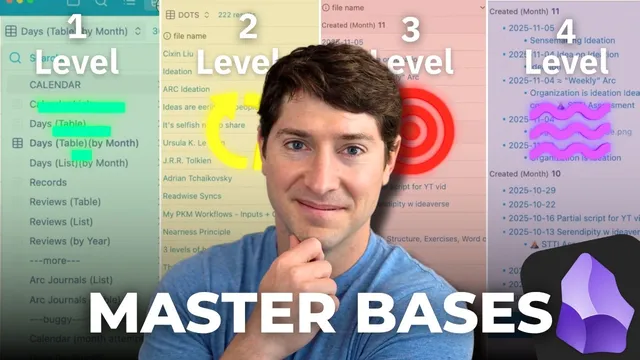
The 4 Levels of Obsidian
Based on Linking Your Thinking with Nick Milo's video on YouTube. If you like this content, support the original creators by watching, liking and subscribing to their content.
Enable workspace switching by turning on the Workspaces core plugin and assigning hotkeys for managing and saving workspace layouts.
Briefing
Obsidian’s newest “bases” and workspace switching can turn one vault into four distinct cognitive environments—each optimized for a different kind of thinking: reflection, execution, synthesis, and creation. The core move is enabling workspace switching in Obsidian’s settings and assigning hotkeys to load saved workspace layouts instantly. With that in place, a single shortcut can replace a cluttered set of tabs with a purpose-built dashboard that pulls the right notes into view.
The first archetype, **Inner Guide**, is built around daily and calendar review. A central calendar base organizes daily notes by filename (reverse chronological), while sidebars provide two complementary “same data, different lens” views: a **table by month** that groups daily notes into months for quick scanning, and a **list by month** that surfaces what each daily note links to. The workflow becomes a rapid loop: open a daily note, see newly created notes appear along with their linked connections, and use the dashboard to reduce overwhelm when the system feels too busy.
Inner Guide also includes a deeper review mode called **Dynamic Reviews**, where the left sidebar becomes **reviews by year** (table view with created timestamps and year-level entries like year reviews and previews), and the right sidebar lists the same items but emphasizes what each review note links out to. The practical payoff is retrieval: important reflections that might otherwise be buried become findable on demand.
The second archetype, **Producer**, shifts the dashboard from reflection to prioritization. In **Producer Dynamic Projects**, the right sidebar shows active projects sorted by rank, with “active” and “simmering” projects separated from “sleeping” (completed/archived/cold storage). Switching workspaces changes the mental posture: once a project’s rank and status are updated, the system immediately elevates what deserves attention—such as moving a book project to the top after finishing a major block.
A higher-level Producer view, **Dynamic (Efforts and Projects)**, introduces **Areas of Effort (AOE)**—folders that group multiple projects. Sidebars then reflect balance: an important AOE can be visible even when it has no active project, prompting a decision to either create an active project or move something from simmering to active. A separate “base blank with recents” view acts as a safety valve, letting users jump back to recently touched notes with confidence.
The third archetype, **Synthesizer**, focuses on relationships and knowledge structure. **Dynamic Relationships** uses a “bases” note (a map of content) to power sidebars that surface related notes based on link overlap—distinguishing cases where notes share links with the active note, where they point to the active note, and where they share multiple links even without direct connection. **Dynamic ACE** dimensionalizes where mentions come from by showing which folder categories contain notes linking to the active note, turning a messy “linked mentions” list into a structured distribution (e.g., movies vs. effort notes vs. calendar links). **Dynamic Maps** then organizes higher-order “map of content” notes by rank, grouped for quick navigation.
Finally, **Creative** provides two dashboards for ideation. **Dynamic Dots** treats nouns and verbs as separate sidebar columns—things and concepts on one side, statement and quote notes on the other—so creative building blocks surface together. **Dynamic Garden** uses tags to drive a living workflow: plant, cultivate, question, and revisit notes by repotting buried ideas into clearer filenames and making them easier to link. Naming workspaces after these four modes—Inner Guide, Producer, Synthesizer, Creative—creates a repeatable way to change cognitive context on demand.
Cornell Notes
The system organizes one Obsidian vault into four “workspace modes” that match different mental tasks: Inner Guide (reflection), Producer (execution), Synthesizer (relationship-based thinking), and Creative (ideation). Instant dashboards are powered by enabling workspace switching and assigning hotkeys to load saved workspace layouts, so users can swap from cluttered work to a purpose-built view in one step. Inner Guide uses calendar bases with table/list views to review daily notes and year-level reflections, including what each note links to. Producer prioritizes projects by rank and status (active/simmering/sleeping) and adds Areas of Effort (AOE) to detect imbalances. Synthesizer and Creative then surface connections, mentions, and higher-order maps using dynamic relationship views, folder dimensionalization (ACE), and tag-driven “digital garden” workflows.
How does Inner Guide turn daily notes into a usable reflection dashboard instead of a pile of entries?
What’s the practical difference between Producer’s ground-level and “rise above” views?
How does Dynamic Relationships in Synthesizer help avoid missing important connections?
Why is Dynamic ACE described as “dimensionalizing” linked mentions?
What does Creative’s Dynamic Dots organize, and how does that support ideation?
How does Dynamic Garden use tags to manage an ongoing writing workflow?
Review Questions
- What hotkey and settings changes are required to enable instant workspace switching in Obsidian?
- In Inner Guide, how do the table-by-month and list-by-month views differ in what they emphasize?
- How do Producer’s Areas of Effort (AOE) views help detect when an important theme lacks an active project?
Key Points
- 1
Enable workspace switching by turning on the Workspaces core plugin and assigning hotkeys for managing and saving workspace layouts.
- 2
Use the Inner Guide mode to reduce overwhelm: a calendar base in the center plus table/list sidebars makes daily and year-level reflection easy to retrieve.
- 3
In Producer mode, prioritize by rank and status (Active, simmering, sleeping) so the system continuously nudges attention to what matters next.
- 4
Use the “rise above” Producer view to manage Areas of Effort (AOE) and catch imbalances where an important AOE has no active project.
- 5
In Synthesizer mode, rely on dynamic relationship views to surface notes that share link overlap, helping ensure research doesn’t miss relevant connections.
- 6
Dimensionalize linked mentions with Dynamic ACE so folder categories reveal where connections actually live instead of dumping everything into one list.
- 7
In Creative mode, use Dynamic Dots for noun/verb-style ideation and Dynamic Garden for tag-driven maintenance tasks like planting, cultivating, and repotting notes.