The Best Beginner Friendly Obsidian Plugin - Make.md Tutorial
Based on John Mavrick Ch.'s video on YouTube. If you like this content, support the original creators by watching, liking and subscribing to their content.
Make.md adds a selection-based tooltip for common markdown formatting and slash commands for inserting headers and callouts.
Briefing
Make.md Community plugin turns Obsidian’s basic markdown notes into a more “app-like” workspace by adding guided formatting, drag-and-drop organization, and database-style metadata for tags. For beginners, the biggest shift is that formatting no longer depends on memorizing markdown syntax: selecting text brings up a tooltip with common actions (bold, italic, strikethrough, code, links), while typing “/” at the start of a new line surfaces slash commands for inserting headers and callouts.
Once notes are easier to write, the plugin tackles organization. Instead of relying purely on Obsidian’s alphabetical folder structure, it introduces a “spaces” pane that lets users drag folders and items into a custom order. That means high-priority projects can stay at the top without scrolling. Spaces also support a more flexible hierarchy: folders can live inside different spaces (for example, a “work” space containing a “videos” folder, and a separate “school” space containing “courses” and “assignments”). The plugin even allows a folder-like view that opens a dedicated “folder note” with the same title as the folder, giving a place to summarize what’s inside and link related items.
The organization layer doesn’t stop at folders. Make.md adds multiple ways to view the contents of a folder note—tables, cards, lists, and a “flow view” that displays items simultaneously. From there, the plugin leans into a database workflow: tags become “context” that can drive structured fields on notes. In practice, a “videos” note can be tagged “video,” and an “assignments” note can be tagged “assignment.” Make.md then uses those tags to expose properties (metadata) for each note type.
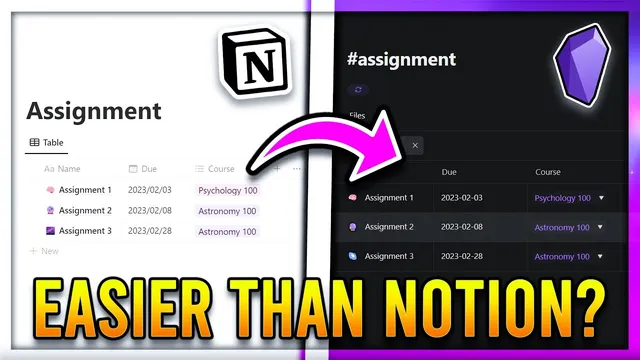
A key example is building an assignments system. For notes tagged as assignments, the plugin adds a “due date” property using a date format (year-month-date) and a “course” property as a link to a course note. After creating a course note (e.g., “psychology 100”), assignment notes can link to it and automatically show due dates and course relationships. The plugin also supports backlinks so users can see which notes reference a given course or assignment.
With metadata in place, views become customizable like dashboards. Users can group notes by fields (separating items by course), sort by deadlines (soonest first or latest), and filter to show only notes matching a specific course. Card and list views surface the same fields in different layouts, while table views provide the most control for grouping, sorting, and filtering. Overall, Make.md makes Obsidian feel less like a plain text vault and more like a structured workspace—without abandoning markdown at the core.
Cornell Notes
Make.md Community plugin upgrades Obsidian for beginners by making formatting and organization more guided and structured. A tooltip and “/” slash commands reduce the need to memorize markdown syntax, while “spaces” enable drag-and-drop ordering and flexible grouping of folders (like separating “work” and “school”). The plugin turns tags into “context” that can define note properties such as due dates and linked course relationships. With those fields, users can switch between table, card, list, and flow-style views and then group, sort, and filter notes like a lightweight database. This matters because it turns a note vault into a queryable system for assignments, courses, or content pipelines.
How does Make.md reduce the friction of writing formatted markdown notes?
What problem with traditional folder organization does “spaces” solve, and how?
How can a folder become more than a container in Make.md?
How do tags turn into structured metadata in Make.md?
What can users do once assignments have due dates and course links?
Review Questions
- What formatting features does Make.md provide to avoid memorizing markdown syntax, and what condition must be met for slash commands to appear?
- Describe how spaces change folder organization compared with Obsidian’s alphabetical sorting, including an example of separating “work” and “school.”
- How do tags and context properties work together to create due-date and course-linked assignment dashboards?
Key Points
- 1
Make.md adds a selection-based tooltip for common markdown formatting and slash commands for inserting headers and callouts.
- 2
The plugin’s “spaces” pane enables drag-and-drop reordering so important notes can stay at the top instead of following alphabetical order.
- 3
Spaces also create flexible groupings (e.g., “work” vs “school”) so folders can be organized into named sections without being limited to one static hierarchy.
- 4
Folder titles can open a dedicated “folder note” dashboard where users can summarize contents and link related notes.
- 5
Tags become “context” that can define structured properties for note types, such as assignment due dates and course links.
- 6
Metadata unlocks database-style views: table grouping, sorting by deadlines, and filtering by course to build targeted dashboards.
- 7
Multiple layouts—tables, cards, lists, and flow view—let users present the same structured note data in different formats.