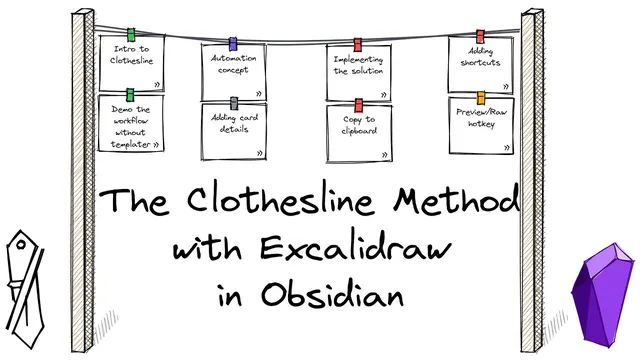
The Clothesline Method Part 1: Detailed automation case study with Obsidian-Excalidraw
Based on Zsolt's Visual Personal Knowledge Management's video on YouTube. If you like this content, support the original creators by watching, liking and subscribing to their content.
The clothesline method works best when visual steps stay lightweight while detailed per-card context lives in Obsidian and is accessed via hoverable hash links.
Briefing
A workflow for building “clothesline” cards in Excalidraw/Obsidian gets a major speed boost by turning a slow, manual linking process into an automated template. The core idea: each card on the clothesline can show a short visual clip, while a hoverable “Card details” note (with checkable tasks) lives in Obsidian—so the visual timeline stays clean without losing supporting context.
The starting point is a practical clothesline method: define the beginning and end, then add intermediate cards as the plan evolves. In the author’s workflow, cards are created by duplicating an existing element (Alt-drag), editing the text, optionally changing the clip color, and grouping icons/graphics (Ctrl+G). That part is already workable, but the real friction appears when deeper per-card information is needed. The solution is to create a separate Obsidian note (e.g., “card details”) containing sections for each card, then link each Excalidraw card to the relevant section using Obsidian’s hash anchors. Hovering the link reveals the section content, and task items can be ticked off—making the visual plan interactive rather than static.
Manually wiring those links proves cumbersome. The author experiments with how Excalidraw text elements store content, discovering that raw vs preview modes affect what gets pasted and how links render. They also hit a sizing problem: when pasted text changes length, the text box dimensions need to be recalculated. To fix this, they prototype a Templater-driven script that copies the current heading text from the active editor line, wraps it to fit, and injects it into an Excalidraw element—while also updating the bottom-right link so it points to the correct Obsidian section.
The automation is built around Excalidraw Automate functions, especially add text and wrap text. The script measures the created text element’s width, height, and baseline, then uses those values to size and position the multi-line title correctly. It also normalizes line breaks (replacing “/n” with the escaped newline form) so the JSON clipboard payload stays valid and the rendered text matches expectations. Additional logic assigns a random clip color from a curated palette.
After iterative debugging—fixing template parsing issues, correcting how the wrapped text is passed (ensuring the script uses the real multi-line string rather than an escaped variant), and rounding rectangle geometry—the final result is a reusable “clothesline script.” A Hotkey for Templates shortcut (Ctrl+Alt+C) inserts a fully formed card at the active heading location, including the correctly formatted Obsidian link in the bottom-right corner. The author reports that the remaining work is mostly fine-tuning placement, but the overall workflow becomes substantially faster and more reliable than the earlier copy-edit-link loop.
Cornell Notes
The clothesline workflow becomes fast and scalable by automating how Excalidraw cards link to Obsidian “card details” sections. Instead of manually copying a card, editing text, and crafting hash links, a Templater + Excalidraw Automate script generates a card with a wrapped multi-line title and a bottom-right hover link to the matching Obsidian heading. The script reads the current heading text from the active editor line using a regular expression, then builds clipboard-ready Excalidraw JSON. It also measures text element geometry (width/height/baseline) so the title box fits, and assigns a random clip color from a predefined palette. A Hotkey for Templates shortcut (Ctrl+Alt+C) triggers the whole pipeline, turning a previously cumbersome process into a repeatable one.
How does the “clothesline” metaphor translate into a practical planning workflow inside Obsidian and Excalidraw?
What makes the manual linking approach cumbersome, and what does automation change?
How does the script determine which Obsidian section a card should link to?
Why are raw vs preview modes important when pasting Excalidraw content?
How does the automation keep multi-line titles from overflowing or looking wrong?
What extra features make the generated cards feel “finished” rather than placeholders?
Review Questions
- When extracting the heading text from the active editor line, what does the regular expression capture group represent, and how is that value reused in the generated card?
- What role do width, height, and baseline play in the script’s ability to size and position the wrapped multi-line title correctly?
- Why does the script need to escape newline characters for clipboard/JSON output, and what symptom appears when it doesn’t?
Key Points
- 1
The clothesline method works best when visual steps stay lightweight while detailed per-card context lives in Obsidian and is accessed via hoverable hash links.
- 2
Manual card creation becomes slow once each card needs a correctly formatted Obsidian section link and a title that still fits the card’s text box.
- 3
A Templater + Excalidraw Automate script can generate a complete card payload by reading the current heading text from the active editor line.
- 4
Using wrap text plus measured element geometry (width/height/baseline) prevents multi-line titles from overflowing and keeps the layout stable.
- 5
Escaping newline characters is essential so the clipboard JSON payload stays valid and the rendered text matches the intended line breaks.
- 6
Randomizing clip color from a predefined palette makes the automated cards visually varied without extra manual steps.
- 7
Hotkey for Templates (Ctrl+Alt+C) turns the workflow into a near one-keystroke process: create a new card by pasting the generated element at the right location.