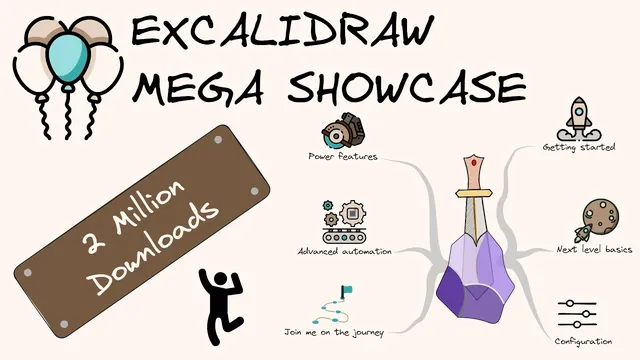
The Excalidraw-Obsidian Showcase: 57 key features in just 17 minutes
Based on Zsolt's Visual Personal Knowledge Management's video on YouTube. If you like this content, support the original creators by watching, liking and subscribing to their content.
Enable OCR in plugin settings to run scribble/image recognition and place recognized text directly on the clipboard.
Briefing
Excalidraw-Obsidian integration turns Obsidian into a visual thinking workspace by letting users draw on an infinite canvas while keeping everything linkable, embeddable, and—crucially—connected to Obsidian notes. The core promise is speed and tight workflow: diagrams, images, and even parts of PDFs can be created, exported, and referenced back inside Obsidian using markdown links, outgoing/backlinks, and element-level navigation.
A major early capability is optical character recognition (OCR) inside Excalidraw. With OCR enabled in plugin settings, users can run freehand scribbles, and the recognized text lands on the clipboard—ready to paste into notes or diagrams. From there, the basics become practical: keyboard shortcuts for shapes, alignment and sizing tools, and grid controls for consistent layout. Snap-to-objects helps position elements relative to one another, while the stencil library supports reusable illustration components that can be added, modified, and stored for later reuse.
Linking is treated as a first-class feature. Users can insert file links from the drawing context menu, hover to preview, and navigate via control/command click to jump to the target. Excalidraw can also transclude text blocks from notes into drawings using the Text Transporter plugin, and it supports element-to-element linking as well as links between scenes. Once links exist, they appear in Obsidian-style outgoing links and backlinks, aligning visual artifacts with the same navigation model as markdown notes.
The workflow extends beyond static diagrams. Mermaid markup can be converted into drawings, and an OpenAI API key plus “text to diagram” automation can generate simple flow and sequence diagrams. Styling options include switching edge types (sharp vs. sloped), changing text to normal, and adding interactive elements like embedded YouTube videos. Export and embedding are equally central: scenes can be exported as SVG, and drawings can be embedded back into Obsidian notes via standard markdown, including partial embeds by grouping elements and copying a markdown link to the group.
For power users, the script store and templates add scale. Users can define templates (including line style, font, and grid) so new drawings start with consistent defaults. Scripts enable slideshow creation, geometric splitting (split ellipse), boolean operations on shapes, repeat transformations, and selection filtering by element type. Color consistency is handled through palette loading and an “invert colors” script that keeps drawings in light mode while producing a darker, more accurate palette for Obsidian.
The integration also reaches into document workflows: PDFs can be imported either as page images for free annotation or as embeddable objects that preserve links to the source PDF. Crop-and-mask actions can extract figures while maintaining the original PDF reference, and the same concept works in markdown notes and Obsidian canvas. Additional capabilities include custom fonts (with caveats when opening on Excalidraw.com), image annotation overlays, SVG-to-strokes conversion (imperfect but useful), and limited LaTeX support.
Finally, automation and collaboration are positioned as the next layer. Excalidraw AI features require an OpenAI API key and the Excalidraw AI script; images generated by DALL·E are not automatically imported into the vault and may be deleted after 30 minutes. Direct collaboration isn’t available for Excalidraw-Obsidian files, but collaboration frames can be embedded and others can work via Excalidraw servers. The system also includes Excalidraw Publish for web export and an “EA” automation layer with a developer console and built-in help, aiming to let users automate practically anything in their visual PKM workflow.
Cornell Notes
Excalidraw-Obsidian integration makes visual diagrams part of a linked knowledge system rather than standalone drawings. It supports OCR, fast drawing tools, snap-to-objects, reusable stencils, and—most importantly—Obsidian-style linking with previews, outgoing links, and backlinks. Diagrams can be generated from Mermaid or via OpenAI “text to diagram,” and drawings can be embedded back into notes (including partial embeds via grouped element links). PDF workflows are supported through page-image imports for annotation or embeddable imports that preserve source links, plus crop-and-mask extraction that keeps references intact. Templates and a script store enable repeatable styles and advanced automation like slideshows, boolean shape operations, and repeat transformations.
How does OCR fit into the Excalidraw-to-Obsidian workflow, and what must be enabled?
What linking mechanisms make drawings behave like first-class Obsidian content?
How can diagrams be generated automatically instead of drawn from scratch?
What are the two main ways PDFs are brought into Excalidraw, and how do they differ?
How do templates and scripts help maintain consistency and scale repetitive work?
What does “partial embedding” mean for putting drawings into Obsidian notes?
Review Questions
- Which features depend on enabling settings in the plugin (e.g., OCR), and what happens to OCR output once it runs?
- How do element-level links and transcluded note blocks differ from simple file links in terms of navigation and content insertion?
- When importing a PDF, what tradeoff exists between importing pages as images versus importing as an embeddable object with preserved source links?
Key Points
- 1
Enable OCR in plugin settings to run scribble/image recognition and place recognized text directly on the clipboard.
- 2
Use context-menu file links and control/command click navigation so drawings integrate with Obsidian’s link graph (outgoing links and backlinks).
- 3
Generate diagrams from Mermaid markup or from text using an OpenAI API key with the text-to-diagram automation.
- 4
Embed drawings back into Obsidian notes via standard markdown, including partial embeds by grouping elements and linking the group.
- 5
Import PDFs either as page images for free annotation or as embeddable objects that preserve source links for crop-and-mask extraction.
- 6
Rely on templates and the script store to standardize styles (fonts, grid, line types) and automate repetitive diagram tasks.
- 7
Understand AI and image behavior: OpenAI-generated images aren’t automatically imported and may be deleted after 30 minutes unless saved to the vault.