The Free Obsidian Journal that took 400 hours to build.
Based on Karlos Obsidian Tutorials's video on YouTube. If you like this content, support the original creators by watching, liking and subscribing to their content.
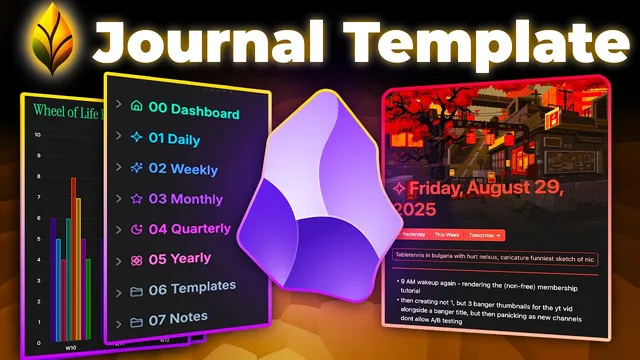
Time Garden structures journaling so daily entries automatically roll up into weekly, monthly, quarterly, and yearly overviews with charts and logs.
Briefing
Time Garden turns Obsidian journaling into a structured, data-driven system that turns daily entries into weekly, monthly, quarterly, and yearly insights—complete with charts, pattern detection, and even an AI layer that can generate summaries and fill out a “wheel of life” automatically. The pitch is simple but consequential: instead of writing long reflections, users capture events, feelings, and quick tags once per day, then let the vault’s templates and automations assemble the rest into clear visual feedback about habits, mood, and growth.
Setup is positioned as plug-and-play. After downloading a “Time Garden Vault.zip” from an email order page, users unzip it, open the top-level “Time Garden Vault” folder in Obsidian, then trust the author and enable plugins. The vault then presents a daily note as the default entry point, with a theme and banner that change by day of the week. Navigation is built around both quick buttons (today/yesterday) and the calendar view (via command palette), letting users jump across days, months, and even years.
Daily journaling in Time Garden centers on documenting “events” and “feelings” with lightweight inputs: a bullet list for what happened, an “alias” field for a short, memorable description (about seven to eight words), optional images, and a numeric rating. There’s also a “quick notes” area and tag-like fields (such as progress highlights), designed to be filled in during the day or in between sessions. The system also supports browsing across years, so past entries can appear alongside current queries when the calendar is moved to earlier dates.
The real value arrives when those daily entries roll up into higher-level notes. Weekly notes aggregate seven daily entries into an overview that includes ratings, titles, logs of quick notes, and a collapsible picture gallery. A “writing chart” highlights progression across the week and makes outliers stand out—like a low-scoring day that becomes visually obvious when reviewing the timeline. The weekly view also includes a “wheel of life,” a pie-chart style breakdown across categories such as spiritual, social, finance, career/work, and more. Users can adjust category sliders to reflect how the week felt, and the vault can display aggregated averages across longer periods.
Monthly, quarterly, and yearly notes follow the same logic but require more data to become meaningful. Charts become more fine-tuned as averages smooth out, and the yearly layer adds a “top days” list for standout entries (ratings of nine or higher). The vault also includes a graph-style visualization that links time periods into “flower patterns,” automatically connecting days into weeks, weeks into months, months into quarters, and quarters into years—an alternative to traditional manual linking.
Behind the scenes, Time Garden relies on a structured vault hierarchy with a templates folder (100+ templates), image directories for banners, and scripts that must not be deleted. A major differentiator is built-in local AI: it can answer questions in the Q&A section using relevant daily notes, generate or fill summaries, and even populate the wheel of life automatically with reasoning—while keeping data private, offline-capable, and confined to the device. Access to the AI features is tied to an “Eternal Garden membership” with a 30-day money-back guarantee, while the core vault and journaling workflow remain available to start immediately.
Cornell Notes
Time Garden is an Obsidian journaling vault that converts short daily entries into structured insights across daily, weekly, monthly, quarterly, and yearly views. Each day includes a bullet list of events, a short “alias” title, optional images, and a numeric rating, plus quick notes and tags. Weekly notes aggregate seven days into overviews, logs, picture galleries, and a “wheel of life” chart that can reveal patterns and outliers at a glance. Higher-level notes roll up those weekly results into aggregated charts and lists (including “top days” on the yearly layer). Built-in local AI can answer questions using the relevant notes and can automate parts of summarization and wheel-of-life filling without sending data off the device.
What does a user actually enter each day in Time Garden, and how does that feed later insights?
How does Time Garden help users navigate and review past entries efficiently?
What does a weekly note add beyond seven separate daily entries?
How do monthly, quarterly, and yearly notes change the analysis?
What is the “flower pattern” graph view, and how is it different from manual linking?
What role does local AI play, and what does it automate?
Review Questions
- If a user only fills in daily bullet points but leaves alias, rating, and images blank, which weekly-level elements will still populate—and which will likely remain empty?
- How does the calendar navigation in Time Garden affect what appears in date-based queries across different years?
- Describe how the wheel of life is constructed at the weekly layer and how it changes when moving to monthly and yearly aggregation.
Key Points
- 1
Time Garden structures journaling so daily entries automatically roll up into weekly, monthly, quarterly, and yearly overviews with charts and logs.
- 2
Daily notes use a short “alias,” a numeric rating, optional images, and quick notes/tags as the core inputs for later pattern detection.
- 3
Weekly notes aggregate seven days into a single view with ratings/titles, a picture gallery, quick-note logs, a writing chart, and a wheel-of-life breakdown across life categories.
- 4
Higher-level notes (monthly/quarterly/yearly) rely on completed lower-level notes and emphasize aggregated averages, standout periods, and lists like “top days” for high-rated entries.
- 5
A graph view generates automated “flower patterns” that connect days→weeks→months→quarters→years without manual linking.
- 6
Time Garden includes local AI that can answer Q&A using relevant notes and can automate wheel-of-life filling and summaries while keeping data private and offline-capable.
- 7
AI features require an “Eternal Garden membership,” while the core vault workflow is positioned as immediately usable after setup.