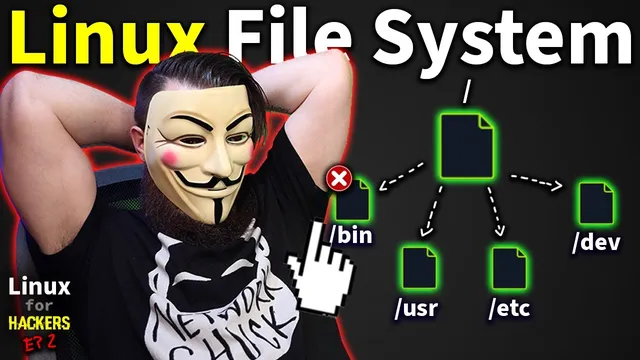
the Linux File System explained in 1,233 seconds // Linux for Hackers // EP 2
Based on NetworkChuck's video on YouTube. If you like this content, support the original creators by watching, liking and subscribing to their content.
Linux represents commands, configuration, and devices as files arranged in a hierarchy, making system navigation and troubleshooting location-driven.
Briefing
Linux’s file system is built on one unifying idea: practically everything—configuration, devices, even command programs—is represented as files arranged in a predictable directory hierarchy. That framing matters because it turns “where do I find this?” and “how do I change this?” into navigable, repeatable tasks instead of guesswork.
The session starts at the root of the file system (/), then uses basic terminal commands to orient the learner: whoami to identify the current user, ls to list directory contents, pwd to show the current path, cd to move between directories, and clear (or Ctrl+L) to tidy the terminal. From there, the lesson expands into the core claim: commands like ls aren’t magic—they live as binaries stored in directories and can be inspected like files. By navigating to /bin (the “binaries” directory), the learner finds essential command binaries, including ls. Running cat ls prints the contents of the ls binary to the terminal, demonstrating that the command is indeed a file.
To make the file analogy concrete, the lesson performs file operations on command binaries. It uses cp to copy the ls binary into a new file (named “network chuck”), then executes that new file as a command—showing that copied binaries remain runnable. It also uses rm to remove the original ls binary, requiring elevated privileges via sudo when permissions block the action. After deleting ls, listing the directory no longer works until the binary is restored by copying the modified file back to ls. The takeaway is practical: Linux permissions and file locations directly control what commands exist and what actions succeed.
The directory structure then gets mapped. /bin holds essential user-facing commands, while /sbin (often “super binaries”) contains administrator-focused commands. The lesson also highlights that /usr contains its own bin and sbin directories that largely mirror /bin and /sbin, with overlap and historical reasons tied to storage and system layout. The which command is introduced as a way to determine which copy of a command will run (e.g., whether ls comes from /bin or /usr/bin).
Next comes a tour of major system directories and what they’re for: /boot contains boot files needed to start the system; /var stores logs and web/application-related data; /tmp holds temporary files; /lib provides shared libraries; and /home is where user accounts live (with root handled separately). The root user’s files are accessible under /root, but require sudo to inspect. Device files appear under /dev, where hard drives are represented as vda/vda1 in this environment; attempting to cat a device illustrates how raw device data can overwhelm a terminal, so Ctrl-C is used to stop it.
Finally, configuration files live under /etc. The lesson drills into networking by reading /etc/network/interfaces with sudo cat interfaces, where IP addresses and interface settings are stored. The tour closes with /media and /mnt, both used for mounting drives—/media for automatic mounting of removable media, and /mnt for manual mounting workflows. The session ends with a command-memorization and practice “homework” plan, emphasizing that knowing where things live in the FHS makes troubleshooting, configuring, and hacking far faster.
Cornell Notes
The file system lesson centers on a single rule: in Linux, nearly everything is a file—configuration data, device interfaces, and even command programs. Starting at /, learners use whoami, ls, pwd, cd, and clear to navigate and orient. The walkthrough proves commands are files by locating ls in /bin, printing it with cat, copying it with cp, deleting it with rm (using sudo when needed), and restoring it. It then maps key directories like /etc for configuration (including /etc/network/interfaces), /dev for devices (vda/vda1), and /home and /root for user data. Understanding these locations and how commands resolve (via which) makes system work and troubleshooting more predictable.
Why does the lesson insist that “everything is a file” in Linux, and how is that demonstrated?
What’s the practical difference between /bin, /sbin, and /usr/bin (and /usr/sbin)?
How does which help when multiple copies of a command exist?
Where are system configuration and networking settings stored, and how does the lesson read them?
What do /dev and /etc represent, and why does catting a device behave differently than catting a file?
How do /media and /mnt differ in mounting drives?
Review Questions
- If ls is deleted from /bin, what commands and steps would restore it in this lesson’s workflow?
- How would you use which to verify whether a command is coming from /bin or /usr/bin?
- What files would you inspect to troubleshoot Linux networking settings according to the lesson, and why is sudo required?
Key Points
- 1
Linux represents commands, configuration, and devices as files arranged in a hierarchy, making system navigation and troubleshooting location-driven.
- 2
The core navigation toolkit is whoami, ls, pwd, cd, and clear, starting from / (root) to map the system.
- 3
Command binaries live in directories like /bin and /sbin; they can be inspected and manipulated like files using cat, cp, and rm.
- 4
Permissions often block file operations on system binaries; sudo enables privileged actions for specific commands.
- 5
Multiple copies of commands can exist under /bin and /usr/bin; which reveals which binary will actually run.
- 6
Key directories follow consistent roles: /etc for configuration, /dev for devices, /home for user data, /root for the root user, and /var for logs and application data.
- 7
Mount points like /media and /mnt provide file-system access to drives, with /media typically handling automatic removable mounts and /mnt supporting manual mounting.