The Ultimate Task Management Workflow In Obsidian
Based on Prakash Joshi Pax's video on YouTube. If you like this content, support the original creators by watching, liking and subscribing to their content.
Use the Tasks plugin and configure its global filter so checkbox items become tasks either universally or only when tagged.
Briefing
A practical Obsidian task-management workflow is built around the Tasks plugin plus simple query dashboards that surface “today,” “overdue,” and “on schedule” work in one place. The core idea is to treat any checkbox item in the vault as a task (or restrict that behavior with a global filter), then use Tasks’ query syntax to automatically collect tasks by due date, priority, and other properties—so planning and execution happen inside the same workspace used for writing and knowledge management.
The setup starts with the Tasks plugin (called “Tasks” / “obsidian task”). A key configuration is the “global filter” option: leaving it empty makes every checkbox item in the vault behave like a task. If the user prefers tighter control, they can assign a global task tag so only checkboxes marked with that tag become tasks. With that foundation, tasks are created as checkbox items that include properties such as due date, started, schedule date, and priority levels (high and medium). These properties can be added to tasks from anywhere in the vault.
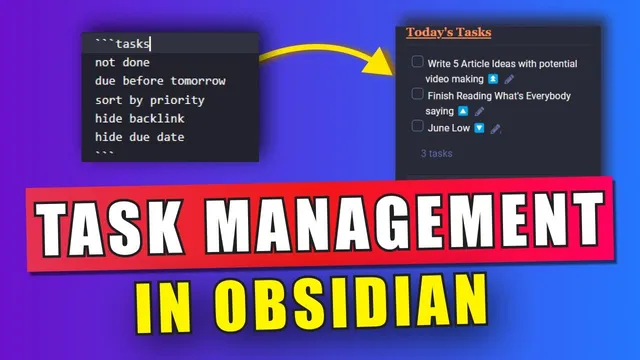
To make those tasks actionable, the workflow uses an “action dashboard” document that aggregates multiple views. It combines callouts (to visually separate sections) with the Multi Column Markdown plugin to lay out the dashboard in a structured grid. The dashboard’s “today’s tasks” section uses a query that pulls tasks not yet completed with a due date equal to today, then sorts them by priority and due date. Because those tasks already have due dates set to today, the dashboard hides the due-date field to reduce clutter.
An “overdue tasks” section runs a parallel query: it selects tasks not done whose due date is before today, then renders them in a dedicated callout. This separation matters because it turns the vault into a live status board—missed items don’t get buried among everything else.
A third view provides an “on scheduled task” list. Here, the query targets tasks not done that lack a scheduled date or due date (the transcript notes removing a path sort and hiding backlink data), so items that are not yet placed on a calendar surface in one place for follow-up.
Finally, the dashboard is pinned to the sidebar for quick access, with a toggle that shows today’s tasks directly. A monthly calendar view is also rendered in reading view, and the “today” query is reused so the sidebar list matches what appears in the dashboard. The result is a workflow where tasks can be created anywhere, but always appear in the right operational view—today, overdue, and unscheduled—without switching apps or manually reorganizing notes.
Cornell Notes
The workflow turns Obsidian into a task system by using the Tasks plugin to treat checkbox items as tasks and by attaching properties like due date, schedule date, and priority. An “action dashboard” then uses Tasks queries to automatically list three operational categories: tasks due today, tasks overdue (due before today), and tasks that are not scheduled (missing schedule/due dates). The dashboard is formatted with callouts and Multi Column Markdown so each category is easy to scan. Pinning the dashboard in the sidebar and using a toggle for “today’s tasks” lets the user review what to do next without opening the full dashboard each time.
How does the workflow decide which checkbox items become tasks inside Obsidian?
What properties are used to make task queries useful in the dashboard?
What distinguishes the “today’s tasks” query from the “overdue tasks” query?
How does the workflow handle tasks that aren’t placed on a calendar yet?
Why use callouts and Multi Column Markdown in the dashboard?
Review Questions
- What happens to task discovery when the Tasks plugin global filter is left empty versus set to a tag?
- How would you modify the logic if you wanted a separate section for “due tomorrow” rather than combining it with today?
- Which task properties are essential for the dashboard to correctly categorize tasks into today, overdue, and unscheduled views?
Key Points
- 1
Use the Tasks plugin and configure its global filter so checkbox items become tasks either universally or only when tagged.
- 2
Add due date, schedule date, started, and priority properties to each task so queries can sort and filter reliably.
- 3
Build an action dashboard that uses Tasks queries to render “today,” “overdue,” and “on scheduled/unscheduled” categories.
- 4
Sort today’s tasks by priority and due date, and hide due-date fields when they add clutter.
- 5
Use a separate overdue query for tasks with due dates before today to keep missed work visible.
- 6
Pin the dashboard in the sidebar and use a toggle to show today’s tasks without repeatedly opening the full dashboard.
- 7
Render a monthly calendar view in reading mode so tasks can be reviewed both as lists and as calendar blocks.