Top 5 Tips for Notion on Your iPhone (2022)
Based on Irfan Bhanji's video on YouTube. If you like this content, support the original creators by watching, liking and subscribing to their content.
Use iPhone home-screen widgets to deep-link into specific Notion pages and databases, so work starts on the right note without opening the app.
Briefing
Notion on an iPhone becomes dramatically more usable when key pages and databases are “deep-linked” into iOS widgets—so work starts on the right note without opening the app. The setup centers on dedicating an iPhone home screen to Notion widgets: a personal notes database, a personal knowledge management database, and widgets for recents and favorites. Tapping a widget opens a specific page instantly via a deep link (for example, jumping straight into a weekly reflection journal). That same page then appears in the recents widget, making it easy to resume on mobile exactly where desktop work left off.
The transcript also shows a practical way to keep favorites clean while still having multiple quick-access destinations. Instead of stuffing everything into a single favorites bar, it uses “in progress” pages that contain multiple favorite links—so users can reach different content with two taps. On the iPhone home screen, the user adds widgets by entering edit mode (icons jiggle), tapping the plus button, and selecting Notion widget options such as Page, Favorites, Recents, and larger variants. If pages have cover images, those covers appear in the widget, improving readability and reducing the need to open Notion just to identify what’s inside. Searching for specific pages or databases during widget setup is strongly recommended for anyone who hasn’t configured widgets yet.
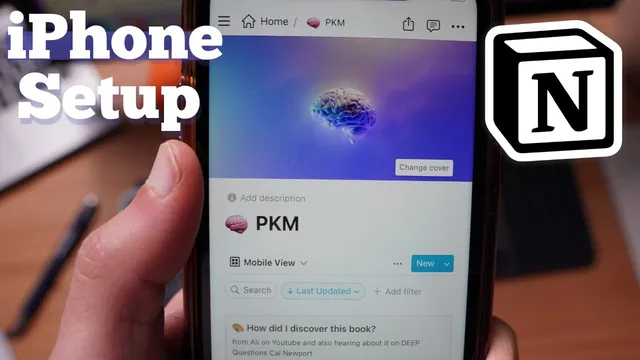
A second major improvement is tailoring database views for touch. Notion doesn’t provide a dedicated “mobile view” by default, but the workaround is to create a database view optimized for phones—typically Gallery view (or at least List view), not Table view. Gallery view supports a better touch experience and can show quick previews of each note’s contents, such as a list of favorite music albums with visible snippets as users scroll. The transcript emphasizes that Notion remembers which device a view is meant for, so a view labeled for mobile can become the default on iPhone while remaining different on desktop.
Offline reliability is handled through “pseudo offline mode.” Notion lacks true offline mode, but it caches previously opened pages. With Wi‑Fi off and airplane mode enabled, cached notes still open, and users can even create new notes that sync once connectivity returns—useful for travel or dead zones.
For reading and navigation on small screens, the transcript recommends simplifying layouts. Two-column desktop layouts become long scrolls on mobile, so it uses a toggle containing a table of contents for quick jumps between sections (like highs and lows) without endless scrolling.
Finally, the iOS share sheet turns the phone into a capture tool: photos and web articles can be saved directly into Notion databases. Using Share → Notion, the user names the item, chooses the target database (personal notes or personal knowledge management), and Notion stores not just the title and link for articles but the full article content as well.
Cornell Notes
The most effective way to use Notion on an iPhone is to reduce friction: create home-screen widgets that deep-link directly into specific pages or databases. Pair that with a mobile-optimized database view—typically Gallery view or List view—so touch navigation and previews work well, while Table view stays reserved for desktop. Notion doesn’t offer true offline mode, but it caches pages and still allows creating new notes that sync later. For long-form reading, use toggles with a table of contents to jump between sections without scrolling. Capture anything from the web or your camera using the iOS share sheet, saving photos and full articles into the right Notion database.
How do deep-linked widgets change day-to-day Notion use on iPhone?
Why is Gallery view (or List view) preferred over Table view on mobile?
What does “pseudo offline mode” mean in Notion?
How can mobile navigation be improved for long pages?
How does the iOS share sheet integrate with Notion?
Review Questions
- What specific widget setup reduces the number of taps needed to resume a page on iPhone, and how does deep linking help?
- Which database view types are recommended for mobile use, and what problem does Table view create on small screens?
- What happens to cached pages and newly created notes when the iPhone is in airplane mode?
Key Points
- 1
Use iPhone home-screen widgets to deep-link into specific Notion pages and databases, so work starts on the right note without opening the app.
- 2
Dedicate a Notion-focused home screen with widgets for recents and favorites, and ensure pages have covers for faster visual identification.
- 3
Optimize database views for touch by using Gallery view (or List view) instead of Table view on iPhone.
- 4
Label and configure a mobile-optimized view; Notion can remember which device should use which view.
- 5
Rely on cached pages for offline use: Notion lacks true offline mode, but previously opened pages still load and new notes sync later.
- 6
Use toggles with a table of contents to jump between sections on mobile and avoid long scrolling.
- 7
Capture content with iOS Share Sheet → Notion to save photos and full web articles into the appropriate database.