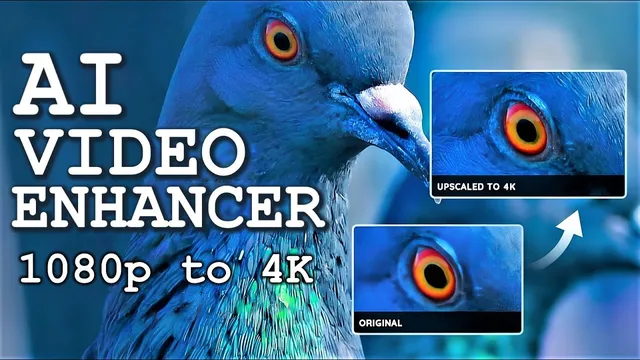
Transform Your Video Quality to 4K with AI Upscaling - AVCLabs Video Enhancer AI
Based on MattVidPro's video on YouTube. If you like this content, support the original creators by watching, liking and subscribing to their content.
AVCLabs Video Enhancer AI uses AI multi-frame super resolution to upscale 1080p footage toward a 4K-like look while reducing noise and improving edge clarity.
Briefing
AI video enhancement tool AVC Labs Video Enhancer AI can take grainy 1080p footage and produce convincing 4K upscaled results—especially by removing noise and smoothing distracting artifacts—while keeping motion and key edges looking sharp enough for everyday creator use.
The pitch starts with a common creator frustration: many cameras deliver strong autofocus in 1080p but degrade in 4K, forcing creators to choose between stable focus and higher resolution. AVC Labs positions its software as a way to “alleviate” that tradeoff by using AI multi-frame super resolution to recover detail, refine faces, and reduce noise/grain. The tool also offers options like AI face blur, background blur for moving subjects, and controls for brightness, saturation, contrast, and deinterlacing (even though the tested clips weren’t interlaced). Hardware acceleration is supported through GPU processing, with CPU as a fallback.
In hands-on testing, the workflow is straightforward: install the app, drop a file into the editor, choose upscaling settings, and start processing. The creator ran multiple clips locally, noting that processing time depends heavily on the graphics card—about three seconds per frame on a comparatively older GPU, meaning longer videos can take hours.
The results were strongest on low-light, noisy material. A 1080p clip of a dog chewing a toy—grainy and difficult—became noticeably cleaner after upscaling. Denoising reduced the “nasty grain” without destroying the overall look, and the output retained the original audio. When paused and examined closely, some fine texture was smoothed by the AI, but the moving playback looked clear and “completely fine,” which is the practical win for most viewers.
Other tests focused on how well the software preserves detail during upscaling. A sequence featuring pumpkins and fall scenery looked sharper overall, with crisp edges and improved clarity, though some surfaces appeared slightly smoother than the source. Leaf-heavy footage exposed the limits: shimmering showed up as the AI tried to interpret intricate, repetitive shapes, and fine leaf detail could look slightly blended. A close-up of the dog’s face showed edge sharpening around fur and a pleasing background blur effect; some subtle detail was lost at certain edges, but the fur and mouth area still retained a lot of usable structure.
Across the set, the software’s core value is practical enhancement rather than perfect reconstruction. It delivers a cleaner, sharper 4K-like presentation from challenging 1080p sources, with denoising and edge sharpening doing the heavy lifting. The main downside observed is that the AI can smooth away some micro-detail—most noticeable in freeze frames and in highly intricate textures like leaves. Still, for creators dealing with imperfect lighting, noisy footage, or cameras that don’t behave well in 4K, the tool is presented as a meaningful first iteration with a free trial and tiered pricing (including a lifetime option).
Cornell Notes
AVCLabs Video Enhancer AI aims to turn low-resolution, noisy 1080p footage into a sharper 4K-like output using AI multi-frame super resolution. In testing, the biggest improvement came from denoising: grain that was distracting in low-light clips became much less noticeable while motion playback stayed clear. Edge sharpening and background blur also looked strong, and audio was retained. Close inspection (freeze frames) revealed that some fine micro-detail can be smoothed out, especially in complex textures like leaves, where shimmering artifacts appeared. Processing runs locally and can be GPU-accelerated, but speed depends on hardware (about three seconds per frame on an older graphics card).
What problem does AVC Labs Video Enhancer AI target for creators, and why does it matter?
Which features were actually used during testing, and what do they do?
How did the software perform on low-light, grainy footage?
Where did the upscaling struggle with detail preservation?
What does processing speed depend on, and what was the observed runtime?
Did the enhancement affect audio quality?
Review Questions
- In what situations would denoising and edge sharpening provide the biggest practical benefit from AI upscaling?
- What kinds of visual content (e.g., fine textures) are most likely to reveal artifacts like shimmering or over-smoothing?
- How would you estimate total processing time for a long video using the reported “seconds per frame” performance?
Key Points
- 1
AVCLabs Video Enhancer AI uses AI multi-frame super resolution to upscale 1080p footage toward a 4K-like look while reducing noise and improving edge clarity.
- 2
Denoising was the most noticeable win in low-light, grainy clips, making motion playback look cleaner even when freeze frames reveal some smoothing.
- 3
Edge sharpening and background blur effects appeared strong, including in close-up fur and face shots, though micro-detail can be softened.
- 4
Highly intricate textures (especially leaves) can trigger shimmering or blended fine detail as the AI tries to reconstruct patterns.
- 5
Processing runs locally and can use GPU hardware acceleration; speed varies widely by graphics card and can be slow for long videos.
- 6
The workflow is straightforward: install, drag in a file, choose model/settings (e.g., multi-frame, denoising), and start processing; audio is preserved in the output.
- 7
Pricing includes monthly plans and a lifetime buy-once option, with a free trial available to test compatibility with specific footage.