ULTIMATE Guide to Use Notion Buttons (2024) | database button, page buttons, use cases, and more
Based on The Organized Notebook's video on YouTube. If you like this content, support the original creators by watching, liking and subscribing to their content.
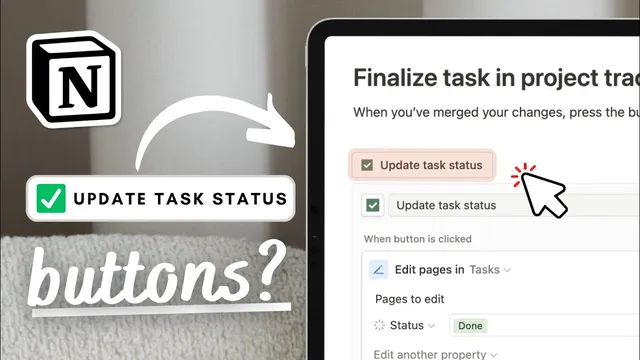
Create buttons quickly with “/button,” then configure what happens on click using actions and optional steps.
Briefing
Notion buttons are positioned as a practical way to automate repetitive database actions—adding content, updating properties, creating related records, and even building navigation—without leaving the page. The core idea is that a single click can trigger one or more “steps” (like inserting blocks, editing properties, showing confirmations, and opening newly created pages), turning a static workspace into a workflow tool.
Creating buttons is straightforward: typing “/button” and selecting Button lets users name the button, choose an emoji or icon, and then configure what happens on click. Buttons can also be added inside databases by using “/database” to create a table view and then inserting a button property within that database. Once configured, buttons can drive simple content generation—for example, a “daily to-do” button that inserts a toggle list prefilled with a to-do list. Each click duplicates the same structure, making it easy to generate repeated checklists or prompts day after day.
Buttons become more powerful when they act on database records. A common pattern shown is adding a page to a database from a button: a button labeled “add page” can create a new entry in a chosen database, optionally pre-setting the new page’s name and other properties. Another enhancement is chaining actions so the button both creates the page and opens it immediately, making the workflow feel more like a guided app.
The transcript also details bulk property changes. For instance, an “archive” button can edit multiple pages in a database by replacing a tag value (e.g., swapping “doing” or other tags to “archive”). Filters can narrow which records get updated—such as only overdue tasks—before the replacement happens. The same mechanism works at the page level: a “complete” button inside a specific database entry can edit that page’s properties (changing the tag to “complete”). Templates extend this idea: a “complete” button can be embedded into a database template so every new entry starts with the same one-click completion behavior.
Because some actions are irreversible or high-impact, the workflow includes confirmation dialogs. An “archive everything” button can prompt “Are you sure you want to Archive everything?” with Continue/Cancel options, and the action only proceeds after confirmation.
Buttons can also coordinate between multiple databases. An “archive” workflow can update tasks in one database, then add a notification page into a second database (e.g., “all tasks are archived”), and finally open that new page. This effectively links systems together using button-driven steps.
Beyond database automation, buttons are used for navigation. A “return home” button can open a “homepage” page from an “about us” page, creating a web-like back-and-forth experience.
Finally, the transcript highlights “new database buttons” as property-aware tools: a “complete” button can set a status tag and automatically stamp a completion date; an “upvote” button can add the current user to a person property, with a formula calculating counts like “upvotes”; relation-based buttons can add subtasks to a task via a relation property; and time-tracking buttons can log start and end timestamps, enabling formulas to compute elapsed minutes. The overall message: buttons turn Notion databases into interactive workflows where one click performs the next logical step.
Cornell Notes
Notion buttons can automate common database workflows by bundling multiple actions into a single click. They can insert blocks (like a new to-do toggle list), create new database pages, edit properties across one or many records, and optionally open the resulting page. Buttons also support confirmation dialogs for risky actions and can coordinate between separate databases by adding related pages elsewhere. Used inside database entries, they can update status tags, set completion dates, add people to a list, manage relations like subtasks, and log start/end times for duration calculations. This matters because it reduces repetitive manual work and makes Notion feel more like an app with guided interactions.
How do buttons get created in Notion, and where can they live?
What’s an example of a “block-generating” button workflow?
How can a button create and open a new page in a database?
How do buttons update properties, including bulk edits and page-level edits?
What role do confirmation dialogs and multi-step workflows play?
How can buttons support navigation and time tracking?
Review Questions
- What are the main categories of actions a Notion button can perform, and how do they differ between block insertion and database record edits?
- Describe how a multi-step button could update one database and then create and open a related page in a second database.
- How would you design a start/end time button workflow so a formula can calculate elapsed minutes?
Key Points
- 1
Create buttons quickly with “/button,” then configure what happens on click using actions and optional steps.
- 2
Buttons can insert reusable blocks (like a toggle with a to-do list) so repeated content appears with one click.
- 3
Buttons can add new pages to a database and can optionally open the created page immediately.
- 4
Buttons can edit properties in bulk (with filters) or at the page level, such as replacing a “tag” value to “archive” or “complete.”
- 5
Confirmation dialogs can be added to prevent accidental execution of large changes like archiving everything.
- 6
Buttons can coordinate multiple databases by updating one set of records and then adding a notification page to another database.
- 7
Database buttons can automate status changes, completion dates, relation updates (subtasks), upvote-style person additions, and start/end time logging for duration formulas.