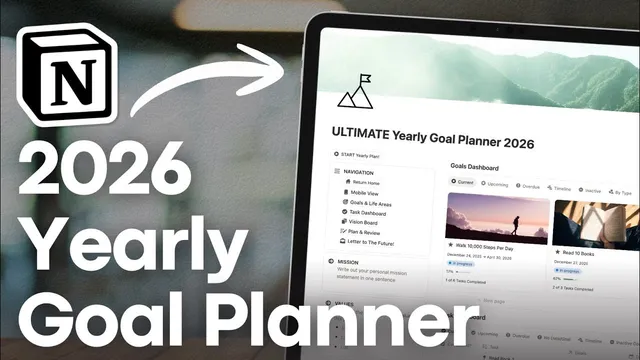
Ultimate Yearly Goal Planner for 2026! | Full Guide & Notion Template Tour
Based on The Organized Notebook's video on YouTube. If you like this content, support the original creators by watching, liking and subscribing to their content.
Use “Start yearly plan” once to generate a dated yearly planning page, then mark it “planned” after completing the setup and “review” at year’s end.
Briefing
A Notion template built for 2026 turns yearly goal-setting into a trackable system—from life-area vision down to dated tasks—with automatic progress indicators and scheduled check-ins. The core promise is simple: once goals are planned, the dashboard surfaces what’s current, what’s upcoming, what’s overdue, and how much of each goal has been completed, so “I set goals” becomes “I can see where I stand.” The template is designed to start any time (not just January 1), and it supports weekly, monthly, quarterly, and yearly planning and review cycles.
The setup begins with a dedicated “Start yearly plan” action that creates a new planning page tagged with today’s date. Two checkboxes—planned and reviewed—mark the workflow: tick “planned” after the year is mapped out, and tick “review” at year’s end. From there, planning follows a step-by-step sequence. Users brainstorm hopes for the year, then select which “life areas” matter most (the template includes examples like relationships, health, and creativity). A “letter to the future” is generated from a template where the open date is automatically calculated; users can also enable reminders so the letter is prompted on the intended day one year later. A “theme of the year” field ties the system together, and a vision board lets users activate images over time—either reusing prior picks or adding new entries with cover images sourced from Unsplash.
Goals are added in a goal database, with each goal tagged to a life area and given a goal period using start/end dates. The template encourages keeping the goal list actionable, with guidance that roughly three to five goals is a workable range. For each goal, users can define how it will be pursued and then break it into tasks. Tasks can be given due dates and deadlines, and they can be split into smaller milestones (for example, reading progress broken into multiple items). Once tasks are created, the task dashboard organizes them into “today,” “upcoming,” “overdue,” and items missing dates or goal links. Completion is quantified as a progress percentage, updating as tasks are marked done.
A “plan and review” section supports recurring check-ins. Weekly, monthly, and quarterly templates include prompts for reviewing upcoming and overdue items, and each cycle includes planned/review checkboxes. The year-end review uses the same structure as planning, including revisiting the earlier letter to the future and writing hopes for the next year.
For users with Notion AI, an “AI Agent Instructions” page configures a goal-planning assistant. The agent can be personalized by setting preferences such as how goals should be defined, how deadlines are handled, and what to do when someone feels overwhelmed. After setup, the agent can answer questions like what to do next, summarize the status of goals and tasks, and assist with year-end review. Customization extends beyond content: cover photos and life-area colors can be swapped (including dark-mode-friendly options), and the mobile view condenses goals and tasks for on-the-go tracking.
Cornell Notes
The template turns yearly goal planning into a structured, trackable workflow in Notion. Users start by creating a yearly plan page (any time, not only January 1), then fill in hopes, key life areas, a theme, a vision board, and a “letter to the future” with an automatically calculated open date and optional reminders. Goals are added with life-area tags and date ranges, then broken into dated tasks; dashboards sort tasks into today/upcoming/overdue and show completion progress as a percentage. Weekly, monthly, quarterly, and yearly plan-and-review pages provide recurring check-ins. With Notion AI, an “AI Agent Instructions” page can tailor a goal-planning assistant to the user’s preferences and help with next steps and reviews.
What does “Start yearly plan” do, and how does the template track progress through the year?
How does the template connect big-picture vision to day-to-day execution?
What’s the purpose of the “letter to the future,” and how is it scheduled?
How do weekly, monthly, quarterly, and yearly reviews work in practice?
What can Notion AI add to this system, and how is the agent customized?
How can users tailor the planner’s look and feel?
Review Questions
- If a goal is added with an end date of 2026 and tasks are created without due dates, where will those tasks appear in the dashboards?
- How does the template ensure the “letter to the future” is opened at the right time, and what reminder option is available?
- What inputs feed into the dashboards, and what checkboxes mark completion of planning versus review?
Key Points
- 1
Use “Start yearly plan” once to generate a dated yearly planning page, then mark it “planned” after completing the setup and “review” at year’s end.
- 2
Plan the year by filling hopes, selecting important life areas, choosing a theme, building a vision board, and writing a “letter to the future” with an automatically calculated open date.
- 3
Add goals in the goal database with life-area tags and explicit start/end dates so the system can sort them into current, upcoming, and overdue views.
- 4
Break each goal into tasks with due dates and deadlines; the task dashboard updates completion status and shows progress as a percentage.
- 5
Run recurring check-ins using weekly, monthly, quarterly, and yearly plan-and-review templates, each with prompts and planned/review checkboxes.
- 6
Configure the Notion AI “Goal Planning Agent Instructions” to match personal preferences, then ask the agent for next steps and status summaries.
- 7
Customize covers and life-area colors (including dark-mode-friendly options) to keep the planner visually aligned with how the user works.