Using Reflect's AI features
Based on Reflect Notes's video on YouTube. If you like this content, support the original creators by watching, liking and subscribing to their content.
Reflect’s AI assistant turns highlighted note text—most often voice transcriptions—into structured outputs like key takeaways, action items, project proposals, and daily reflections.
Briefing
Reflect’s core AI workflow centers on turning messy voice-to-text notes into structured, reusable outputs—then letting users query their own note library with AI using filtered context. The biggest practical payoff comes from the AI assistant: highlight a block of text (often produced by Reflect’s voice transcription), run a prompt, and instantly convert long transcripts into formats like key takeaways, action items, project proposals, daily reflections, or simple one-page summaries.
In the assistant flow, users can trigger prompts via a shortcut (Command J) or by highlighting text and selecting the “magic stars” menu. The transcript uses fake examples to demonstrate three common use cases. For a client call transcript, the assistant can reorganize an unbroken transcript into clean sections such as “key takeaways” and “action items,” making the content skimmable and actionable. For project work, a “project proposal” prompt outputs a consistent markdown template with fillable variables, so the result is structured rather than free-form. For personal journaling, a “daily reflection” prompt reformats a recorded audio note into a repeatable structure that includes sections like gratitude, a reframing exercise, and a top priority.
A key theme is that prompts work on any text, but voice notes are the dominant use case because transcription produces large blocks of text that typically need formatting. Even when the end goal is writing—such as turning a rambling voice note into an article outline—the assistant’s value is in transforming raw input into a usable structure. In practice, the workflow is often: record audio → transcribe → run an assistant prompt to restructure.
The transcript then shifts to how custom prompts are built and managed. Users can clone built-in “system” prompts, rename them for specific contexts (for example, tailoring a proposal format for LinkedIn), and edit instructions and output templates. A practical tip is to start by writing the desired format directly in a note, then copy that format into the custom prompt so the AI has a clear blueprint. For one-off requests, an “open prompt” field supports quick transformations without saving a reusable prompt.
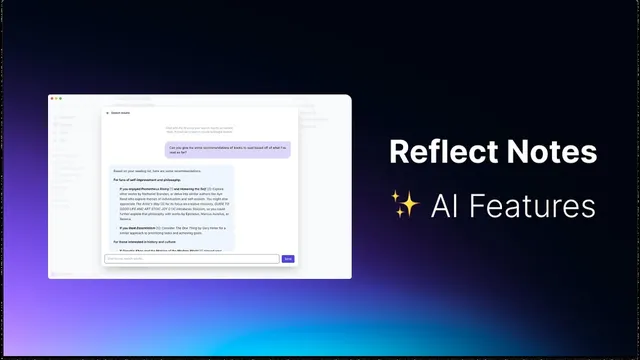
Beyond formatting, Reflect adds “chat with your notes” through advanced search. Instead of giving AI access to everything, users narrow the context window using filters such as tags (e.g., a “book” tag). With that scoped context, the AI can answer questions and generate follow-ups—like recommending a next book based on what’s already been read in the selected category. The system uses Google Gemini for this chat, and it can ingest a large number of notes (such as daily notes from the past year) to extract themes and categories. It’s positioned as concept-level synthesis rather than exact fact retrieval (e.g., it won’t reliably answer a question like the “17th word” in a note).
Finally, device support matters: the AI assistant is available on iPhone iOS and works like desktop, including custom prompts. “Chat with your notes” is not yet available on iPhone because advanced search isn’t on that platform, though both features are available on iPad. Voice transcription is also available on mobile apps, reinforcing the same end-to-end workflow across devices: record, transcribe, then prompt-transform.
Cornell Notes
Reflect’s AI assistant is designed to turn long, unstructured note text—especially voice transcriptions—into structured outputs using prompts. Users highlight text (often transcribed from audio), run a prompt via Command J or the “magic stars” menu, and can generate key takeaways, action items, project proposals in markdown templates, daily reflections, or one-page summaries. Custom prompts can be created by cloning built-in system prompts and editing instructions and output formats; a recommended method is to draft the target format in a note first, then paste it into the prompt. For deeper insight, “chat with your notes” uses advanced search filters to limit context and relies on Google Gemini to synthesize themes from selected notes. The AI assistant works on iPhone and desktop, while chat-with-notes is currently limited to iPad and not available on iPhone.
Why do voice notes tend to be the best input for Reflect’s AI assistant?
How does a custom prompt help keep outputs consistent, and what’s the recommended way to build one?
What’s the difference between cloning a system prompt and using the “open prompt” field?
How does “chat with your notes” avoid overwhelming the AI with everything in a library?
What kinds of questions does the AI chat handle well versus poorly?
What device limitations apply to Reflect’s AI features?
Review Questions
- When would you choose a saved custom prompt over the open prompt field, and what benefit does the saved prompt provide?
- How does advanced search filtering change what the AI can answer during “chat with your notes”?
- Give one example of a task that voice transcription makes easier to use with the AI assistant, and explain why formatting is the key step.
Key Points
- 1
Reflect’s AI assistant turns highlighted note text—most often voice transcriptions—into structured outputs like key takeaways, action items, project proposals, and daily reflections.
- 2
Prompts can be run via Command J or through the “magic stars” menu, and results can be inserted or replaced directly in the note.
- 3
Custom prompts are most effective when they include a clear output format (often markdown) and can be cloned from built-in system prompts.
- 4
A practical prompt-building method is to draft the target format in a note first, then paste that format into the custom prompt as a template.
- 5
“Chat with your notes” relies on advanced search filters to limit context and uses Google Gemini to synthesize themes from selected notes.
- 6
AI chat is better for summaries, recommendations, and conceptual insights than for exact word-by-word queries.
- 7
The AI assistant works on iPhone and desktop, while “chat with your notes” is currently limited to iPad because advanced search isn’t on iPhone yet.