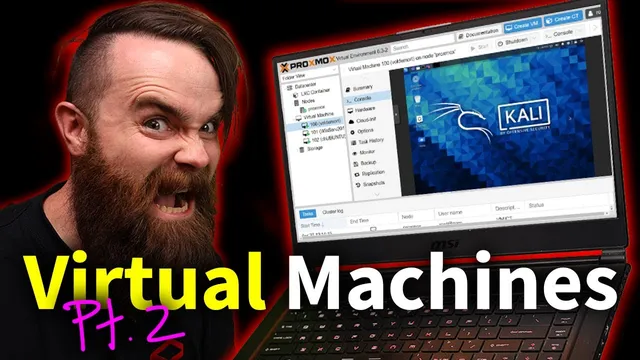
Virtual Machines Pt. 2 (Proxmox install w/ Kali Linux)
Based on NetworkChuck's video on YouTube. If you like this content, support the original creators by watching, liking and subscribing to their content.
Proxmox provides a type 1 hypervisor setup by installing Proxmox Virtual Environment directly on hardware, replacing the existing OS and avoiding type 2 resource-sharing limits.
Briefing
A type 1 hypervisor setup with Proxmox turns an old PC into a dedicated “computer inside a computer” platform—built for running multiple virtual machines and Linux containers without the resource limits and OS-sharing overhead of type 2 tools like VirtualBox. The practical payoff is bigger, more serious lab capacity: more CPU and RAM available per guest, larger deployments, and a closer match to how enterprise virtualization is typically run.
The core shift is architectural. With type 2 hypervisors, the host operating system stays in the middle, sharing its resources with virtual machines. With type 1, Proxmox runs directly on the hardware, so the existing OS (for example, Windows 10) is wiped and replaced by Proxmox. That “no layer between hardware and hypervisor” design makes the host OS lightweight and keeps the system focused on delivering virtualized compute. The pitch is also career-oriented: learning a type 1 hypervisor is framed as a resume-building skill, with VMware ESXi cited as the common corporate alternative—though ESXi often struggles with consumer hardware.
After the motivation, the transcript walks through a full install workflow. Requirements are straightforward: a spare machine (old laptop or desktop), at least an 8GB USB flash drive, and—crucially—an Ethernet connection (Proxmox won’t use Wi‑Fi). The process starts by downloading Proxmox Virtual Environment ISO images from proxmox.com, then writing the ISO to the USB drive using Rufus on Windows (switching to “dd” mode for reliability). Booting into the installer may require BIOS/UEFI changes so the system starts from the USB hard disk.
During installation, the transcript emphasizes network setup: Proxmox needs DHCP to assign an IP, and if the Ethernet cable isn’t connected early, the installer may require setting a static IP manually. Once installed, management happens through a web UI at https://<IP>:8006, using the default username root and the installation password. A certificate warning appears if no SSL certificate is configured, but the system is still functional.
A key “make it usable” step follows: expanding storage. By default, Proxmox may not allocate the full disk to virtual machine storage, especially on single-drive installs using local-lvm. The workflow removes the local-lvm volume and then runs three LVM/resize commands in the Proxmox shell to reclaim and expand the filesystem, effectively unlocking the majority of the drive for VM and container use.
With storage ready, the lab becomes real: ISO images are uploaded (examples include Kali Linux, Ubuntu, and Windows Server 2019). Virtual machines are created with chosen VM IDs, storage size (e.g., 50GB), CPU cores, RAM (e.g., 4096MB), and bridged networking. The transcript also adds containers using LXC: it downloads container templates (e.g., Ubuntu 20) and creates a fast Ubuntu container that boots in seconds.
Finally, it addresses practical “laptop server” concerns. Commands and config edits adjust systemd login settings so closing the laptop lid doesn’t suspend the system, and GRUB settings add a screen timeout so the display sleeps after a few minutes. The result is a persistent, headless-style homelab that can run VMs and containers even when the laptop is tucked away.
Cornell Notes
Proxmox turns spare hardware into a type 1 hypervisor lab by installing Proxmox Virtual Environment directly on the machine, replacing the existing OS. The setup is managed through a web UI at https://<IP>:8006 and supports both full virtual machines (Kali Linux, Ubuntu, Windows Server 2019) and Linux containers via LXC templates (e.g., Ubuntu 20). A major usability step is reclaiming disk space by removing local-lvm and resizing the remaining storage so virtual machines can use most of the drive. The workflow also includes practical laptop-lab tweaks so closing the lid doesn’t suspend the system and the screen can sleep after a set time. This matters because it creates a more enterprise-like, scalable virtualization environment than type 2 hypervisors on a typical desktop OS.
What makes Proxmox a “type 1” hypervisor, and why does that matter for running multiple labs?
Why does the install workflow insist on Ethernet instead of Wi‑Fi?
How does the transcript handle the common “not all disk space is available” problem after Proxmox installation?
What’s the difference between creating a VM and creating an LXC container in Proxmox?
How does the transcript keep a laptop-based Proxmox lab running when the lid is closed?
Review Questions
- What architectural limitation of type 2 hypervisors does type 1 Proxmox avoid, and how does that affect VM capacity?
- Why is reclaiming storage (removing local-lvm and resizing) a prerequisite before deploying many VMs or containers?
- In what situations would you prefer an LXC container over a VM, based on the transcript’s examples?
Key Points
- 1
Proxmox provides a type 1 hypervisor setup by installing Proxmox Virtual Environment directly on hardware, replacing the existing OS and avoiding type 2 resource-sharing limits.
- 2
Ethernet is required because Proxmox won’t use Wi‑Fi; missing Ethernet early can force manual static IP configuration during installation.
- 3
Writing the Proxmox ISO to USB on Windows is done with Rufus, using “dd” mode for the ISO-to-flash process.
- 4
After installation, reclaim disk space by removing local-lvm and resizing the main logical volume so virtual machines can use most of the physical drive.
- 5
Proxmox supports both VMs (from uploaded ISO images like Kali Linux, Ubuntu, and Windows Server 2019) and LXC containers (from ct templates like Ubuntu 20).
- 6
A laptop-lab can stay online by configuring systemd-logind to ignore lid switch events and by adjusting GRUB settings to control screen blanking.
- 7
Management happens via a web UI at https://<IP>:8006 using root credentials set during installation, with certificate warnings handled by continuing to the interface.