Visualize Notion Databases with Conditional Colors | Full Guide & Tutorial
Based on The Organized Notebook's video on YouTube. If you like this content, support the original creators by watching, liking and subscribing to their content.
Conditional colors require a database and are configured in database settings under “Conditional color” using property-based rules.
Briefing
Notion’s new conditional colors let database cards change color automatically based on property values—turning dense tables into at-a-glance dashboards for overdue items, progress states, and numeric “heat map” trends. The tutorial walks through how to set them up: create a database (e.g., tasks), add properties like Due date and Status, then open the database’s settings and add “Conditional color” rules. A common first rule is date-based urgency: if Due date is before today, cards turn red; tasks with no due date or due dates in the future stay uncolored (or default). The payoff is immediate visual triage—especially for users who want to spot overdue work without scanning dates.
From there, the guide shows how to refine date logic into multiple urgency bands. For client projects, one conditional color rule marks deadlines that are before today as red (overdue), while another marks deadlines relative to today—specifically “next week”—as orange. Projects with deadlines further out remain white, creating a simple gradient of urgency that helps people prioritize what needs attention now versus what can wait.
Conditional colors also work for categorical properties. Instead of coloring by dates, the tutorial demonstrates switching the rule to Status (e.g., In progress becomes blue and Done becomes green). It then extends the same idea to categories/tags: when conditional coloring is set to Tag, the card background can match the color already assigned to each tag option, making a task board visually encode what kind of work each card represents (new feature, bug fix, documentation) without relying on small tag pills.
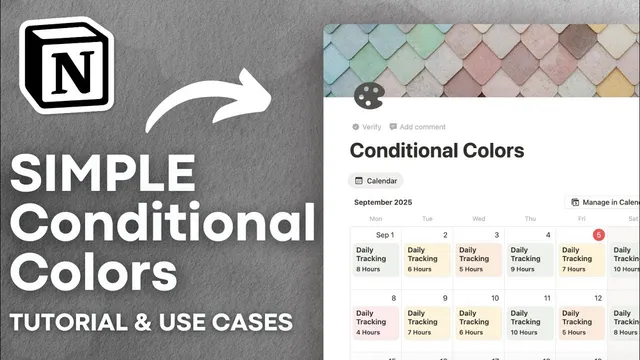
A third major use case is numeric ranges for “heat map”-style tracking. Using a sleep tracker example, the guide sets conditional colors on a number property (hours slept). If hours are greater than or equal to 8, cards turn green; if hours are less than or equal to 5, they turn red; and intermediate thresholds (like 6) map to orange. With multiple range rules, the database becomes a month-long visual summary of performance—highlighting good days versus poor ones. The same approach can apply to other metrics such as reading minutes per day.
Two limitations are called out. First, conditional colors can’t be applied to formula properties, even if a formula returns a number—so habit-tracker-style computed counts can’t be color-coded the way raw numeric fields can. Second, rules are evaluated top-to-bottom, meaning they can’t express complex combined conditions (an “AND” across multiple properties). If a card matches the first applicable rule, later rules won’t be considered, which restricts advanced logic like “hours >= 8 AND date equals X.” Overall, conditional colors are positioned as a practical way to make Notion databases more readable and actionable, with clear constraints around formulas and multi-condition logic.
Cornell Notes
Conditional colors in Notion automatically change database card backgrounds based on property values. The tutorial shows how to color by dates (e.g., overdue tasks turn red; deadlines in the next week turn orange), by categorical fields like Status (blue for In progress, green for Done), and by tags (card colors match tag option colors). It also demonstrates numeric “heat map” styling using range rules on a number property such as hours slept, mapping different thresholds to red/orange/yellow/green. Two key limits are highlighted: conditional colors can’t use formula properties, and rules are applied top-to-bottom, preventing multi-property “AND” logic. These constraints shape how far users can push automation and visualization.
How do conditional colors work in a Notion database, and what’s the basic setup flow?
What are practical examples of date-based conditional colors?
How can conditional colors improve categorical views like Status and Tag?
How does the tutorial use conditional colors for numeric range tracking?
What limitations restrict conditional colors, especially for advanced logic?
Review Questions
- If a task has no Due date, what happens to its conditional color when the rule is “Due date before today = red”?
- Why can’t a habit tracker that relies on a formula-generated count be color-coded using conditional colors?
- How does rule order (top-to-bottom evaluation) affect attempts to create overlapping conditional color ranges?
Key Points
- 1
Conditional colors require a database and are configured in database settings under “Conditional color” using property-based rules.
- 2
Date-based rules can highlight urgency, such as coloring overdue cards red when Due date is before today.
- 3
Multiple date rules can create priority bands—for example, red for overdue and orange for deadlines in the next week.
- 4
Conditional colors can map categorical properties like Status to distinct colors for quick progress scanning.
- 5
Tag/category conditional coloring can make card backgrounds match each tag option’s assigned color, improving board readability.
- 6
Numeric conditional colors enable heat map-style dashboards by coloring number ranges (e.g., hours slept) across a month.
- 7
Conditional colors can’t use formula properties and can’t express multi-property “AND” logic because rules are applied top-to-bottom.