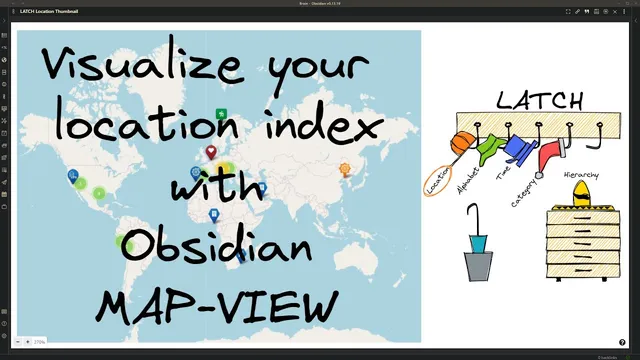
Visualize your location index with Obsidian Map View
Based on Zsolt's Visual Personal Knowledge Management's video on YouTube. If you like this content, support the original creators by watching, liking and subscribing to their content.
Map View turns encoded geolocations in an Obsidian vault into interactive map markers, functioning like a personal GIS view.
Briefing
A location index turns Obsidian into a searchable, visual “personal GIS,” and the Map View plugin is the mechanism that makes that geography usable. Instead of treating places as plain text inside notes, Map View scans an Obsidian vault for encoded geolocations and renders them as interactive markers on a map—complete with custom icons, filtering, and a complementary view to Obsidian’s graph view.
The workflow starts with a broader organizing principle: Richard Saul Wurman’s “five hat racks,” also known as the LATCH principle—Location, Alphabet, Time, Category, and Hierarchy. The organizer behind this system has migrated from Brain and Rome into Obsidian, where the vault has grown into a tangle of roughly 4,400 Markdown files plus about 1,600 PDFs/images, with hundreds of tags and folders. To regain clarity, the system emphasizes multiple entry points into the same knowledge: daily journals anchor topics to days, categories color and group thoughts, and hierarchies organize contexts like digital note taking, sketchnoting, and creative hobbies. Beyond that, separate indexes—location, calendar, people, workflow status—support both retrieval and lateral discovery.
Map View is positioned as an upgrade to the location index by making geographic relationships visible. The plugin searches nodes for encoded geolocations and places markers on a map, letting users “see” where notes belong rather than only reading them. In the simplest setup, a document can be encoded with a location by adding a Matter tag (the example uses “location from matter tag”). The process is practical: find a destination (e.g., Capital Reef), look up the corresponding national park location on Google, copy the location URL, then return to Obsidian and paste it as a geolocation via a right-click action.
To make markers meaningful at a glance, Map View supports icon customization. If a note type needs a specific icon, marker icon rules can be configured in Obsidian settings. The example uses Font Awesome: icon names from Font Awesome are prefixed with “fa-” (e.g., “fa-3”), and marker rules can optionally specify color and shape. After defining a tag such as “location/national parks,” the marker appears on the map for notes tagged accordingly.
For users who don’t want to create dedicated pages for every location, the system can rely on an “empty locations” front matter key. With that in place, geolocation links can be embedded directly in documents (the example adds Zion National Park this way).
Finally, advanced users can bypass Font Awesome limitations by using custom SVG icons. Icons can be created in tools like Excalidraw and saved as SVG, or sourced from repositories such as the Noun Project. The takeaway is straightforward: build a location index first, then use Map View to turn those encoded places into an interactive map that complements Obsidian’s existing relationship visualizations.
Cornell Notes
The Map View plugin makes Obsidian’s location index actionable by turning encoded geolocations into interactive map markers. It scans vault nodes for geolocation data and displays them with configurable icons, filters, and marker rules, functioning like a personal GIS alongside Obsidian’s graph view. A basic workflow encodes a note with a geolocation by pasting a location URL into a geolocation field using a Matter tag. For icon variety, users define marker icon rules using Font Awesome tags (prefixed with “fa-”) and apply tags like “location/national parks.” If creating separate pages for every place is undesirable, an “empty locations” front matter key enables geolocation links directly in documents; custom SVG icons are also supported.
What problem does Map View solve in an Obsidian vault with many notes and indexes?
How does the system encode a location for a note in the simplest case?
How are custom marker icons configured, and what role does Font Awesome play?
What’s the purpose of the “empty locations” front matter key?
How can advanced users use icons that aren’t available in Font Awesome?
Review Questions
- How does Map View complement Obsidian’s graph view, and what kind of relationships does each visualization emphasize?
- Describe the end-to-end steps to get a national park note to appear on the map with a custom icon.
- When would you choose to use the “empty locations” front matter key instead of creating dedicated location pages?
Key Points
- 1
Map View turns encoded geolocations in an Obsidian vault into interactive map markers, functioning like a personal GIS view.
- 2
A strong location index is the prerequisite; Map View then makes that index visible and navigable.
- 3
Geolocations can be added to notes by pasting a location URL into a geolocation field associated with a Matter tag.
- 4
Marker icon rules enable icon customization, including Font Awesome-based icons using the required “fa-” prefix.
- 5
Tags such as “location/national parks” can drive which icon appears for a marker.
- 6
The “empty locations” front matter key supports embedding geolocation links directly in documents without creating separate pages for every place.
- 7
Custom SVG icons are supported for cases where Font Awesome doesn’t provide the needed symbol.