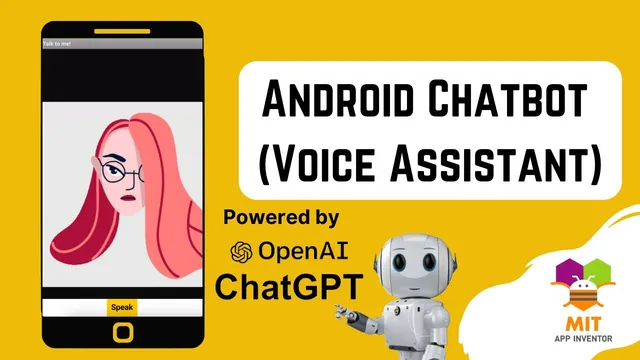
Voice Assistant in MIT App Inventor powered by ChatGPT | ChatGPT MIT App Inventor | #openAI #chatgpt
Based on Obsidian Soft's video on YouTube. If you like this content, support the original creators by watching, liking and subscribing to their content.
Generate an OpenAI API key and paste it into MIT App Inventor requests using the “Bearer” authorization field; losing the key requires creating a new one.
Briefing
A practical way to build an Alexa/Siri-style voice chatbot in MIT App Inventor is to replace hard-coded if/else replies with live calls to OpenAI’s ChatGPT API—turning spoken questions into text, sending them to ChatGPT, then converting ChatGPT’s response back into speech and swapping an animated “talking” avatar. The payoff is a chatbot that can generate new answers on demand, rather than being limited to a fixed script.
The setup starts with creating an OpenAI account and choosing an account tier that fits the intended usage. After signing in, the workflow centers on generating an API key from the OpenAI documentation under authentication. That key must be copied carefully because it can’t be retrieved later; losing it means creating a new one. With the key in hand, the project uses MIT App Inventor blocks to make HTTP requests to ChatGPT servers. A curl-to-blocks conversion step provides the “client URL” structure, which is then pasted into the MIT App Inventor web request blocks. The tutorial also highlights JSON as the key-value data format used to interpret responses.
On the MIT App Inventor side, the app layout includes a WebViewer for displaying animated GIFs, a “Speak” button, and a text-to-speech component. For voice input, it imports a continuous speech recognition extension (downloaded as an AIX file) to capture speech without repeatedly showing Google’s speech dialog. The UI also uses image assets: a GIF is split into frames to extract a “girl still” image, while a separate “girl talking” GIF is used when the bot is speaking.
In the block logic, pressing the Speak button triggers the speech recognizer to produce recognized text. That recognized text becomes the prompt sent to the ChatGPT API via a dedicated procedure (named for sending to ChatGPT). When the API returns a response, the app parses the JSON-like dictionary structure to extract the actual answer content—using dictionary “get value for key” steps and a JSON text decode operation. The app then updates the avatar by switching the WebViewer to the talking GIF, speaks the extracted response using text-to-speech, and finally switches the avatar back to the still image after speaking completes.
Two configuration details matter for output quality: the “temperature” value controls randomness (the tutorial suggests 0 for more controlled replies and 0.9 for more creative ones), and the token limit is set using a numeric block (suggested around 200) to avoid errors and to bound response length. The tutorial also notes platform limits: the approach won’t work on iPhone, and Android testing is required. For newer Android versions, the APK may need manifest permission edits (record audio) using an APK editor, and the app must be granted microphone permission at runtime.
Overall, the build turns MIT App Inventor into a full voice loop—speech-to-text, ChatGPT text generation, and text-to-speech—while keeping the logic modular enough to swap assets and tune response behavior through temperature and token settings.
Cornell Notes
The core build replaces scripted chatbot replies with live ChatGPT API calls inside an MIT App Inventor voice app. Speech recognition converts what the user says into text, that text is sent as a prompt to ChatGPT using an API key, and the returned response is parsed from JSON/dictionaries to extract the answer. The app then uses text-to-speech to speak the answer and switches between “girl still” and “girl talking” images in a WebViewer to match speaking. Temperature and token limits control how creative and how long the responses are. The setup is Android-focused and may require APK manifest permission edits for microphone access on newer Android versions.
Why does the project generate and store an OpenAI API key, and what happens if it’s lost?
How does the app turn spoken input into a ChatGPT prompt?
What’s the role of JSON/dictionaries in extracting the ChatGPT answer?
How does the app synchronize the avatar animation with speech output?
Which settings control response style and why are they implemented as numeric blocks?
What platform and permission constraints affect whether the app works?
Review Questions
- In what order do speech recognition, ChatGPT API calling, JSON/dictionary parsing, and text-to-speech occur in the MIT App Inventor blocks?
- How do temperature and token limits change the chatbot’s responses, and what block types must they be set to?
- What specific dictionary keys and indexing steps are used to extract the generated answer from the ChatGPT response structure?
Key Points
- 1
Generate an OpenAI API key and paste it into MIT App Inventor requests using the “Bearer” authorization field; losing the key requires creating a new one.
- 2
Use curl-to-blocks output to build the HTTP request structure, then send the recognized speech text as the ChatGPT prompt.
- 3
Set temperature and token limits as numeric blocks (e.g., temperature 0 or 0.9; tokens around 200) to control creativity and avoid block errors.
- 4
Parse the ChatGPT response via JSON/dictionary operations to extract the actual answer content from nested keys like “choices” and a specific index.
- 5
Switch the WebViewer between “girl still” and “girl talking” assets based on the speech lifecycle (before and after text-to-speech).
- 6
Rely on an imported speech recognition extension to capture speech without repeatedly showing Google’s speech dialog.
- 7
Test on Android and ensure microphone permissions are granted; newer Android versions may require editing the APK manifest for record audio permission.