WatchOS Settings That ACTUALLY Make A Difference
Based on FromSergio's video on YouTube. If you like this content, support the original creators by watching, liking and subscribing to their content.
Disable unread notification red dots so the watch doesn’t keep showing a persistent reminder until notifications are viewed.
Briefing
Apple Watch settings that materially change daily use aren’t buried in obscure menus—they’re mostly about cutting notification noise, tightening what shows up on-screen, and using a few underused controls to reduce taps.
The biggest quality-of-life win starts with notifications. Unread alerts default to a persistent red dot that only clears after the wearer swipes down to view them. Turning that off in the Watch app removes the constant visual nag. The same approach applies to hourly Mindfulness reminders and the Activity “Stand” prompts, which can be disabled directly in the Mindfulness and Activity sections. The result is a watch that still tracks health and activity, but stops interrupting attention.
Next comes screen behavior. By default, the watch can auto-launch Smart Stack during media playback, pulling focus away from the watch face. Disabling Smart Stack’s auto launch keeps the face visible while still allowing Smart Stack access via a swipe up. The transcript also recommends cleaning up widgets: preloaded widgets can be removed, then replaced with a curated set such as a car battery widget, a full calendar widget (showing all events for the day, not just the next one), home automation scenes, and a pedometer. Ordering matters too—placing the calendar at the top makes it easier to scan the day without checking the phone.
Navigation and app access get a separate overhaul. The grid view can be made faster by rearranging app positions in App View Arrangement, with frequently used apps placed near the middle line. Unused apps should be removed from the watch via the Watch app’s app list, then the remaining apps can be arranged for speed.
Battery life tweaks focus on reducing background activity and syncing behavior. Airplane mode can be mirrored between iPhone and watch, and Background App Refresh can be disabled for most apps. For workout and navigation-style apps, “Return to Clock” can be extended—2 minutes for default, but up to 1 hour for specific apps like AllTrails and Now Playing—so the watch stays in the right context during runs or hikes.
Several accessibility and system settings aim at responsiveness and usability: reducing motion to make control center and app transitions feel snappier, increasing brightness and text size for readability, and extending the screen-off timer to 70 seconds. Practical security and convenience features also appear: the watch can unlock a Mac and iPhone (with face visibility requirements), can quickly re-lock if an unlock happens unintentionally, and can “ping” a lost iPhone from Control Center.
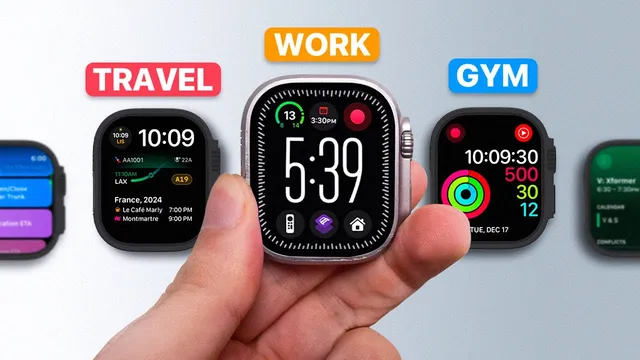
Finally, the transcript ties together gestures, Focus modes, and watch faces. Newer-model double-tap gestures are repurposed for dictation and music skipping (via Now Playing), and Sleep “near” notifications are enabled in Health. Focus modes then drive automatic watch-face changes—each mode can assign a different face with tailored complications and even different behaviors for the Action button. The end result is a watch that adapts to home, workouts, travel, recording, and sleep, while keeping the most-used controls one tap away.
Cornell Notes
The core theme is that small Apple Watch setting changes can noticeably improve day-to-day usability—especially by reducing interruptions, speeding up navigation, and making the watch face do more work. The transcript recommends turning off persistent notification red dots, hourly Mindfulness reminders, and Stand prompts, then disabling Smart Stack auto-launch during media playback. It also emphasizes curating widgets and rearranging the app grid so frequently used apps sit near the center, plus uninstalling apps that aren’t needed. Battery and responsiveness are improved through mirrored Airplane Mode, limiting Background App Refresh, extending “Return to Clock” for key workout apps, and using Reduce Motion. Finally, Focus modes and the Action button are used to swap watch faces and trigger context-specific shortcuts and HomeKit scenes automatically.
Which notification settings reduce the most daily “noise,” and where are they changed?
How does disabling Smart Stack auto-launch change media use on the watch?
What’s the practical method for making app access faster on the watch?
What battery-life and workout-context settings are recommended?
How do Focus modes and the Action button turn watch faces into context-aware tools?
What double-tap gesture changes are made for dictation and music control?
Review Questions
- Which three notification-related defaults are disabled to reduce interruptions, and what symptom does each one cause?
- How do widget curation and app-grid rearrangement work together to reduce taps during the day?
- What combination of Airplane Mode mirroring, Background App Refresh, and per-app “Return to Clock” settings is used to balance battery life with workout usability?
Key Points
- 1
Disable unread notification red dots so the watch doesn’t keep showing a persistent reminder until notifications are viewed.
- 2
Turn off hourly Mindfulness reminders and Activity Stand prompts to prevent the watch from interrupting attention.
- 3
Keep the watch face stable during media by disabling Smart Stack auto-launch for live activities, then access Smart Stack manually when needed.
- 4
Curate widgets by removing preloaded ones and adding high-value complications (like a full-day calendar) in a deliberate order.
- 5
Speed up app access by uninstalling unused apps and rearranging the grid so the most-used apps sit near the center line.
- 6
Extend battery life by mirroring Airplane Mode, disabling Background App Refresh for most apps, and using longer “Return to Clock” only for key workout/navigation apps.
- 7
Use Focus modes to automatically swap watch faces and drive Action button shortcuts/HomeKit scenes for home, workouts, travel, recording, and sleep contexts.