Writing & editing basics
Based on Notion's video on YouTube. If you like this content, support the original creators by watching, liking and subscribing to their content.
Notion organizes writing into reusable “blocks,” and highlighted text can be converted into structured block types like headings, lists, quotes, and code snippets.
Briefing
Notion’s writing and editing workflow centers on turning plain text into structured “blocks,” then rearranging those blocks quickly to build pages that stay organized. Start by creating a new page and typing; once text is highlighted, a formatting menu appears that lets users convert selected content into headings, sub-pages, to-do lists, toggle lists, code snippets, quotes, and call-out boxes. For collaboration, users can also add comments to specific selections of text and mention teammates by name so feedback routes to the right person.
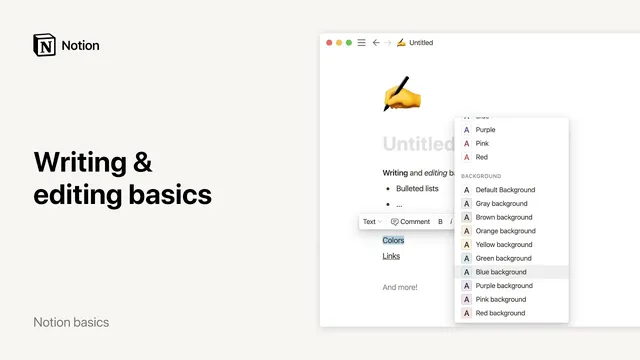
Beyond basic formatting, Notion supports standard text styling and link creation. Bold and italics are available through familiar shortcuts (Command B and Command I), while strikethrough and code formatting use Command Shift S and Command E. Turning text into a hyperlink is handled by selecting the “link” option and pasting a URL, and users can also paste a URL directly onto text to convert it into a link. Color controls extend to both text color and background color, and there’s an option to connect content to dates, people, and pages—features that tie writing to reminders and mentions.
For faster creation, the slash command (“/”) brings up a full menu of block types. Typing a block name after the slash and pressing Enter inserts it immediately, reducing the need to navigate menus. Users can also add richer content structures like databases—tables, boards, galleries, lists, or calendars—by selecting from the database options or typing something like “gallery” and choosing the result. Inline databases can then be filled with content directly inside the page.
Editing and organizing happens at the block level. Hovering over a block reveals a six-dot icon that acts as a control hub: users can delete, duplicate, convert the block into another type, copy an anchor link to that specific block, or move it to another page. The same area also provides access to comment and color options.
For page-wide formatting, a 3D icon in the top-right corner opens additional controls that affect typography, text size, and page width. Finally, drag-and-drop is the glue that keeps pages flexible: hovering over a block, grabbing the six-dot handle, and dropping it into place lets users reorder content. The same technique supports multi-column layouts—dragging one block next to another creates side-by-side columns, and the process can be repeated to build as many columns as needed. The result is a writing environment designed for drafting ideas quickly, then reshaping the structure later without losing clarity.
Cornell Notes
Notion writing is built around “blocks,” which let users transform typed text into structured elements like headings, lists, quotes, code snippets, and call-outs. Highlighted text supports bold, italics, strikethrough, and code formatting, plus hyperlink creation via URL paste or link selection. The slash command (“/”) speeds up adding any block type, while database blocks (table, board, gallery, list, calendar) can be inserted and filled inline. Each block has a six-dot handle for actions like duplicate, convert, anchor-link copy, and moving between pages. Drag-and-drop also enables reordering and creating multi-column layouts for side-by-side content.
How does Notion turn simple typing into structured content?
What are the key text formatting and linking tools available for highlighted text?
How do comments and mentions work in Notion’s writing flow?
What’s the fastest way to insert new content types without hunting through menus?
How do block controls and drag-and-drop change editing and layout?
Review Questions
- When should a user convert highlighted text into a quote or call-out block instead of leaving it as plain text?
- What actions can be performed from the six-dot icon on a block, and how do they differ from page-wide formatting controls?
- How does the slash command speed up adding blocks compared with using the highlight formatting menu?
Key Points
- 1
Notion organizes writing into reusable “blocks,” and highlighted text can be converted into structured block types like headings, lists, quotes, and code snippets.
- 2
Bold, italics, strikethrough, and code formatting are available via shortcuts (Command B, Command I, Command Shift S, Command E).
- 3
Hyperlinks can be created by selecting “link” and pasting a URL or by pasting a URL directly onto text.
- 4
The slash command (“/”) provides a fast block picker; typing a block name and pressing Enter inserts it immediately.
- 5
Database blocks (table, board, gallery, list, calendar) can be added to a page and filled inline.
- 6
Each block’s six-dot handle enables delete, duplicate, convert, anchor-link copying, and moving blocks between pages.
- 7
Drag-and-drop supports both reordering blocks and creating multi-column layouts for side-by-side content.