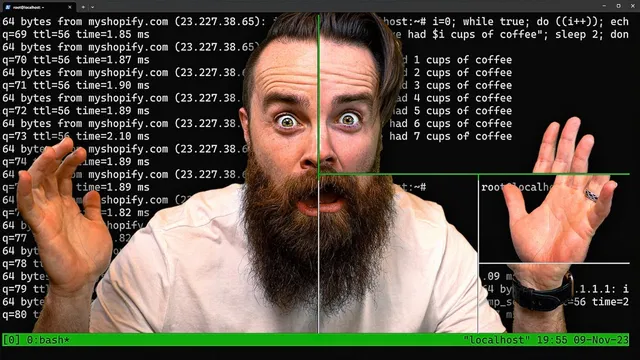
you need to learn tmux RIGHT NOW!!
Based on NetworkChuck's video on YouTube. If you like this content, support the original creators by watching, liking and subscribing to their content.
tmux keeps long-running terminal commands alive by detaching from a session with `Ctrl+b d` and later reattaching with `tmux a`.
Briefing
tmux turns one terminal into a workspace where long-running commands can keep running even after disconnecting—and then be picked up later from anywhere. The core workflow is simple: start a tmux session, run something (like a continuous ping), detach without killing it, and reattach later to continue exactly where it left off. That “leave it running, come back to it” ability matters because it makes remote SSH work resilient to network drops and lets people switch tasks or machines without restarting processes.
After the quick demo, the transcript lays out tmux’s three-layer model: sessions, windows, and panes. A session is the top-level container created with the `tmux` command; detaching leaves the session alive. Multiple sessions can run at once, listed with `tmux ls`, and reattached with `tmux a` (optionally targeting a specific session using `-t` and an index). Sessions can also be terminated with `tmux kill-session -t <name>`, which removes the entire running environment for that session.
Inside a session, windows act like tabs, and each window contains a shell (defaulting to `bash`). Windows are created with `tmux new -t <session>` and can be renamed using `Ctrl+b ,` to make navigation less painful. Windows can be switched sequentially with `Ctrl+b n`, but the transcript pushes a faster approach: `Ctrl+b w` opens a menu listing both windows and sessions, letting users jump directly to the desired place.
Panes split a window into multiple smaller terminal regions. The transcript demonstrates horizontal splits with `Ctrl+b %` and vertical splits with `Ctrl+b "`. Navigation among panes uses the prefix key (`Ctrl+b`) followed by arrow keys, while pane indexes can be displayed with `Ctrl+b q` to jump quickly by number. Resizing panes is handled via `Ctrl+b` plus directional keys (with modifier keys like `Ctrl`/`Alt` for larger adjustments), and tmux also supports pre-set layouts using `Ctrl+b` plus `Alt` number keys.
Once the workspace is built, tmux also provides ways to clean it up: panes can be killed from the pane list view (`Ctrl+b x`), entire panes or windows can be removed with `Ctrl+b &`, and sessions can be ended with `tmux kill-server` or targeted kill commands. The transcript then adds a practical productivity layer: copy mode. It recommends editing the tmux config to enable mouse support (`set -g mouse on`) and VI-style keys (`set -g mode-keys vi`), then shows keyboard-only copy mode using `Ctrl+b [` to select text with `Space` and paste with `Ctrl+b ]`, keeping hands on the keyboard.
Overall, the message is that tmux’s power comes from practicing a small set of hotkeys until sessions, windows, and panes feel automatic—so remote work becomes faster, more reliable, and easier to resume.
Cornell Notes
tmux is a terminal multiplexer that keeps commands running in the background and lets users detach and reattach later—ideal for SSH sessions that might disconnect. It organizes work into three layers: sessions (top-level containers), windows (tab-like environments), and panes (split terminal regions). The transcript demonstrates creating sessions, detaching with `Ctrl+b d`, listing with `tmux ls`, and reattaching with `tmux a` (including targeting with `-t`). It also shows pane/window navigation and management hotkeys, plus copy mode for keyboard-based text selection and pasting. The payoff is a resilient, resumable workflow for long-running tasks.
How does tmux prevent long-running commands from dying when an SSH session ends?
What are the three layers in tmux, and what does each one control?
How can a user switch directly to a specific window or session without cycling through everything?
How do pane indexes and quick jumping work?
What’s the keyboard-only way to copy text in tmux, and how is it enabled?
How do you kill tmux components at different levels?
Review Questions
- What sequence of commands would you use to start a tmux session, run a long process, detach, and later reattach?
- How do sessions, windows, and panes differ in tmux, and which hotkeys affect each level?
- Describe the steps to copy a block of text in tmux using copy mode without using the mouse.
Key Points
- 1
tmux keeps long-running terminal commands alive by detaching from a session with `Ctrl+b d` and later reattaching with `tmux a`.
- 2
tmux organizes work into sessions (top-level), windows (tab-like), and panes (split terminal regions).
- 3
Use `tmux ls` to list active sessions and `tmux a -t <index>` (or `-t <name>`) to attach to a specific one.
- 4
Navigate efficiently with `Ctrl+b w` for a window/session menu and `Ctrl+b q` for pane index jumping.
- 5
Create pane layouts quickly using `Ctrl+b %` (horizontal) and `Ctrl+b "` (vertical), and apply pre-set layouts with `Ctrl+b` + `Alt` number keys.
- 6
Clean up with targeted kill commands: `Ctrl+b x` for panes, `Ctrl+b &` for windows, and `tmux kill-session -t <name>` for sessions.
- 7
Keyboard-first copy mode uses `Ctrl+b [` to select and `Ctrl+b ]` to paste, avoiding mouse-driven copying delays.