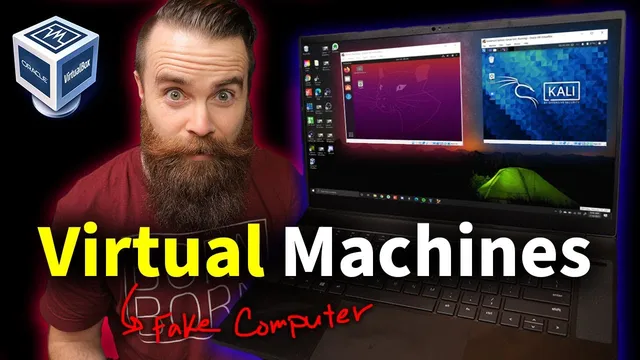
you need to learn Virtual Machines RIGHT NOW!! (Kali Linux VM, Ubuntu, Windows)
Based on NetworkChuck's video on YouTube. If you like this content, support the original creators by watching, liking and subscribing to their content.
Virtual machines run guest operating systems inside a host OS by using a hypervisor to allocate virtual CPU, RAM, disk, and network resources.
Briefing
Virtual machines let people run a full “computer inside a computer” on the same laptop—without buying extra hardware—by using virtualization software to carve out CPU, RAM, storage, and network resources for separate operating systems. That matters because it’s the safest way to experiment with Linux, learn hacking workflows, and break things without risking the main Windows (or other host) system.
At the core is a hypervisor: a program that creates virtual hardware and then hosts one or more “guest” operating systems. VirtualBox is presented as the go-to option because it’s free and works across Windows, macOS, and Linux. The guest OS behaves like it’s running on its own machine, even though the hypervisor is borrowing resources from the host. The transcript also distinguishes between two hypervisor types. Type 2 hypervisors (like VirtualBox) run on top of an existing operating system and must request resources from it. Type 1 hypervisors run directly on hardware (common in enterprise servers) and have more direct control, which can matter for performance and isolation.
The practical motivation is straightforward: a virtual machine is a secure sandbox for learning hacking and Linux. For hands-on training sites like TryHackMe and Hack The Box, the recommended approach is to use a VM and connect via VPN, reducing the risk of contaminating the host system. It also becomes the ideal environment for “breaking stuff”—installing risky tools, changing settings, or testing updates—because the VM can be deleted and rebuilt without touching the host.
The walkthrough then turns into a setup checklist. A modern computer is recommended (roughly 4 GB RAM or more; CPU from the last decade is fine). For 64-bit guests, hardware virtualization must be enabled in BIOS/UEFI—Intel users look for Intel VMX virtualization technology, while AMD users enable AMD-V. While the OS images download, the guide installs VirtualBox from Oracle and also adds the VirtualBox Extension Pack for features like USB support.
Creating the VM involves choosing the guest type (Linux/Ubuntu 64-bit is used as the example path), allocating memory and CPU cores, and creating a virtual disk. The default “dynamically allocated” disk option is recommended so the VM’s virtual storage grows as needed rather than consuming the full size immediately. After that, the VM boots from an ISO file (Cali Linux or Ubuntu), and the Linux installer runs inside the virtual environment.
Once Kali Linux is running, the transcript highlights features that make VMs especially useful for security work: pausing and resuming like a game, saving and restoring VM state, cloning a VM for experimentation, and using snapshots as “freeze frames” to roll back after changes. It also covers shared clipboard and shared folders (convenience that can reduce isolation), and—most importantly—networking modes. NAT-style networking can hide the VM from scanning tools on the home network (the VM shows an IP like 10.0.2.x), while bridged networking exposes it to the local network. The overall message is to keep learning and hacking environments isolated, and only loosen isolation when convenience outweighs the security tradeoff.
Cornell Notes
Virtual machines use a hypervisor to create virtual hardware (CPU, RAM, disk, and network) so a guest operating system can run inside a host OS like Windows. VirtualBox is highlighted as a free, cross-platform Type 2 hypervisor that runs on top of the host and allocates resources to guests. The setup process includes enabling hardware virtualization in BIOS/UEFI (Intel VMX or AMD-V), installing VirtualBox plus the Extension Pack, downloading ISO images for Kali Linux/Ubuntu, and creating a VM with appropriate RAM/CPU and a virtual disk. Once running, features like snapshots, cloning, pause/resume, and isolated networking make VMs ideal for safe Linux learning and hacking practice without risking the host system.
What problem do virtual machines solve for someone learning Linux or hacking?
How does a Type 2 hypervisor differ from a Type 1 hypervisor?
Why is enabling hardware virtualization in BIOS/UEFI necessary for 64-bit guests?
What are the key steps to set up a Kali Linux or Ubuntu VM in VirtualBox?
Which VirtualBox features help prevent permanent damage during experiments?
How do networking choices affect security and visibility on the home network?
Review Questions
- What roles do the host OS and guest OS play in a Type 2 hypervisor setup like VirtualBox?
- Why might a user choose dynamically allocated virtual disk storage instead of a fixed size?
- How do snapshots and cloning differ as recovery strategies when testing risky changes in Kali Linux?
Key Points
- 1
Virtual machines run guest operating systems inside a host OS by using a hypervisor to allocate virtual CPU, RAM, disk, and network resources.
- 2
VirtualBox is presented as a free Type 2 hypervisor that works by requesting resources from the host operating system.
- 3
Enabling hardware virtualization in BIOS/UEFI (Intel VMX or AMD-V) is a prerequisite for running 64-bit guest operating systems.
- 4
A safe learning workflow for hacking and Linux practice uses VMs so experiments don’t damage the host system.
- 5
VirtualBox Extension Pack adds practical capabilities like USB device support.
- 6
Snapshots, cloning, and saved states provide fast rollback and experimentation without permanent consequences.
- 7
Networking mode matters: NAT-style isolation can hide the VM from home-network scanning, while bridged networking exposes it to the local LAN.