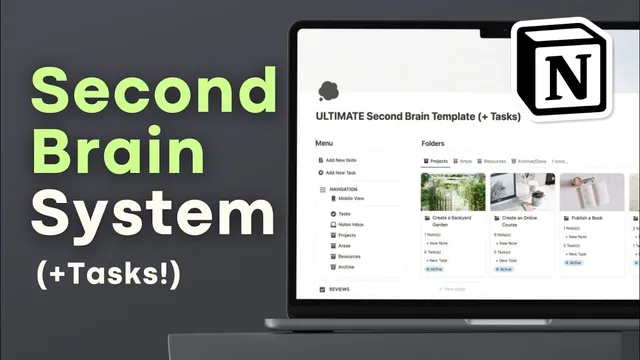
BEST Knowledge Management System with Tasks? | Second Brain Notion Template Tour
Based on The Organized Notebook's video on YouTube. If you like this content, support the original creators by watching, liking and subscribing to their content.
The template uses PARA (Projects, Areas, Resources, Archive/Done) to keep notes and tasks tied to the right life context.
Briefing
A Notion “second brain” template built around Tiago Forte’s PARA system pairs personal knowledge management with task tracking—so captured notes don’t just sit in folders, they turn into scheduled work. The core setup organizes information into Projects, Areas, Resources, plus an Archive/Done space, while a dedicated tasks database surfaces what’s due, overdue, or missing a folder. The result is a single workflow for collecting ideas and references, tagging them to the right life context, and then acting on them through review cycles.
The template’s structure starts with project- and life-context folders: Projects for goal-oriented efforts with start/end dates (including planning prompts and completion/archive review fields), Areas for ongoing life domains like exercise or finances (with reflection and status questions), and Resources for topics worth learning about (with prompts for why the topic matters and what to learn). Everything that’s no longer active gets moved into Archive/Done, while miscategorized items land in a “no category” holding area until they’re sorted.
Notes are captured in multiple ways. A “notes inbox” supports quick capture when context isn’t ready—entries appear there first and can later be assigned to the correct project/area/resource folder database. Notes themselves can include URLs, tags, key points, and even media embeds, with an optional “needs review” flag to route items back into a later pass. Once a note is no longer useful, it can be archived so the active workspace stays current. The system also links notes to folder contexts directly, so opening a project like “redo the kitchen” shows how many notes and tasks are tied to it.
Tasks are integrated into the same dashboard experience. On the main view, tasks are grouped by urgency—due today, tomorrow, overdue, no due date, and no folder—making it easy to spot what needs attention or cleanup. Tasks can be moved through statuses such as in progress and done, with additional views for incomplete tasks by date, backlog, and completion summaries by month. Each task can also reference supporting material by adding a note/mention (for example, copying a link or inserting a note to consult while working).
Weekly and monthly reviews provide the maintenance engine. During a weekly review, the workflow starts by processing the notes inbox, then auditing active folders (archiving anything that no longer fits), optionally adding new folders discovered during the week, and scrolling through all notes to find overlooked items worth flagging for “needs review.” The review also checks tasks for overdue items, missing folder assignments, and what was completed, then ends with reflection prompts about what worked, what didn’t, and what connections emerged. Monthly reviews follow the same pattern but are positioned as a better time for deeper restructuring.
Finally, the template supports focused navigation (tasks, notes inbox, projects/areas/resources pages) and includes a mobile view designed for fast capture—adding notes and tasks with minimal friction. The overall pitch is straightforward: combine PARA-based organization with task execution and recurring review so knowledge turns into follow-through across projects and life areas.
Cornell Notes
The template implements Tiago Forte’s PARA system in Notion to manage both knowledge and action. Projects, Areas, and Resources hold notes and tasks tied to specific goals, life domains, or learning topics, while Archive/Done stores what’s no longer active. A notes inbox enables quick capture first, then later sorting into the correct folder database and optionally marking items “needs review.” Tasks are tracked with due dates and folder assignments, surfaced by urgency (today, overdue, no due date, no folder) and moved through statuses like in progress and done. Weekly and monthly reviews keep the system accurate by processing inbox items, auditing active folders, reorganizing tasks, and reflecting on progress.
How does the PARA folder system determine where a note or task belongs?
What problem does the notes inbox solve, and how does it get resolved later?
How does the tasks dashboard help someone avoid “lost” work?
What task workflow states are used, and what views support tracking progress?
What happens during a weekly review, step by step?
How is the system designed for mobile capture without breaking organization?
Review Questions
- If a note is captured quickly without knowing the right context, what is the intended path for it during the next review?
- Which task categories on the dashboard are most likely to indicate missing planning or incomplete setup, and why?
- How do weekly and monthly reviews differ in what they’re best used for when reorganizing folders and priorities?
Key Points
- 1
The template uses PARA (Projects, Areas, Resources, Archive/Done) to keep notes and tasks tied to the right life context.
- 2
A notes inbox enables fast capture, then weekly review assigns notes to the correct folder database or archives them.
- 3
Notes support structured metadata like URLs, tags, key points, and optional “needs review” routing.
- 4
Tasks are surfaced by urgency and completeness, including overdue items, no due date, and tasks missing a folder assignment.
- 5
Task workflow moves items through in progress and done, with views for backlog, date-based tracking, and monthly completion totals.
- 6
Weekly and monthly reviews act as the maintenance loop: process inboxes, audit active folders, reorganize tasks, and reflect on outcomes.
- 7
A mobile view supports quick note/task entry while still feeding into the same organized databases and review cadence.