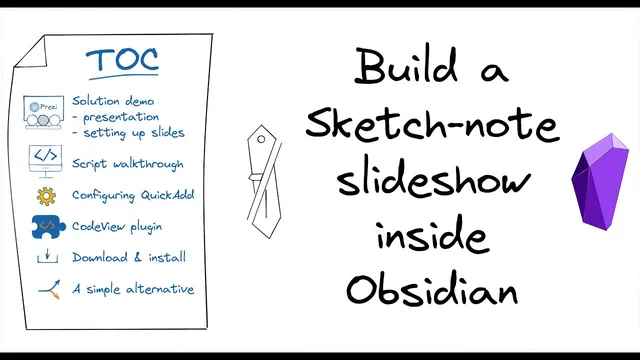
Build a sketch-note slideshow with Obsidian, Excalidraw and QuickAdd
Based on Zsolt's Visual Personal Knowledge Management's video on YouTube. If you like this content, support the original creators by watching, liking and subscribing to their content.
Organize an Excalidraw sketch into nested groups where each top-level group corresponds to a slide region.
Briefing
Sketch-note presentations in Excalidraw can be turned into a slide deck inside Obsidian by using QuickAdd macros plus a small set of JavaScript automations. The core idea is to pre-label parts of a drawing as nested “groups,” then capture the group IDs into a navigation file, and finally use hotkeys to move forward/backward while zooming the canvas to the matching group—without manually hunting for the right view each time.
The workflow starts with structuring the Excalidraw file. The drawing is organized into groups (including groups-within-groups), where each top-level group represents one “slide area.” A capture macro runs against the active Excalidraw view, reads the currently selected elements, and identifies the “largest” selected group by counting which group contains the most items. That chosen group’s ID becomes the next entry in a navigation file.
Navigation is stored as a simple text list of group IDs. A key detail is that the navigation file’s first line is intentionally left empty so the opening slide can be the entire drawing; removing that empty line would shift the deck so the first slide becomes the first group instead of the full canvas. The navigation file path is derived from the currently open document: the script strips the file extension and appends “-navigation,” so each Obsidian note gets its own deck metadata.
Presentation mode is handled in two phases. First, a “start presentation” macro forces Excalidraw into full-screen mode (if it isn’t already) and initializes a slide counter to -1 in local storage. That -1 matters because Excalidraw group indexing starts at 0; the next step increments the counter so the first displayed view becomes slide 0 (the whole drawing). Second, forward/back hotkeys update the slide counter, wrap around at the ends of the deck, and then zoom to the correct group.
The zoom logic reads the navigation file, splits it by newline into an array of group IDs, and selects the group ID for the current slide. It then fetches all Excalidraw scene elements and filters them by whether each element’s draw group IDs “includes” the target slide group ID. Finally, Excalidraw’s zoom-to-fit is called with the filtered elements, focusing the canvas on the exact region meant for that step of the explanation.
QuickAdd ties everything together with four hotkey-driven choices: capture group IDs to the navigation file, start presentation, move to the next slide, and move to the previous slide. The capture choice writes group IDs to the bottom of the navigation file so slides accumulate in order. During presentation, the scripts rely on local storage to persist the current slide index across hotkey presses.
Editing the required JavaScript in Obsidian is handled via two options: create a scripts folder and edit .js files externally, or install a “Code View” plugin (not published in the community plugins) to edit scripts inside Obsidian. The setup also includes a practical shortcut: a downloadable zip of the five scripts and a data.json file for QuickAdd, plus an optional setting to “detect all file extensions” so the scripts appear in file explorer.
For people who want zero scripting, the alternative is a manual presentation approach: switch Excalidraw to view mode (read-only), go full screen, and use the control + mouse wheel to zoom to the next region while presenting. The scripted method trades manual zooming for repeatable, hotkey-driven slide navigation that stays aligned with the group structure inside the drawing.
Cornell Notes
The method turns an Excalidraw sketch into a hotkey-driven slide deck inside Obsidian. It works by pre-grouping areas of the drawing, then capturing the selected group’s ID into a per-note “-navigation” file. During presentation, scripts read that navigation list, track a slide index in local storage, and zoom the Excalidraw canvas to the elements whose draw group IDs match the current slide. An empty first line in the navigation file ensures slide 0 shows the entire drawing. QuickAdd provides four hotkey choices—capture, start, next, and previous—so the deck can be navigated like a slideshow.
How does the setup decide which Excalidraw group ID to store when capturing a “slide” region?
Why does the navigation file start with an empty line, and what does that change during presentation?
What role does the slide counter set to -1 play in the “start presentation” flow?
How does the zoom-to-slide logic find the correct elements for the current slide?
What makes the forward/back hotkeys work reliably across multiple presses?
What are the two practical ways to edit the JavaScript required for QuickAdd in Obsidian?
Review Questions
- If the navigation file’s first line were not empty, which slide would appear first and why?
- Describe how the script determines the slide’s target group ID from the navigation file and the current slide index.
- What is the difference between storing the slide counter in QuickAdd variables versus using window local storage, and why does that matter for next/previous navigation?
Key Points
- 1
Organize an Excalidraw sketch into nested groups where each top-level group corresponds to a slide region.
- 2
Capture the selected region’s “largest” group ID (by item count) and append it to a per-note navigation file.
- 3
Derive the navigation file path from the active Obsidian document name by stripping the extension and appending “-navigation.”
- 4
Use an empty first line in the navigation file so slide 0 shows the entire drawing rather than the first grouped region.
- 5
Start presentation by forcing Excalidraw full-screen and initializing the slide counter to -1 so the first displayed view becomes slide 0.
- 6
Implement next/previous navigation by reading the navigation file into an array, updating the slide index with wraparound, filtering scene elements by group ID inclusion, and zooming to fit.
- 7
Edit the required JavaScript either via an external editor in a scripts folder or via the Code View plugin to work inside Obsidian.