Build My Notion Planner: Convert Ideas into Actionable Steps (Free Template)
Based on Red Gregory's video on YouTube. If you like this content, support the original creators by watching, liking and subscribing to their content.
Use **Sub-items** to convert outline-style brainstorming into nested, checklistable project sections.
Briefing
Notion’s newer building blocks—**Sub-items** and **Dependencies**—can turn messy, idea-stage notes into a structured project system with checklists, progress tracking, and scheduling that automatically respects task order. The core workflow pairs an outline-style database (where every concept becomes a checklistable project) with a second view that schedules those projects on a timeline and links them through “blocking” relationships so downstream work can’t be marked complete early.
The setup begins in a “template manager” database that houses digital products as individual pages people can duplicate. From there, ideas move into a dedicated “realize” database where each project is broken down using **Sub-items**. In practice, a project like “About us” is expanded into nested sections—origins, what was achieved, team pages, company lists, and even deeper sub-structures like a team directory and office locations. Each sub-item can itself contain sub-items, creating an outline that mirrors how handwritten or app-drawn notes get translated into deliverables.
To make the outline actionable, each project and sub-item gets a **Done** checkbox. As checkboxes are completed, a **progress ring** fills based on a **Roll-up** that calculates the percent of sub-items marked done. Additional properties help manage workload: a **Sprint** select groups projects into manageable work buckets (often one to three at a time), and **date ranges** define when each project is scheduled. When a sprint finishes, it can be hidden to keep the workspace focused.
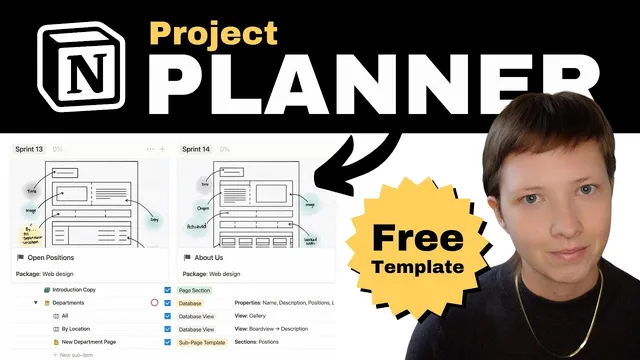
A second database view—**Conceptualize**—repackages the same underlying data into a board grouped by Sprint, showing concept images and key fields like notes. A third view—**Analyze**—switches to a **timeline** (with sorting by date) to create a Gantt-like planning perspective. Sub-items can be toggled off in the timeline when they lack dates, keeping the schedule readable.
The scheduling logic becomes more robust with **Dependencies**. Projects can be connected using “blocking” relations (via arrows that create relations like **blocking** and **blocked by**). For example, a “Resume” project can be set as blocking “About me” and “Job search,” meaning those projects can’t be started or completed until the prerequisite is finished. Once the dependency is created, clicking through shows the relationship in both directions.
Finally, the system is polished at the page level: relation properties (sub-parts, blocked-by, blocking) are moved into page sections, and page discussions are turned off to reduce clutter. The result is a repeatable Notion template-building pipeline: brainstorm in a conceptual view, convert into checklist-driven projects with nested sub-items, schedule them on a timeline by sprint, and enforce correct sequencing with dependencies—so ideas become deliverables without losing control of what’s next and what’s blocked.
Cornell Notes
Sub-items and dependencies in Notion can transform unstructured template ideas into a structured project pipeline. Sub-items create nested outline sections under each project, while a Done checkbox plus a Roll-up generates a progress ring that reflects completion across all sub-items. Sprints and date ranges organize work into manageable batches and scheduled windows, and multiple views (board and timeline) let users plan and track progress differently. Dependencies add sequencing: “blocking” relations ensure prerequisite work (like a Resume project) must be completed before dependent projects (like About me and Job search) can be started or finished. This combination turns brainstorming into actionable, checklist-based execution with clear status and ordering.
How do Sub-items turn an idea outline into a checklist with measurable progress?
What role do Sprints and date ranges play in keeping a large project list manageable?
Why use multiple views (table, board, timeline) instead of one layout?
How do Dependencies enforce correct project sequencing in the workflow?
What’s the practical benefit of customizing page layout after building the database?
Review Questions
- How does a Roll-up compute progress from sub-items, and what property must exist on sub-items for that calculation to work?
- In what situations would you hide sub-items in a timeline view, and how does that affect schedule readability?
- Describe how a blocking dependency changes the meaning of “done” for dependent projects in this system.
Key Points
- 1
Use **Sub-items** to convert outline-style brainstorming into nested, checklistable project sections.
- 2
Add a **Done** checkbox to both projects and sub-items, then use a **Roll-up** to generate a progress ring based on sub-item completion.
- 3
Manage workload with a **Sprint** select and hide completed sprints to keep planning focused.
- 4
Schedule work using **date ranges** and sort by date in a **timeline** view for a clear execution window.
- 5
Create **blocking dependencies** so prerequisite projects (e.g., Resume) must be completed before dependent projects (e.g., About me, Job search) can be treated as ready.
- 6
Customize page layouts by moving relation data into **page sections** and reducing clutter (e.g., turning off top-level discussions).