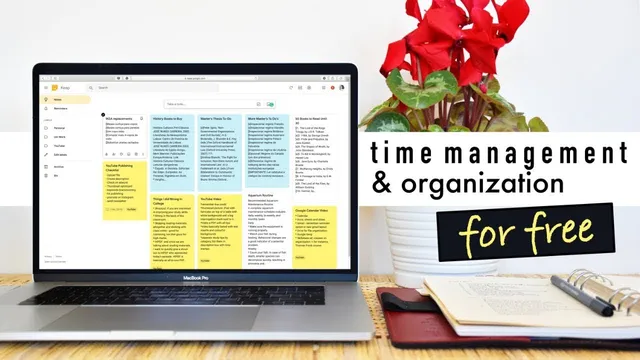
complete productivity system with google
Based on Mariana Vieira's video on YouTube. If you like this content, support the original creators by watching, liking and subscribing to their content.
Use Google Keep as the capture layer, organizing notes with both colors and labels so categories stay searchable and visually scannable.
Briefing
A free, tightly synced Google-based workflow can replace a patchwork of productivity tools by centralizing notes, scheduling, files, and email into one account—so tasks and information stay connected across devices. The core pitch is simple: if someone wants a “back to basics” organization system, Google’s ecosystem provides the building blocks (Keep, Calendar, Drive, and Gmail) with color-coding, labels, search-friendly organization, and continuous cloud backup.
Google Keep is positioned as the dashboard for day-to-day capture. Notes can be arranged like color-coded post-it blocks, with drag-and-drop ordering to reflect personal priorities. The system gets more structured through labels that act like tags—each note can be assigned a label and color so related items cluster together. Because Keep is available on phones and syncs with computers, migrating projects and recurring tasks into one place is treated as the first step toward a unified workflow.
From there, Google Calendar turns those captured tasks into time commitments. A key recommendation is to create separate calendars for different life categories—family, school, YouTube, and personal finance, for example—using distinct colors to quickly visualize how a week is allocated. Another practical tactic is scheduling “daily” tasks by placing certain events at the top of the calendar rather than forcing hourly blocks, which is especially useful for birthdays, holidays, and other all-day items. Calendar’s syncing and invitation features also make it useful for shared planning, from household responsibilities to team schedules and book club meetings.
The workflow’s glue is the interconnection between apps. Calendar can surface tasks created in Keep, and reminders set in both tools help keep attention on what’s next. The transcript emphasizes that using the right applets and side-by-side views reduces the friction of switching contexts—like checking availability in Calendar while drafting an email.
For documents, Google Drive is presented as the file backbone. It supports folder organization (including color and naming), cloud backup to prevent loss from device failure, and sharing at the folder or file level rather than distributing entire libraries. For text-based documents, Drive’s integration with Google Docs enables on-the-go editing, plus commenting and sharing features. The cloud storage tiers are mentioned, with 15 GB free and an upgrade option around 100 GB for under $2 per month, with a student-focused note for those who mainly handle PDFs and text.
Finally, Gmail is framed less as an email service comparison and more as an organization engine. The transcript highlights color-coded labels for categories like answered/unanswered, sponsorship inquiries, blog posts, and school-related messages, so follow-ups don’t get lost. Gmail’s integration with Keep, Calendar, and tasks supports quick context switching—such as checking free time while scheduling. Multiple inboxes (e.g., a Social inbox for low-priority messages) help keep the main inbox from being overwhelmed by promotions, forum chatter, and social notifications.
Overall, the system’s value comes from consistency: color and labels create structure, cloud sync prevents data loss, and cross-app integration keeps tasks and information flowing together rather than living in separate silos. The transcript also includes a promotional segment for Skillshare, offering classes on productivity and tools like Google project management.
Cornell Notes
The transcript lays out a unified productivity system built on Google’s free ecosystem: Keep for color-coded notes and reminders, Calendar for time-blocking and category-based scheduling, Drive for cloud file storage and sharing, and Gmail for labeled, multi-inbox email triage. The system’s main strength is synchronization—tasks, documents, and reminders carry across devices under one account with ongoing cloud backup. It also relies on consistent organization rules: use colors and labels to categorize everything, create separate calendars for major life areas, and schedule daily items without forcing hourly blocks. Gmail ties the workflow together by integrating with Calendar and Keep and by filtering low-priority messages into separate inboxes. The result is less context switching and fewer “where did I put that?” moments.
How does Google Keep function as the “dashboard” of an organization system?
What’s the recommended approach to structuring Google Calendar so it stays readable?
How do Keep and Calendar work together to reduce follow-up friction?
What role does Google Drive play compared with Keep and Calendar?
Why is Gmail treated as an organization tool rather than just a messaging inbox?
Review Questions
- If someone wanted to categorize tasks consistently across notes and scheduling, which two features (and where) would they rely on first?
- How would you set up Google Calendar to handle both time-specific appointments and all-day events without clutter?
- What specific Gmail features in the transcript help prevent low-priority messages from drowning out important follow-ups?
Key Points
- 1
Use Google Keep as the capture layer, organizing notes with both colors and labels so categories stay searchable and visually scannable.
- 2
Create separate Google Calendars for major life areas (e.g., school, family, YouTube) and use color to make weekly planning instantly readable.
- 3
Schedule daily items by placing them at the top of the calendar to avoid forcing unnecessary hourly blocks for holidays and birthdays.
- 4
Rely on cross-app integration—Keep tasks can feed into Calendar planning, and reminders set across both tools help keep follow-ups on track.
- 5
Store and back up documents in Google Drive using folders for structure and cloud storage for resilience against device failure.
- 6
Share only the specific folders or files needed in Drive, and use Google Docs for on-the-go editing and collaboration.
- 7
In Gmail, use labels and multiple inboxes to triage email categories and keep the main inbox from being overwhelmed by social or promotional messages.