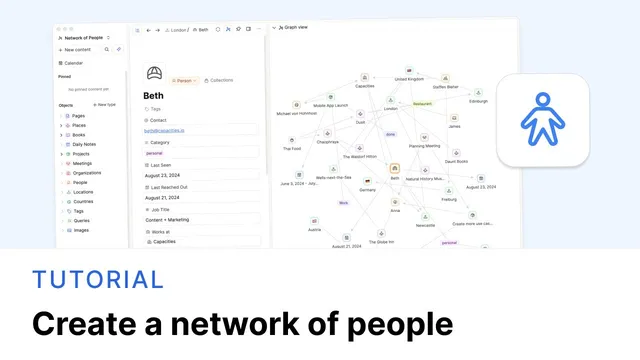
Create a Network of People in Capacities
Based on Capacities's video on YouTube. If you like this content, support the original creators by watching, liking and subscribing to their content.
Start with the Person template, then add relationship-focused properties like “last seen,” “last reached out,” “memory jog,” and “job title.”
Briefing
A practical way to turn Capacities into a living “network of people” starts with one core move: build a Person object type, then connect it to other object types using Select (and sometimes text) properties so relationships automatically generate backlinks and context. The payoff is immediate—once links exist, Capacities can surface who knows whom, who works where, who lives where, and what to do next without manual cross-referencing.
The setup begins by adding the Person template and opening object settings to define shared fields for every person: title, tags, contact details, a picture, a category, and a freeform “about” section. From there, the guide adds properties that make the network actionable over time—such as “last seen” (date-time), “last reached out” (date-time), “memory jog” (text notes), and “job title” (text). These fields shift the system from a simple contact sheet into a relationship tracker.
The network becomes real when Person links to other object types. The first example is organizations: an Organization object type is created, then the Person object gains a Select property called “works at.” Changing the link type from tag to Organization ensures the dropdown lists organizations, and selecting one automatically creates backlinks. Those backlinks appear in an embedded view, letting a user open an organization context and instantly see everyone connected to it—complete with quick actions like email links. The same pattern scales to locations by creating a Location object type (with a pin and color) and adding a multi-select property on Person that links to locations.
From there, the system extends into work workflows. Meetings and projects can connect back to people through either Select properties (for structured dropdowns) or text properties (for flexible notes that still behave like links). The transcript highlights a key tradeoff: Select properties create consistent object-based relationships, while text properties can be used when not every participant needs a full object. A meeting can also link to a project, and when a person name is entered via a “plus person” creation flow, the missing Person object is created on the spot—so the graph grows as information is captured.
The guide then adds location intelligence with a Country object type. A Location-to-Country Select property uses AI autofill to populate countries from an existing Country list, with a workflow for quickly creating countries from a scratchpad using “Turn blocks into” and then removing the scratch content. This keeps data clean while reducing repetitive entry.
Finally, recommendations turn the network into a planning engine. A “recommended by” text property supports book recommendations, while a Places system uses a Places object type with a category (via fixed sets like restaurant, attraction, hotel). For Pro/Believer users, queries can automatically generate collections—such as a “Hotels” list—based on category rules, and those collections update as new items are added. The result is a connected planning surface: when preparing a trip to London, a user can see hotels, restaurants, and what people recommended, all tied back to the people who suggested them and the notes stored about past interactions.
Cornell Notes
Capacities can become a “network of people” by creating a Person object type and then linking it to other object types using Select properties (and sometimes text properties). Once links are set—like Person “works at” Organization or Person “lives at” Location—Capacities generates backlinks and embedded views automatically, so context appears without manual searching. The network grows naturally through workflows: meetings connect to people and projects, and missing people can be created instantly when entered. Adding Country enables AI-assisted autofill for locations, and recommendation tracking (books and places) turns the system into a planning tool. With queries and fixed sets, categories like Hotel or Restaurant can automatically populate collections and dashboards as new entries are added.
What fields make a Person object type useful beyond basic contact storage?
How does linking Person to Organization create a usable relationship view?
Why use text properties in meetings instead of only Select properties?
How does the system handle missing objects when linking meetings to projects and people?
What’s the workflow for building Country data and using AI autofill for locations?
How do fixed sets and queries turn recommendations into automatically maintained collections?
Review Questions
- When adding properties to Person, which date-time fields are used to track relationship recency, and what do they enable?
- In what situation would a text property be preferable to a Select property for meeting participants?
- How do fixed sets and category-based queries work together to keep recommendation collections current?
Key Points
- 1
Start with the Person template, then add relationship-focused properties like “last seen,” “last reached out,” “memory jog,” and “job title.”
- 2
Create separate object types (e.g., Organization, Location) and connect them to Person using Select properties so backlinks and embedded relationship views appear automatically.
- 3
Change a Select property’s link type (e.g., from tag to Organization) to ensure dropdown options match the intended object type.
- 4
Use text properties when you want flexible linking without forcing every related person into a full object, while still preserving context through links/backlinks.
- 5
Grow the network during data entry: when a linked name doesn’t exist yet, create the missing Person object directly from the property field.
- 6
Use AI autofill for Location-to-Country only after creating a Country object type with existing country entries, since AI selects from what already exists.
- 7
For recommendations, use category fixed sets plus queries to auto-populate collections like Hotels and keep trip-planning views up to date.