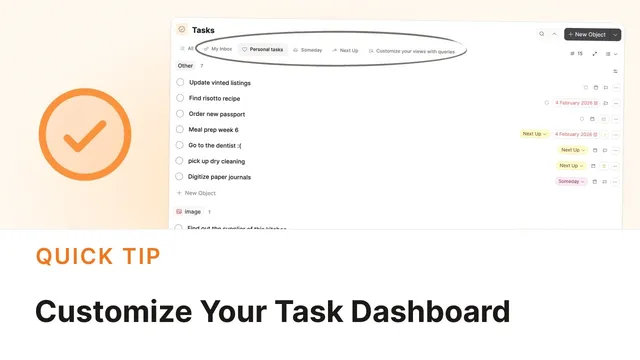
Customize Your Task Setup
Based on Capacities's video on YouTube. If you like this content, support the original creators by watching, liking and subscribing to their content.
The inbox now clears tasks using either a specific date or a status, reducing the need for arbitrary scheduling.
Briefing
Capacities’ task dashboard can be reshaped around how someone actually thinks about work—by changing inbox behavior, building custom query-based sections, and using tags and contexts to surface the right tasks at the right time. A key update shifts the inbox from a strict “assign a date to clear it” workflow to a more flexible system that accepts either a specific date or a status. That means tasks can leave the inbox without forcing an arbitrary day—such as assigning “Sunday” to a task that will be handled sometime that day—so the inbox stays actionable and the schedule reflects intent more accurately.
From there, custom sections are built using the same query logic already powering the dashboard. Users can add a new section and filter tasks by conditions like “status includes Sunday,” instantly creating a dedicated view that lists every task assigned that status. The dashboard can also be trimmed: built-in sections can be removed from view without deleting their underlying queries, letting people declutter the interface and keep only what they use. Sections can be rearranged and swapped—for example, replacing a default inbox section with a custom one—so the layout matches daily habits.
Beyond filtering, the dashboard supports different ways of organizing what appears. Tasks can be grouped by status to make it easier to scan what’s next, and empty groups can be hidden to reduce noise. View options on the right-hand side control how results are displayed, with list view offered for straightforward processing.
A major theme is context through tags, inspired by Getting Things Done. Capacities’ tags let tasks carry “where/when/how” context—such as tagging a task with “work laptop” to indicate the environment needed to do it. Queries can then pull up all tasks with a given tag, enabling quick decisions about what to do wherever someone is, rather than spending time guessing which tasks fit the current situation.
The same query mechanism scales to team and project oversight. Instead of checking each person’s tasks separately, users can create a section for “open tasks for my team” by filtering out completed items and using backlink object relationships to pull undone tasks from selected people, then grouping results by those linked objects. A similar approach works for projects: an “open project tasks” section can filter to specific project-related objects, group by backlink objects, and even handle tasks that appear in multiple places—such as a supply-finding task showing up twice when referenced in both “renovate kitchen” and “image.”
Overall, the workflow centers on building a task dashboard that behaves like a set of personalized lenses—status-based, context-based, and team/project-aware—so tasks are surfaced in a way that supports execution, not just tracking.
Cornell Notes
Capacities’ task dashboard becomes more useful when inbox handling and custom query sections are aligned with real working habits. A recent change lets inbox tasks be cleared by assigning either a date or a status, avoiding forced “arbitrary” dates for tasks that are only loosely scheduled (e.g., “Sunday”). Users can then create sections using query filters such as “status includes Sunday,” group results by status, and hide empty groups for a cleaner view. Tags add a Getting Things Done–style context layer—like tagging tasks with “work laptop”—so queries can show only what’s doable in the current environment. Backlink-based queries also let one dashboard show open tasks across team members or across multiple project objects.
How does the updated inbox behavior change task triage?
What’s the practical workflow for creating a custom “Sunday” section?
Why remove built-in sections from the dashboard instead of deleting them?
How do tags function as context in Capacities, and how does that connect to Getting Things Done?
How can one dashboard show open tasks for a team without visiting each person’s tasks?
Why might a single task appear twice in a project-based query?
Review Questions
- When should a task be assigned a status instead of a specific date in the inbox workflow?
- How would you design a query to show only tasks tagged with a particular context (e.g., “work laptop”)?
- What role do backlink objects play in building a dashboard section for open team tasks or open project tasks?
Key Points
- 1
The inbox now clears tasks using either a specific date or a status, reducing the need for arbitrary scheduling.
- 2
Custom dashboard sections are created with query filters, such as listing tasks where a status includes “Sunday.”
- 3
Dashboard sections can be removed from view without deleting their queries, keeping the workspace uncluttered.
- 4
Grouping and view settings (like list view and hiding empty groups) help turn query results into a usable workflow.
- 5
Tags can encode execution context (inspired by Getting Things Done), enabling “what can I do right now?” task lists.
- 6
Backlink-based queries let one section aggregate open tasks across selected people or project objects without manually checking each place.
- 7
Tasks can appear multiple times in grouped project views when they’re linked to multiple related objects.