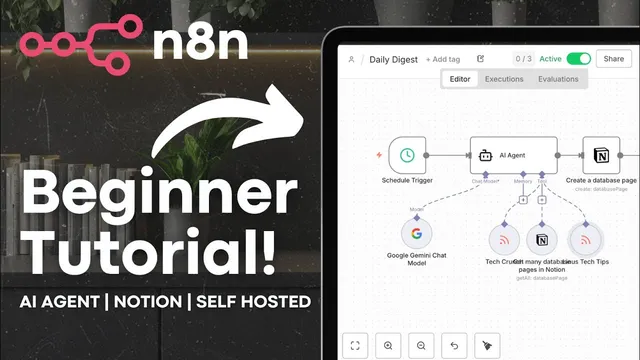
EASY Self-Hosted n8n Tutorial | Automate AI Agents, Notion & More!
Based on The Organized Notebook's video on YouTube. If you like this content, support the original creators by watching, liking and subscribing to their content.
n8n is free, but it must be hosted on infrastructure such as a VPS; the tutorial recommends a KVM2 plan for handling more simultaneous automations.
Briefing
Self-hosted n8n can turn scattered information—RSS articles, YouTube channels, and Notion task data—into a scheduled daily digest that automatically publishes inside Notion. The core payoff is control: n8n runs on your own server, so automations are transparent, customizable, and able to pull from multiple APIs and tools without relying on a single vendor’s workflow limits.
The walkthrough starts with hosting. n8n is free, but it needs a place to run, so the setup uses a VPS from Hostinger (with a recommended KVM2 plan for more simultaneous automations). After the VPS is provisioned, the process moves into n8n’s “start from scratch” flow, including creating an owner account and selecting the company profile details. Once the instance is ready, the build focuses on a practical AI-agent workflow rather than a toy example.
The first workflow step uses a chat trigger to prove the agent can respond. An AI agent node is then added, wired to the chat input as the prompt. Model flexibility is a major theme: the agent can use chat models from providers like Anthropic, Google Gemini, and OpenAI. The tutorial demonstrates Google Gemini first, including creating a Gemini API key via Google AI Studio and attaching it as an n8n credential. A key limitation appears immediately—without memory, the agent can’t recall prior user details—so a memory option is added to retain the last five interactions. With memory enabled, the agent can answer follow-up questions about earlier messages.
Next comes “tools,” which let the agent fetch external content. An RSS read tool is added for TechCrunch by supplying the RSS feed URL (using a feed URL pattern). Executing the step shows titles, creators, tags, and categories; asking for “latest articles” returns a digest and even direct links. The workflow is duplicated to add another RSS source for YouTube content (Linus Tech Tips), with the feed URL extracted from the channel page source by searching for the channel ID. At this stage, the agent can generate a combined daily digest from multiple sources.
The workflow then connects to Notion to incorporate overdue tasks. A Notion integration is created using an internal integration secret from notion.so, and the agent is granted access to a specific task-tracker database. The Notion node pulls database pages (the tutorial returns the three tasks in the example database). Finally, the output is published back into Notion: a new database is created with a feed view, and the workflow uses a “create a database page” action to insert the daily digest text.
To make it automatic, the chat trigger is replaced with a scheduled trigger so the digest runs every morning. The memory is removed because the workflow no longer depends on a live chat session. The agent’s output is constrained with a prompt (e.g., “2000 character or less,” simple text, no bolding/headings), and the persona is set via a system message (“snappy and fun assistant writer”). One practical caveat is noted: Notion links may require manual insertion via rich text blocks. After saving and activating the workflow, the digest starts running. The tutorial closes with tips for fixing formatting using Claude or ChatGPT and mentions a personal use case—generating scopes of work from discovery-call transcripts—plus a reminder to save workflows to avoid losing changes.
Cornell Notes
The tutorial builds a self-hosted n8n automation that generates a daily AI digest and publishes it to Notion. It starts by hosting n8n on a VPS, then creates an AI agent workflow that can use different model providers (demonstrated with Google Gemini) and optional chat memory. “Tools” are added through RSS readers to pull the latest TechCrunch and YouTube (Linus Tech Tips) items, and a Notion integration pulls overdue tasks from a task-tracker database. The workflow is converted from a chat-based trigger to a scheduled trigger so it runs every morning, then writes the formatted digest into a Notion database page. This matters because it shows how to combine APIs, AI, and scheduling into a controllable, repeatable system.
Why does the workflow need “memory,” and what changes when the trigger switches from chat to scheduling?
How does n8n let the AI agent access external information beyond its prompt?
What steps are required to connect Notion data (overdue tasks) into the workflow?
How does the digest get published back into Notion automatically?
What practical limitation appears when adding links inside Notion, and how is it handled?
How does the tutorial manage formatting and length of the AI output for Notion?
Review Questions
- When would chat memory be necessary in an n8n AI agent workflow, and what symptom would appear without it?
- Describe the chain of components needed to go from external content (RSS) to a Notion page (integration → database read → AI digest → database page write).
- What changes when replacing a chat trigger with a scheduled trigger, and why does that affect memory usage?
Key Points
- 1
n8n is free, but it must be hosted on infrastructure such as a VPS; the tutorial recommends a KVM2 plan for handling more simultaneous automations.
- 2
A chat-triggered AI agent can be tested interactively, then upgraded into a scheduled workflow for unattended daily runs.
- 3
Model choice is flexible in n8n; the tutorial demonstrates Google Gemini via an API key created in Google AI Studio and notes OpenAI as an alternative with usage-based costs.
- 4
RSS read tools let the agent fetch and summarize the latest items from websites and YouTube channels by using feed URLs.
- 5
Notion integration requires creating an integration secret, granting access to the relevant databases, and using nodes to read overdue tasks and write digest pages.
- 6
Publishing into Notion is done by creating a database page in a target database, with the agent’s output inserted into blocks such as rich text.
- 7
Notion links may require manual insertion in rich text blocks, even when the rest of the digest is automated.