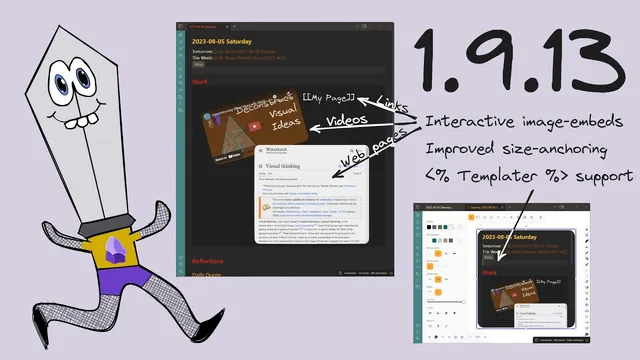
Excalidraw 1.9.13: Active image-embeds and Templater support
Based on Zsolt's Visual Personal Knowledge Management's video on YouTube. If you like this content, support the original creators by watching, liking and subscribing to their content.
Excalidraw 1.9.13 enables active embeds inside Obsidian drawings, including playable media and navigable embedded pages.
Briefing
Excalidraw 1.9.13 adds interactive, “active” embeds inside Obsidian notes—plus a way to run templates/scripts from embedded markdown—and introduces anchored image embeds that keep typography and sizing consistent across drawings. Together, these changes make Excalidraw drawings behave more like living documents: links inside embedded content can open pages or drawings, embedded markdown can trigger automation, and image components can be reused without breaking layout.
The first major upgrade is active image-embeds. In an Excalidraw canvas, users can paste a YouTube link and return to daily notes to see the embedded media appear and play. The same idea extends to web pages: embedding a page like “obsidian.md” results in an embedded, navigable representation. Links inside the embedded content behave differently depending on interaction length—short click opens the linked page, while a long click opens the underlying Excalidraw drawing for editing. This interaction model matters because it supports both quick reading and deeper editing without leaving the note.
There’s an important caveat: markdown embeds for certain content (specifically “project C” embedded frames) don’t work yet and show placeholders. The workaround is to enable the feature in the Excalidraw plugin settings under “Embed and Export.” The settings also control how images are embedded. Users can choose between legacy SVG/PNG approaches and a newer “native SVG” option. Switching to native SVG requires navigating away and back so the embeds refresh; once refreshed, the embedded document becomes active (including link behavior), while the legacy approach leaves placeholders and non-interactive embeds.
The second feature focuses on automation. Excalidraw 1.9.13 can execute templater scripts inside embedded markdown documents. In a daily note workflow, a Templater insert template (triggered via the keyboard shortcut) runs a meeting-node template that creates or updates notes in the left-side project structure. After execution, both the target notes and the embedded content inside Excalidraw update, demonstrating that embedded markdown isn’t just static—it can drive the same templating logic used elsewhere in the Obsidian workflow.
The third feature is anchored image embedding with fixed sizing. When inserting a file from the Vault as an image, users can “Anchor the image to 100% of its original size.” Anchored images can’t be resized in the canvas, but the benefit is consistent text and image scaling—useful when deconstructing an image into parts and later assembling them so font sizes and proportions match. To remove the constraint, users must open the drawing as a markdown document and delete the anchor marker; only then can resizing return.
Anchoring also supports a deconstruct workflow. When a user carves out selected elements into a new “deconstruct selected elements into a new image script,” the resulting image is anchored, so reused components keep consistent dimensions. Users can still remove the anchor in markdown if resizing is needed, but the default behavior favors stability and repeatability when extracting parts for reuse.
Early issues may remain—especially around native SVG embeds and template/script execution—so feedback is solicited on GitHub and in comments. After several days of testing, the features are considered stable enough for release, with room for refinement based on real-world usage.
Cornell Notes
Excalidraw 1.9.13 upgrades embedded content in Obsidian in three ways: active embeds, executable embedded markdown, and anchored image sizing. Active embeds let users interact with embedded pages/media inside drawings—short clicks open the linked page, while long clicks open the underlying Excalidraw drawing. Embedded markdown can now run Templater templates/scripts, so automation updates both the target notes and the embedded content. Finally, “Anchor to 100%” fixes image sizing so deconstructed/reused components keep consistent typography and proportions; removing the anchor requires editing the drawing as markdown. These changes make drawings more interactive and more reliable for modular, reusable visual workflows.
How do “active” embeds behave when a user clicks a link inside an embedded page or media element?
Why might some embedded markdown content show placeholders instead of interactive embeds, and how can it be enabled?
What changes when switching from legacy SVG embedding to native SVG embedding?
How does Excalidraw 1.9.13 support executing Templater scripts inside embedded markdown documents?
What does “Anchor the image to 100% of its original size” accomplish, and how can it be undone?
How does anchoring interact with the deconstruct workflow for reusable image parts?
Review Questions
- What user interactions (short vs long click) are supported for links inside active embedded content, and what does each action open?
- What steps are required to make native SVG embeds refresh and become interactive after changing the embed setting?
- Why does anchoring images to 100% matter for deconstruct-and-reuse workflows, and what is the exact method to remove the anchor?
Key Points
- 1
Excalidraw 1.9.13 enables active embeds inside Obsidian drawings, including playable media and navigable embedded pages.
- 2
Short clicks on embedded links open the linked page, while long clicks open the underlying Excalidraw drawing for editing.
- 3
Some markdown embeds still don’t work and may show placeholders; enabling the feature in plugin settings under “Embed and Export” is required for interactive behavior.
- 4
Switching to native SVG embedding can make embeds active, but embeds may require navigating away and back to refresh.
- 5
Embedded markdown can execute Templater templates/scripts, updating both the destination notes and the embedded content in the drawing.
- 6
“Anchor to 100%” fixes embedded image sizing for consistent typography and proportions; removing the anchor requires editing the drawing as markdown.
- 7
Deconstructing selected elements into new image scripts produces anchored components by default, preserving consistent dimensions when reused elsewhere.