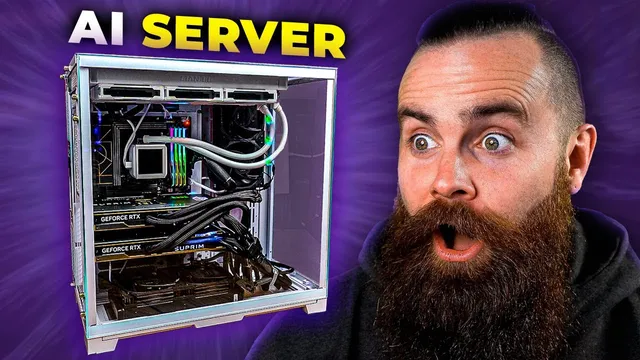
host ALL your AI locally
Based on NetworkChuck's video on YouTube. If you like this content, support the original creators by watching, liking and subscribing to their content.
Run Llama locally and verify it via its localhost API on port 11434 before building any front end on top.
Briefing
A home-built “AI server” can run large language models locally with a full web chat interface—no internet required—while adding guardrails so kids can use AI for school help without turning it into an easy cheating machine. The setup centers on Llama as the model runtime, Open WebUI as the user-friendly front end, and optional Stable Diffusion for image generation, all hosted on a single machine that the owner controls.
The build starts with a high-end desktop named “Terry,” assembled to handle both CPU and GPU workloads. It uses an ASUS X670E Creator Pro Art motherboard in a Leon Lee full tower EATX case, powered by a Corsair AX1600 1600W PSU. For compute, Terry runs an AMD Ryzen 9 7950X (16 cores, up to 4.2 GHz) with 128GB of DDR5-6000 memory and two NVIDIA GeForce RTX 4090 GPUs (MSI Suprim liquid-cooled models, 24GB each). Storage is handled by two Samsung 990 Pro 2TB drives. The point isn’t that everyone needs this hardware; the creator stresses that a simpler laptop can work, especially if it has a GPU.
On the software side, the foundation is Llama. The walkthrough recommends installing it on Linux, including running Linux on Windows via WSL. After updating packages, Llama is installed with a single curl-based command, and the local API is verified by visiting localhost on port 11434. Models are then pulled with “ollama pull” and tested using “ollama run,” demonstrating offline chat behavior (e.g., asking about a solar eclipse). GPU performance monitoring is done with nvidia-smi in a separate terminal window, and the system is shown scaling across two GPUs simultaneously.
Next comes the web interface: Open WebUI, deployed inside a Docker container. Docker is installed via standard repository setup and package installation steps, then Open WebUI is launched with a docker run command that pulls the image and connects it to the local Llama API using the host network. After logging in (the first account becomes admin), the interface lets users select models, chat, download additional models (like Code Gemma), and even run multiple models in the same conversation.
Open WebUI’s admin controls are a key privacy and safety feature. The admin panel can restrict sign-ups, require approval, and whitelist which models specific users can access. More importantly, it supports custom “model files” with system prompts that act as guardrails. A custom assistant named “Deborah” is configured to prevent a child user from generating disallowed outputs (like writing a paper for cheating), instead steering toward guidance.
Stable Diffusion is added as a third capability using Automatic1111, installed with prerequisites, Python version management via pyenv, and a script that installs PyTorch and downloads Stable Diffusion. The image generator is then integrated back into Open WebUI through an images settings configuration and an API/listen mode so prompts can produce images directly in the chat.
Finally, the workflow extends into Obsidian using a community plugin (“BMO Chatbot”). The local Open WebUI/Llama connection is wired into Obsidian so the notes app can provide an always-available chatbot that can reference the current note and generate content alongside the user’s writing—keeping everything private to the home machine the owner controls.
Cornell Notes
The core idea is running AI locally on your own hardware using Llama for model inference, Open WebUI for a polished chat interface, and optional Stable Diffusion for image generation. The setup is designed to be practical: verify Llama via its localhost API (port 11434), then deploy Open WebUI in Docker so it can talk to Llama. Admin features let owners restrict who can sign up, which models each user can access, and even enforce behavior using custom model files with system prompts. Stable Diffusion is integrated through Automatic1111 and connected back into Open WebUI so image generation appears inside the same chat experience. The final step connects the local chatbot into Obsidian via a plugin, enabling note-aware Q&A without sending data to external services.
Why does the walkthrough emphasize local control instead of using a public AI service?
How does the setup confirm that Llama is actually running and reachable?
What role does Docker play in Open WebUI, and how is it connected to Llama?
How are “guardrails” implemented so different users can’t do the same things?
How is Stable Diffusion integrated so image generation appears inside Open WebUI?
How does the local AI extend into Obsidian notes?
Review Questions
- What localhost port is used to verify Llama’s API is running, and how does that verification relate to the web UI connecting to Llama?
- Describe two different ways Open WebUI admin controls can limit what users can do (model access vs. custom model files/system prompts).
- What additional runtime flags are needed for Automatic1111 so Open WebUI can generate images from prompts?
Key Points
- 1
Run Llama locally and verify it via its localhost API on port 11434 before building any front end on top.
- 2
Use Open WebUI in Docker to get a full-featured chat interface that connects directly to the local Llama API.
- 3
Add safety by restricting sign-ups and whitelisting allowed models per user in the Open WebUI admin panel.
- 4
Create custom model files with system prompts to enforce behavior (e.g., guide learning instead of producing cheating-ready outputs).
- 5
Integrate Stable Diffusion by installing Automatic1111 and then wiring its API into Open WebUI’s image generation settings.
- 6
Enable image generation by starting Automatic1111 with the correct API/listen options so Open WebUI can reach it.
- 7
Extend the local chatbot into Obsidian using the BMO Chatbot plugin with an Ollama connection and optional note referencing.