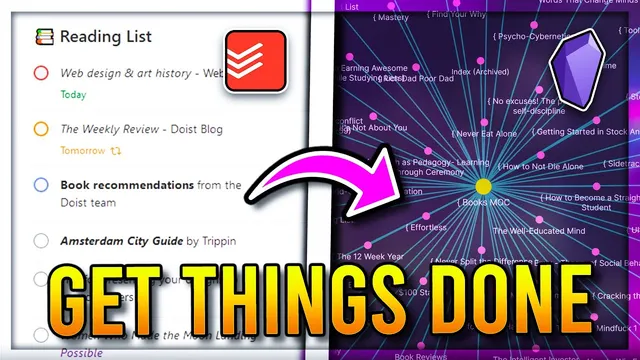
How I Built a Task Management System using Obsidian MD and Todoist Sync Plugin
Based on John Mavrick Ch.'s video on YouTube. If you like this content, support the original creators by watching, liking and subscribing to their content.
Design Todoist around a project hierarchy that matches how work is organized (e.g., broad life areas as projects, niche areas as sections).
Briefing
A practical way to turn Obsidian into a real task hub is to pair it with Todoist and the Todoist Sync plugin, then drive everything inside Obsidian through custom queries. The core idea is simple: create tasks quickly in Todoist (on phone or browser), sync them into Obsidian, and use query blocks to surface exactly the tasks a user needs—today, this week, or tied to a specific project—without giving up Obsidian’s note-based workflows.
The setup starts in Todoist. A Todoist account is created, then a project structure is designed around broad life areas (the transcript uses “second brain” as a top-level project, with “sections” as more specific sub-areas like different programs). Because the free tier limits projects, the structure is kept lean. Task properties are then defined using labels: time estimates (small/medium/large) and context (e.g., at home vs. outside). This matters because those labels become the building blocks for filtering and sorting inside Obsidian.
Task entry is optimized for speed. Using Todoist’s quick-add (triggered by Q), a task can be typed with a due date/time like “tomorrow 6:30 PM,” then assigned to the correct project and section via hashtags (e.g., #second brain and /obsidian). Additional properties are added through tags and shortcuts—such as marking a task as small, and setting priority with a number from 1 to 4. Once the structure is built, the next step is syncing.
In Obsidian, the Todoist Sync plugin is installed via Community plugins. The plugin requires an API token, obtained from Todoist. After syncing is enabled, tasks appear in Obsidian through query blocks written in code fences. Each query specifies a Todoist list name and a filter expression—such as “due today AND project is second brain,” or an OR-style condition when multiple criteria should match. Sorting is handled explicitly, typically by date first and then priority, so overdue items bubble up when desired.
The transcript demonstrates three high-value query placements: a daily template note that shows overdue or due-today tasks; a weekly review template that shows tasks due before Monday (and an alternate filter for the next week using do after Sunday and do before next Monday); and project notes that list all tasks tied to a project like “second brain,” optionally filtered further by section. It also shows creating Todoist tasks directly from Obsidian using the command palette (“add a todoist task”), then assigning project, labels, due date, and priority.
Overall, the system turns Obsidian’s markdown-first environment into a task management layer driven by Todoist’s structured data—while keeping task views organized through reusable templates and query-based filtering.
Cornell Notes
Todoist Sync plus Obsidian query blocks lets users manage tasks in Todoist while viewing them inside Obsidian with precise filters. The workflow begins by designing Todoist projects (e.g., “second brain”), then adding labels for time estimates (small/medium/large) and context, plus priorities and due dates. After installing the Todoist Sync plugin and providing an API token, tasks are pulled into Obsidian using code-fenced queries that filter by due date, project, labels, and sections, then sort by date and priority. Templates like daily notes, weekly reviews, and project notes become the main “views,” showing only what’s relevant at the moment. This approach keeps task entry fast while making Obsidian the control center for planning and review.
How does the system make Obsidian useful for task management when Obsidian is mainly for notes?
Why define labels like “small/medium/large” and context labels in Todoist?
What does a typical Obsidian Todoist query do?
How are daily and weekly task views implemented?
How can tasks be created from inside Obsidian instead of only in Todoist?
Review Questions
- What specific Todoist task properties (projects, labels, due dates, priorities) are used to drive the Obsidian query filters?
- How would you modify a daily query to show only tasks in a particular section (not just the whole project)?
- What changes in the weekly filter logic distinguish “this week” from “next week” in the transcript’s examples?
Key Points
- 1
Design Todoist around a project hierarchy that matches how work is organized (e.g., broad life areas as projects, niche areas as sections).
- 2
Use labels for properties you’ll want to filter later, such as time estimates (small/medium/large) and context (at home/outside).
- 3
Create tasks quickly in Todoist using quick-add, assigning due dates/times, projects/sections, labels, and priority numbers (1–4).
- 4
Install the Obsidian “Todoist Sync” Community plugin and connect it with a Todoist API token so tasks can be pulled into Obsidian.
- 5
Build Obsidian code-block queries that filter by due date, project, labels/sections, then sort by date and priority for predictable ordering.
- 6
Place reusable queries into templates like daily notes, weekly reviews, and project notes so the right task list appears at the right time.
- 7
Use Obsidian’s command palette to add Todoist tasks directly when you need to capture work without leaving Obsidian.