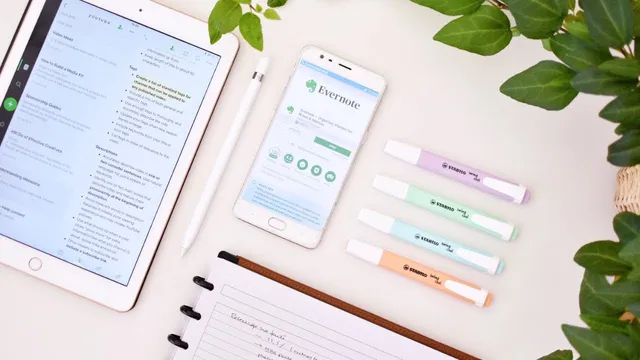
how I get organized with Evernote
Based on Mariana Vieira's video on YouTube. If you like this content, support the original creators by watching, liking and subscribing to their content.
Evernote is used as a cross-device “bullet journal” to unify lists, goals, and research notes across macOS, iOS, and Android.
Briefing
Evernote becomes a cross-device “bullet journal” for daily lists, long-term goals, and research capture—especially for someone juggling a MacBook Pro, iPad, and Android phone. The core shift is moving notes out of scattered paper and into a single system that syncs instantly, works offline, and stays flexible through notebooks plus tags. That matters because it removes the friction of maintaining multiple lists and searching across devices, while still keeping the simplicity of checklists.
The setup starts with a practical constraint: the built-in Apple Notes app doesn’t sync across her non-fully-Apple setup, so a third-party tool is needed to unify macOS, iOS, and Android. Evernote fits because it offers a strong free tier, while the Plus plan is worth paying for when synchronization across three devices and offline access are priorities. The paid tier adds features like PDF annotation, presentations, and higher upload limits, but for lists and basic note keeping, the free version is described as sufficient.
Organization in Evernote is built around separate notebooks for different purposes: brainstorming, ideas and to-dos, recipes, snippets, and YouTube-related material. Brainstorming relies on handwritten notes on the iPad using Apple Pencil, including meeting or Skype-call notes, and the system supports sharing notebooks with other Evernote users—useful for group projects and collaborative document storage. While Evernote’s editor is intentionally minimal and offers limited customization compared with more complex filing systems, that restraint is presented as a feature for keeping day-to-day lists straightforward.
The most concrete workflow is a bullet-journal-style checklist stored in a shared notebook called “notes and to-do.” A primary list, “stuff to restock,” acts as a living shopping list divided into home categories. When an item runs out, she checks it off; the change syncs across all devices and to the other person sharing the notebook. After shopping, checkmarks are removed to reset the list.
Beyond shopping, the same notebook holds less frequent but important lists: documents to read for a Master’s Thesis, a rough YouTube plan for the next six months, a bucket list, a main packing checklist, books to read, and a “25 Before 25” list. Keeping these goals available everywhere supports accountability—she even keeps Evernote open and can configure it to launch at startup.
For daily execution, scheduled events and to-dos are handled via calendar blocking (linked separately). To make information retrievable across notebooks, Evernote tags add a second layer of organization: notes can be labeled with keywords even when they live in different notebooks. Clicking a tag like “YouTube” surfaces all related notes regardless of whether they’re stored under brainstorming, ideas, or to-dos.
Finally, an Evernote extension streamlines capture while working on a computer. It offers four capture modes—manual typing, full-screen clipping, window clipping, and audio recording—and saves the result as a note that can be renamed, re-tagged, and moved into the chosen notebook. The workflow is positioned as especially helpful for research, video lessons, and document annotation.
Cornell Notes
Evernote is used as a unified, cross-device “bullet journal” to replace scattered paper lists and keep notes accessible on a MacBook Pro, iPad, and Android phone. Because Apple Notes doesn’t sync across that setup, Evernote’s synchronization and offline access drive the switch, with the free tier described as enough for basic lists. Organization relies on notebooks for purpose (brainstorming, to-dos, recipes, YouTube, etc.) plus tags to retrieve related notes across notebooks. A shared checklist notebook (“stuff to restock”) syncs instantly with another person, turning shopping and restocking into a live, check-off system. An Evernote extension adds quick capture via typing, screen/window clipping, or audio recording, then lets the user rename, re-tag, and file the note.
Why does the system depend on Evernote rather than Apple’s native notes app?
What’s the practical difference between Evernote’s free version and Plus for this workflow?
How does the checklist system work day-to-day in Evernote?
How do tags complement notebooks when notes are spread across different categories?
What capture options does the Evernote extension provide, and how does the captured content get organized?
Why is Evernote’s minimal editor treated as an advantage rather than a limitation?
Review Questions
- How does the combination of notebooks and tags prevent notes from becoming hard to find as projects grow?
- What specific shared-list example illustrates the value of real-time syncing in this workflow?
- Which Evernote extension capture modes are available, and what steps follow capture to file the note correctly?
Key Points
- 1
Evernote is used as a cross-device “bullet journal” to unify lists, goals, and research notes across macOS, iOS, and Android.
- 2
Apple Notes is avoided because it doesn’t sync properly across the non-fully-Apple device setup.
- 3
The free Evernote tier is considered sufficient for basic lists, while Plus is paid for synchronization across three devices and offline access.
- 4
Notebooks organize notes by purpose (e.g., brainstorming, ideas/to-dos, recipes, snippets, YouTube).
- 5
Shared notebooks enable real-time collaboration, illustrated by a shared “stuff to restock” checklist that syncs with another person.
- 6
Tags provide cross-notebook retrieval by keyword, such as collecting all “YouTube” notes regardless of which notebook they live in.
- 7
The Evernote extension speeds up capture with typing, screen/window clipping, or audio recording, then supports renaming, re-tagging, and filing.