How I Use Notion (A Tour): Book Progress And Webclipping Articles
Based on Red Gregory's video on YouTube. If you like this content, support the original creators by watching, liking and subscribing to their content.
Build a single dashboard by linking multiple databases into a “Currently” section rather than manually moving items around.
Briefing
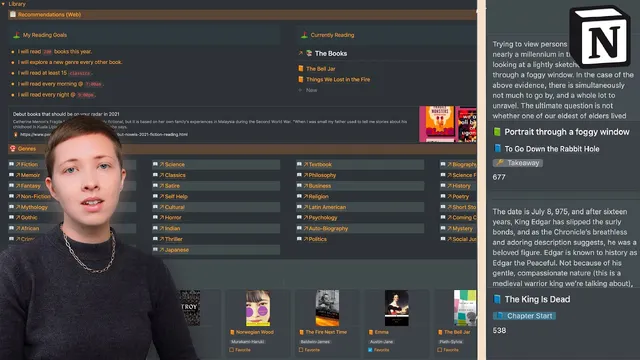
A single Notion “HQ” page is used as a command center for reading, webclipping, mood tracking, and book-drafting—linking multiple databases so items automatically move through states like “to consume,” “currently reading,” “done,” and “archived.” The core idea is less about storing information and more about building a workflow where progress, filters, and relations keep everything synchronized, so the right books and articles surface in the right places without manual reshuffling.
At the top of the workspace sits “Currently,” anchored by two linked databases: one for books and one for web articles. For books, the page tracks reading progress with a slider tied to total pages and the current page, then displays that progress as a visual bar. The “Currently” section also pulls in book metadata from Goodreads—cover images, descriptions, and a Goodreads link—so each title has enough context to decide what to read next. For articles, the system uses a status workflow with two main states: “to consume” and “done.” Items saved from the web land in “to consume” by default, along with publication name, date saved, and a rating field that can be filled later when the article is read.
The page’s web-article pipeline is powered by the “Save to Notion” browser extension. Two separate forms feed the same database: one for general articles and one for news articles. Templates automatically set fields like the article type (including a newspaper emoji for news) and store the full page content inside the Notion entry. A formula extracts the publication name from the URL by stripping away protocol and domain suffixes, so the database can display a clean source label without manual editing.
Mood tracking runs as a separate database that’s been in use since the beginning of last year. Each day records the day of the week, a mood selection, mood severity, and a short “cause” sentence—kept intentionally lightweight. A formula then classifies moods as positive or negative using if-statements tied to the mood selections. A calendar view lets the user scan mood patterns across months and years, and the data was previously exported to Google Sheets for visualization.
The library section organizes books through a main “shelf” database connected to a “genres” database. Genres are hierarchical via parent/child relations (for example, “Historical Fiction” as a child of “Fiction”), and a rollup counts how many books sit under each genre. To make the UI more visually consistent, the user uses a toggle workaround: a separate “library set” page is created with the desired columns and then converted into a toggle so the entire block can be recolored as a unit.
Book recommendations flow into the shelf via a backlog view. Each recommendation includes title, author, a Goodreads rating, a “recommend” checkbox, and cover images via a links/files property. When a recommendation is unchecked, it moves into the bookshelf view; when reading begins, the user fills in page counts and current page numbers so progress automatically updates. Completed books are automatically archived using a progress-based rule (progress equals 100), avoiding manual checkboxes.
Finally, book drafting is handled with another database that breaks the second draft into smaller units for editing. Each unit includes checklist-style cues—whether sections should be removed, whether the “we” word is overused, whether questions are posed, and whether voice is acceptable. A progress rollup summarizes editing completion, and the page links back to the next draft work so navigation stays inside Notion. The result is a tightly connected system where relations, formulas, templates, and filters turn scattered reading and writing tasks into a single, continuously updated workflow.
Cornell Notes
The “Collect and Capture HQ” Notion page centralizes reading, webclipping, mood tracking, and editing by linking several databases together. Books and articles appear in a “Currently” area based on linked views and status filters (“to consume” vs “done”). Web articles are saved through the “Save to Notion” extension using templates that auto-fill type (including a news emoji), publication name (parsed from the URL), date, rating, and the full saved page content. Mood tracking uses a lightweight daily entry (mood, severity, one-sentence cause) plus a formula that classifies moods as positive or negative, displayed in a calendar view. Completed books are automatically archived when progress reaches 100, and editing tasks for a book draft are broken into smaller checklist-driven units with rollup progress.
How does the system keep “Currently” synced for both books and web articles?
What makes the web-clipping workflow fast enough to be daily-use rather than a one-off setup?
How does mood tracking avoid becoming a heavy journaling project?
How are books organized so recommendations, reading progress, and completion states stay connected?
What’s the purpose of the “genres” database and how does it relate to the bookshelf?
How does the editing workflow translate into actionable progress inside Notion?
Review Questions
- Which fields and rules determine whether an article appears under “to consume” versus “done,” and how is the rating used in that workflow?
- How does the progress-based archive rule work for books, and what properties must be filled for it to trigger correctly?
- What is the role of relations and rollups between the genres database and the bookshelf database, and how does that affect filtering?
Key Points
- 1
Build a single dashboard by linking multiple databases into a “Currently” section rather than manually moving items around.
- 2
Use status fields (“to consume” vs “done”) plus filters to keep unread web clippings automatically prioritized.
- 3
Automate web-clipping with templates in “Save to Notion,” including type-specific defaults and full-page content storage.
- 4
Track reading progress with total pages and current page so progress bars can drive other views like “archive when complete.”
- 5
Keep mood tracking lightweight with structured fields and a formula-based sentiment classification to enable calendar analysis.
- 6
Organize books through a genres database using parent/child relations and rollups so genre counts and filtering update automatically.
- 7
Manage draft editing as checklist-driven micro-units with rollup progress so “what’s left” stays visible.