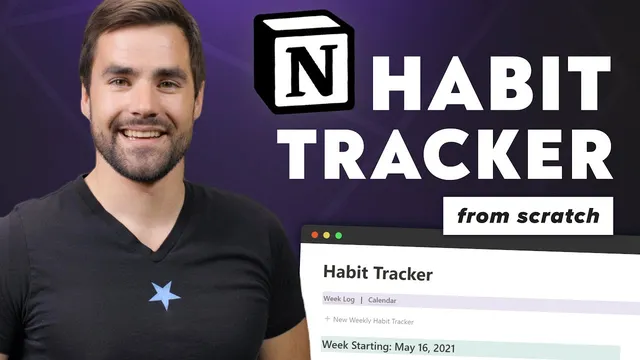
How to Build a Habit Tracker in Notion (from Scratch)
Based on Thomas Frank Explains's video on YouTube. If you like this content, support the original creators by watching, liking and subscribing to their content.
Build the weekly habit worksheet as a multi-column layout, then generate new weeks using a template button so the current week stays at the top.
Briefing
A habit tracker built entirely inside Notion can work like a “living” weekly log—one page that keeps growing as new weeks are added—without forcing users into a database-per-week workflow. The core payoff is speed and continuity: a template button creates a fresh weekly worksheet at the top, daily checkboxes stay quick to use, and past weeks remain accessible through toggles and jump links.
The system starts from a blank page and assembles a multi-column weekly worksheet: a header for the week, a row of day sections (Sunday through Saturday), and checkbox-style “Done” entries under each day. Each new week is generated by a template button labeled “Add New Weekly Worksheet,” which inserts a pre-built worksheet and lets the user set the week’s date (e.g., May 9, 2021, then May 16, 2021). Over time, the page becomes a scrollable record of habit tracking progress, with the current week always positioned at the top for daily use.
Under the hood, the build leans on a practical workaround for Notion’s multi-column quirks. Instead of constructing the multi-column worksheet directly inside the main page, the layout is first created inside a separate sub-page (“Worksheet”). That sub-page is then converted into a block type that preserves the nested multi-column structure—specifically, turning it into a text block—before being dragged into a template block. This “sub-page → text block → template block” sequence is the key technique that allows multi-column content to survive inside a template button, something that otherwise tends to collapse into a single-column layout.
The weekly worksheet also includes optional structure for reflection and navigation. A “Weekly Summary” toggle provides a place to write a short narrative about how the week went—why certain goals were missed or what went well. A “Week Log” section is paired with a Table of Contents block so each newly created week gets a heading that can be jumped to quickly. A small inline calendar is included mainly as a reference tool for dates (for example, identifying the next Sunday when setting up a new week).
To make the tracker feel mobile-friendly, the layout uses jump links—links to blocks that sit near the bottom on phones—so users can navigate without endless scrolling. The result is a single-page habit system that can be favorited, pinned to a favorites bar, or placed on an iOS home screen / Android widget for one-tap access. Compared with database-based approaches, this template-driven method keeps everything in one place while still supporting week-by-week history and quick review of past entries.
Cornell Notes
The habit tracker is built as a single Notion page that grows week after week. A template button (“Add New Weekly Worksheet”) inserts a multi-column weekly worksheet with checkbox-style habit tracking for each day, and the user sets the week’s date when creating a new instance. The build relies on a workaround for Notion’s template limitations: create the multi-column layout in a sub-page, convert that sub-page into a text block to preserve the nested columns, then drag it into the template block. Navigation and reflection are added with a Week Log (Table of Contents), an inline calendar for date reference, jump links for mobile, and a “Weekly Summary” toggle for journaling.
Why build the weekly worksheet inside a separate page before turning it into a template block?
What is the “sub-page → text block → template block” trick actually doing?
How does the tracker ensure the current week stays easy to reach?
How are past weeks navigated without manually hunting through long scrolling?
What roles do the inline calendar and jump links play?
What’s the purpose of the “Weekly Summary” toggle?
Review Questions
- What specific steps are required to preserve a multi-column worksheet inside a Notion template button?
- How do headings and a Table of Contents block work together to make past weeks easy to navigate?
- Why does the tracker include both an inline calendar and mobile jump links?
Key Points
- 1
Build the weekly habit worksheet as a multi-column layout, then generate new weeks using a template button so the current week stays at the top.
- 2
Create the multi-column worksheet in a separate sub-page first to avoid Notion’s multi-column/paste limitations.
- 3
Convert the sub-page into a text block before dragging it into the template block; this preserves the nested multi-column structure.
- 4
Use headings for each week and a Table of Contents block in the Week Log to jump to any past week quickly.
- 5
Add an inline calendar as a date reference when creating new weekly worksheets.
- 6
Include a Weekly Summary toggle for journaling without interfering with daily checkbox tracking.
- 7
Use jump links to key sections (like Week Log and Calendar) so mobile navigation doesn’t require long scrolling.