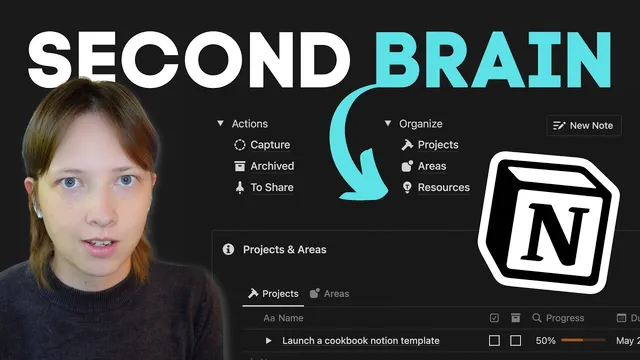
How to Build a Second Brain in Notion (+ Free Template)
Based on Red Gregory's video on YouTube. If you like this content, support the original creators by watching, liking and subscribing to their content.
Build a Capture intake database with Type, Created time, Source/URL, and Attachments so every note has consistent metadata.
Briefing
A “second brain” in Notion is built around one rule: every captured idea must land in an actionable bucket—either a project, an ongoing area, or a temporary holding category—then move into archive when it stops mattering. The system’s core structure is a funnel that starts with capture (manual notes, web clippings, or imported files) and routes information into the PARA framework: Projects, Areas, Resources, and Archive. That routing matters because it prevents a digital notebook from becoming a dumping ground; it turns notes into work, ongoing commitments, or reference material.
The setup begins with a Capture database that acts as the intake point. Each entry gets a Type property (Note, Web clip, Tweet, or File), plus metadata like Created time, Source/URL for web items, and an Attachments field for files. Two checkboxes—Share and Archive—support later workflows: shared items for public-facing work, and archived items for anything no longer active. To make retrieval fast, the template creates multiple database views: an “active” view filtered to Archive unchecked, an “archived” view filtered to Archive checked, and additional visualizations like a calendar view and a tag-grouped view.
Next comes the Projects database, designed for time-bound outcomes. Projects include a Done checkbox, a Due date, and a To publish date (useful for launches like newsletters), plus an Archive checkbox. Projects can be broken down into subtasks via a Sub items relation (implemented as a subtasks database relation to the parent project). An archived projects view duplicates the active one with the Archive filter flipped, and calendar views track due dates and publish dates. Crucially, Notion relations connect Capture to Projects: each captured note can be linked to a specific project, and the project page can display those linked notes as a page section.
Areas sit alongside projects but represent ongoing responsibilities without a fixed end date—learning a language, renovating a home, or similar commitments. The Areas database uses a Status dropdown (To do / In progress / Completed) rather than a simple done checkbox, and it links back to Capture through a relation. Each area page includes a linked view of Capture filtered so only notes belonging to that area appear, letting users browse and search everything tied to an ongoing goal. Rollups and formulas add lightweight analytics, such as counting captured notes and showing a “captured notes” label.
Anything that doesn’t fit Projects or Areas becomes a Resource. The transcript demonstrates this with a “Resources” page that embeds a linked view of Capture filtered to items where both the project and area relations are empty. Archived work is handled separately through linked views of archived Projects, archived Areas, and archived Capture notes.
Finally, the system adds sharing and a home dashboard. A “To share” page pulls from Projects (using a To publish view) and from Capture (using the Share checkbox). The dashboard itself shows active projects and active areas in gallery-style cards, including rollup-driven details like the number of captured notes per area. A Notion button creates new capture entries instantly, and a “Save to Notion” browser extension streamlines web clipping into the Capture database. The result is a repeatable workflow: capture quickly, connect to action, summarize web content into bullet points, and archive based on whether the linked project or area is complete.
Cornell Notes
The Notion second-brain setup uses a PARA-style workflow to keep notes actionable. A single Capture database serves as intake for manual notes, web clippings, and files, with Type, Created time, Source/URL, and Attachments. Each capture item is then connected to either a Projects database (time-bound outcomes with due/publish dates and subtasks) or an Areas database (ongoing commitments with Status). Items that fit neither become Resources, while completed work moves into Archive via separate filtered views. Linked database views, relations, rollups, and a dashboard make it easy to browse active work, track progress, and share only what’s ready for public output.
How does the system prevent captured notes from turning into an unsearchable archive?
What’s the difference between Projects and Areas in this Notion build?
Why include both Due date and To publish date for projects?
How does the template track progress for a project?
What role do linked database views play on Areas and Resources pages?
How are web clippings captured and summarized in this workflow?
Review Questions
- If a captured note is connected to a project that reaches 100% completion, what mechanism in this system would prompt archiving the note?
- Which properties and relations differentiate Projects from Areas, and how do those differences affect how notes are displayed on each page?
- How do Active and Archived views in the Capture database work together with filters and checkboxes to keep retrieval fast?
Key Points
- 1
Build a Capture intake database with Type, Created time, Source/URL, and Attachments so every note has consistent metadata.
- 2
Use PARA routing: connect each capture item to Projects or Areas; treat items with neither relation as Resources.
- 3
Create separate Active and Archived views using the Archive checkbox, then reuse those views via linked database embeds.
- 4
Model Projects with Due date, To publish date, subtasks (Sub items relation), and rollups to show progress as a bar.
- 5
Model Areas with a Status dropdown (To do / In progress / Completed) and embed a linked view of Capture filtered to the current area.
- 6
Use rollups and formulas on Areas to surface useful card-level signals like “captured notes” counts.
- 7
Add a dashboard and sharing pages by embedding linked views filtered to what’s ready (To publish and Share checkbox).