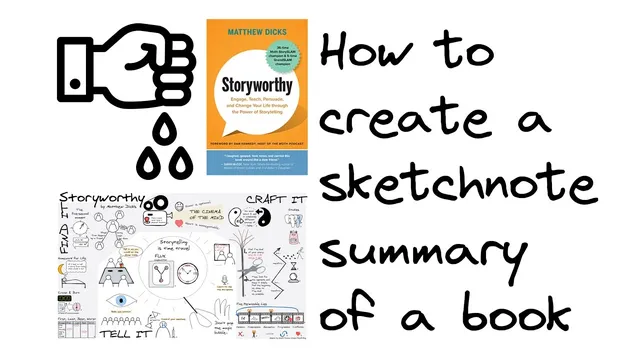
How to create a sketchnote summary of a book with Excalidraw + Obsidian + Progressive Summarization
Based on Zsolt's Visual Personal Knowledge Management's video on YouTube. If you like this content, support the original creators by watching, liking and subscribing to their content.
Use progressive summarization layers so each compression step is small enough to pause and resume without losing value.
Briefing
A layered “progressive summarization” workflow turns raw book notes into a one-page sketchnote that stays searchable and context-rich years later. The core idea is to compress a book in stages—each stage is quick enough to pause and resume later—so the work accumulates long-term value without requiring a single, all-at-once rewrite of the entire book.
The method builds on Thiago Forte’s five-layer summarization model: layer 0 is the full text source, followed by literature notes, highlighted notes, bold highlights, mini summary, and a final remix layer. In this workflow, the final remix step is replaced with “book on a page,” a single sketchnote designed to preserve the book’s key structure while remaining compact. The practical payoff is flexibility: someone can stop after any layer and still retain a useful artifact, then return weeks later and continue from where they left off with minimal overhead.
In Obsidian, the process starts by creating a dedicated folder per book, because the workflow generates many separate drawing files. Three files are created in that folder: “literature notes,” “summary,” and “book on a page.” Layer 1 notes are built from Kindle highlights and occasional personal notes. A key tactic is highlighting every chapter title so the exported Kindle clippings preserve the book’s original structure—page numbers and chapter boundaries become context anchors later during processing.
After finishing the book, the Kindle clippings file is imported into Obsidian. The workflow favors connecting the Kindle to a desktop computer, copying the clippings text file, renaming it to “myclippings.md,” and dropping it into the vault. A Templater script then converts the clippings into markdown “literature notes.” The script prompts for which book to process, then places the resulting markdown onto the clipboard for pasting into the correct file. The user then cleans up structure by converting chapters into headings and using Ctrl+H to highlight important fragments. Because Kindle re-saves highlights when text is modified, the workflow sometimes requires deleting repeated or incomplete highlights.
While highlighting, quick sketches are added. New drawings can be created with an Excalidraw command palette action and embedded into the active file; alternatively, existing drawings can be referenced to avoid duplication. The workflow also supports hover previews and link handling, and it can add a block reference from the sketch back to the relevant literature-notes location for easy navigation.
A second pass through the literature notes focuses on bolding keywords and refining or adding sketches. A second Templater script extracts the highlighted text and sketches to generate the first mini summary, again via clipboard. Once the mini summary is edited and read alongside the sketches, all sketches are consolidated into a single Excalidraw “book on a page” canvas. The final step is iterative pruning—removing unnecessary text and drawings until the one-page sketchnote feels right.
The workflow is time-intensive—roughly comparable to the time spent reading—but the payoff is deeper internalization and durable recall. The mini summary plus the one-page sketchnote provides a compact memory scaffold that can refresh understanding long after the original reading session.
Cornell Notes
The workflow builds a one-page sketchnote summary by compressing a book in stages using progressive summarization. It starts with Kindle clippings converted into Obsidian “literature notes,” preserving chapter structure by highlighting every chapter title. A second pass bolds key fragments and pairs them with sketches, then a Templater script extracts highlighted text and sketches to produce a “mini summary.” Finally, all sketches are consolidated into a single Excalidraw canvas and edited down into a “book on a page.” The value is flexibility: each layer is usable on its own, and the process can be paused and resumed later with little overhead while still retaining context for future recall.
How does progressive summarization make the workflow easier to execute over time?
Why highlight every chapter title during Kindle note capture?
What role do the two Templater scripts play in the pipeline?
How are sketches integrated without creating unnecessary duplicates?
What makes the final “book on a page” step different from the mini summary?
Review Questions
- What specific Kindle highlighting habit helps preserve structure during later conversion into Obsidian notes?
- How do the two Templater scripts differ in what they generate and where the output is placed?
- What navigation aid can be added to sketches so they link back to the relevant literature-notes location?
Key Points
- 1
Use progressive summarization layers so each compression step is small enough to pause and resume without losing value.
- 2
Create a dedicated Obsidian folder per book and separate files for literature notes, summary, and the final book-on-a-page sketchnote.
- 3
Highlight every chapter title in Kindle to keep the exported clippings aligned with the book’s structure and page references.
- 4
Convert Kindle clippings into markdown literature notes with a Templater script, then clean up headings and important fragments using Obsidian tools like Ctrl+H.
- 5
Add sketches while reading and embed them into the active file (or reference existing drawings) to keep visual notes tied to the text.
- 6
Bold key fragments in a second pass and use a second Templater script to extract highlighted text plus sketches into a mini summary.
- 7
Consolidate all sketches into one Excalidraw canvas and iteratively remove text and drawings until the final one-page sketchnote is readable and memorable.