How to Create AUTOMATED Recurring Tasks in Notion
Based on Thomas Frank Explains's video on YouTube. If you like this content, support the original creators by watching, liking and subscribing to their content.
Ultimate Tasks computes a task’s next occurrence via “Next Due,” using recurrence settings like interval, unit, and optional weekday selection.
Briefing
Notion doesn’t yet offer a native, in-app recurring-tasks feature, but recurring due dates can still run automatically—without coding—by combining Ultimate Tasks’ recurring-date formulas with external automation tools. The core idea: tasks are marked “done,” and an automation immediately recalculates the task’s next due date (using the template’s “Next Due” logic) while resetting the checkbox so the task can repeat again.
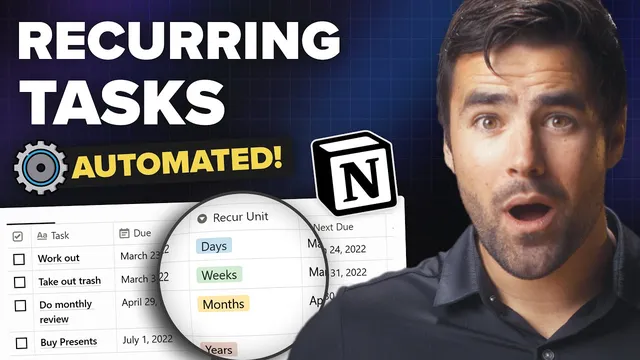
The setup starts inside Ultimate Tasks, a Notion template that includes the recurring-task “engine.” Each task has a due date plus three key recurrence controls: a numeric “recur interval” (kept for backward compatibility), a “recur unit” selector (days/weeks/months plus advanced options), and a “days only” selector used for specific weekdays. With these properties, the template can generate “Next Due” dates for many patterns—daily, every N weeks, monthly on the last day, monthly on the last weekday, and even multi-day schedules like Tuesday/Thursday/Saturday. Crucially, it also handles overdue tasks: if a task wasn’t completed for months, “Next Due” still jumps forward to the next valid occurrence.
A manual approach exists too: users can update the due date to whatever “Next Due” shows, and filters will move the task out of “Today”/“Next 7 days” views. But the “done” checkbox is effectively useless for manual recurrence because Notion can’t automatically write back to other properties when a checkbox changes—unless an external automation uses the API.
That’s where Make.com (recommended) and automate.io come in. Both workflows follow the same logic. First, they search the Ultimate Tasks database for items where the done checkbox is true, the “Next Due” formula is not empty, and “Next Due” isn’t an error. The template can output an error string when “recur interval” is invalid (non-whole or negative), so the automations explicitly exclude that case.
Next, the automation updates the task: it sets the due date to a formatted version of “Next Due,” and it unchecks the done checkbox. This mirrors what recurring task systems do in other apps—completion triggers the next occurrence, and the task becomes ready again.
Make.com is positioned as free but more technical. The tutorial emphasizes Make’s action-based pricing: each run and each database update counts toward a monthly action limit. To stay within the free tier, the scenario should run once per day (midnight), not every 15 minutes, because recurring tasks typically need recalculation at most daily.
automate.io offers a simpler setup but costs $9/month for multi-step bots. Its workflow uses a filter step plus a date-formatting step before updating Notion. In both cases, the result is the same: check off recurring tasks in Notion and watch due dates advance automatically.
For anyone who wants to avoid building the recurrence formulas from scratch, the template itself already includes the advanced logic (including performance optimizations that split a previously massive formula into helper properties). The practical takeaway is that automated recurring tasks in Notion are achievable now—by letting Ultimate Tasks compute “Next Due,” and letting Make.com or automate.io handle the checkbox-to-date update loop.
Cornell Notes
Ultimate Tasks for Notion generates a “Next Due” date from recurrence settings (interval, unit, and optional weekday rules). Because Notion can’t automatically update other fields when a checkbox changes, external automation tools are used. The automation finds tasks where the done checkbox is checked and “Next Due” is valid (not empty and not an error from invalid recur intervals). It then updates the task’s due date to the formatted “Next Due” value and resets the done checkbox to “no,” enabling the task to repeat. Make.com can do this for free with a daily schedule to avoid action-limit overages; automate.io can do it with easier multi-step setup for $9/month.
Why does the done checkbox matter, and why can’t Notion handle it by itself?
What recurrence patterns does Ultimate Tasks support, and which properties control them?
How do the automations decide which tasks to update?
What exactly gets updated when a recurring task is completed?
Why does Make.com require careful scheduling under its free plan?
How does automate.io differ in setup complexity from Make.com?
Review Questions
- How do the recurrence properties (recur interval, recur unit, and days only) interact to produce “Next Due” for weekday-based schedules?
- What filter conditions prevent the automation from updating tasks incorrectly (including the role of the error string)?
- In Make.com, how does action-based pricing influence the recommended frequency for checking the Notion database?
Key Points
- 1
Ultimate Tasks computes a task’s next occurrence via “Next Due,” using recurrence settings like interval, unit, and optional weekday selection.
- 2
Notion can’t automatically update other properties when a checkbox changes without API-based automation, so external tools are required.
- 3
The automation updates tasks only when done is checked and “Next Due” is valid (not empty and not the invalid-interval error string).
- 4
Completing a recurring task triggers two writes: due date advances to the formatted “Next Due,” and the done checkbox is reset to unchecked.
- 5
Make.com can run this for free but must be scheduled conservatively (e.g., daily at midnight) to stay within the monthly action limit.
- 6
automate.io can simplify the workflow with multi-step bots, but it requires a $9/month plan for that capability.
- 7
For most users, duplicating the Ultimate Tasks template is faster than rebuilding the large recurring-date formula logic from scratch.