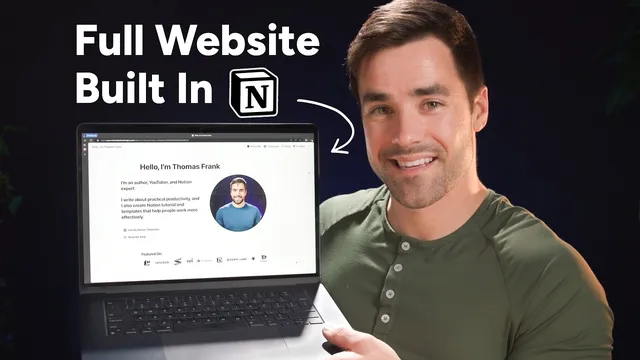
How to Easily Build a Full Website With Notion
Based on Thomas Frank Explains's video on YouTube. If you like this content, support the original creators by watching, liking and subscribing to their content.
Create the homepage skeleton first: a two-column header with navigation buttons, a headshot (cropped to a circle), and spacing using headings and horizontal rules.
Briefing
Notion Sites can be used to build a complete, multi-page personal website—including a blog driven by a database, a newsletter signup embed, and a working contact form that sends emails—starting from a blank Notion page and ending with a custom domain. The payoff is speed and flexibility: a site that normally takes weeks of CMS work can be recreated in under an hour, while still supporting the core website pieces people expect when hiring, pitching clients, or building a personal brand.
The build starts by laying out a homepage structure in Notion: a two-column header with a tagline, navigation buttons, and a circular headshot. To avoid repetitive page creation, the workflow uses a quick trick—create four blocks (About Me, Templates, Blog, Contact) and convert them into actual Notion Pages—then wire those pages into button actions. The homepage also includes a “featured on” logo rail, a “featured articles” section, and a newsletter area embedded from ConvertKit. Spacing and layout are handled with deliberate use of headings, horizontal rules, and empty blocks to keep the page from looking cramped.
The About Me page is built as a single-column layout with a custom icon, an “ideas I live by” section, a headshot grid (using Notion’s crop-to-shape feature to avoid a mosaic look), and a press section organized via toggles. The Templates page functions as a portfolio showcase: each template card includes an image, descriptive copy, and links styled as bold “pseudo-links” (since Notion buttons can’t link to external pages yet). To preserve a specific Z-pattern on mobile, the layout uses stacked two-column rows rather than relying on a single responsive grid.
The Blog page is the most technical part because it introduces a database schema. A “Blog posts” database is created with properties for Title, Tags, Publish date, and a Featured image field (so gallery cards can show an image even when the post content might be a video). Posts are tagged into categories like Productivity, Notion Tutorials, and No Code/Low Code Automations, plus a Featured tag used to populate the homepage. Multiple linked database views then generate the blog’s category sections and the homepage’s featured carousel—each view filtered by tags and sorted by publish date or manually ordered for the homepage.
Newsletter and contact functionality come from embeds. ConvertKit forms are embedded via a share link (Notion can’t embed raw HTML/JavaScript), and Tally forms provide a contact form that can send email notifications on submission. The final step turns the private Notion workspace into a public site using Notion Sites: configure share preview, theme, favicon, and—on higher plans—header navigation and search indexing.
A custom domain is handled through DNS records (CNAME and TXT) and verification inside Notion. The process also includes an Apex-domain workaround by forwarding the root domain to the www subdomain. Once propagation completes, the site is accessible at the custom domain with redirects to handle missing “www.” Overall, the method produces a credible, job-ready website with CMS-like blog behavior, without leaving Notion’s ecosystem.
Cornell Notes
A full personal website can be built inside Notion using Notion Sites, with multiple pages, a database-driven blog, and embedded forms for both newsletter signups and contact. The homepage uses a two-column header with navigation buttons, a featured logo rail, a featured-articles section, and a ConvertKit embed. The blog relies on a “Blog posts” database with properties for Title, Tags, Publish date, and a Featured image so gallery views stay consistent. Linked database views filter posts into category sections and power the homepage’s featured list. Finally, Notion Sites plus DNS setup (CNAME/TXT) enables a custom domain, including an Apex-domain forwarding workaround.
How does the site avoid manually creating and wiring pages one by one in Notion?
Why does the blog database include a separate “Featured image” property instead of relying on the post content?
How are blog categories shown without duplicating work for each section?
What’s the practical workaround for embedding ConvertKit forms in Notion?
How does the contact form send emails from Notion?
What DNS steps are required to connect a custom domain to Notion Sites?
Review Questions
- What database properties are created for “Blog posts,” and how does each one support the blog’s gallery and filtering behavior?
- How do linked database views reduce duplication when building multiple blog category sections and the homepage’s featured list?
- What are the key limitations around embedding (HTML/JS) in Notion, and how do the ConvertKit and Tally workflows work around them?
Key Points
- 1
Create the homepage skeleton first: a two-column header with navigation buttons, a headshot (cropped to a circle), and spacing using headings and horizontal rules.
- 2
Generate multiple internal pages quickly by creating blocks (About Me, Templates, Blog, Contact) and converting them into Notion Pages, then link them via button actions.
- 3
Build the blog on a dedicated “Blog posts” database with Title, Tags, Publish date, and a Featured image property so gallery views remain consistent.
- 4
Use linked database views with tag filters to power both the blog’s category sections and the homepage’s featured articles without duplicating content.
- 5
Embed newsletter signup via ConvertKit share links (Notion can’t embed raw HTML/JavaScript), and resize the embed to avoid awkward scrollbars.
- 6
Add contact email functionality using a Tally form with email notifications enabled, then embed the published form into the Contact page.
- 7
Connect a custom domain through Notion Sites DNS verification using CNAME and TXT records, and handle Apex domains with forwarding to the www subdomain.