How to extract your PDF highlights using Readwise
Based on Readwise's video on YouTube. If you like this content, support the original creators by watching, liking and subscribing to their content.
Readwise can parse and import highlights from about 90% of PDFs, turning them into resurfacing notes in the Readwise library.
Briefing
Readwise can now extract highlights from most existing PDFs and turn them into searchable, resurfacing notes—closing a long-standing gap for people who highlight in PDF apps but couldn’t reliably carry those annotations into a reading workflow. The key change is a PDF parser that can handle about 90% of PDFs, provided the highlights are saved as real annotations inside the file (not just visual drawings layered on top). For users, that means PDF reading can start behaving like Kindle or Instapaper reading: highlights show up in Readwise and can be revisited later.
The workflow starts with highlighting inside a PDF viewer that actually supports annotations. On Windows, the process is demonstrated using Microsoft Edge’s built-in highlighting tool, but the same idea applies to other supported PDF apps (Readwise maintains a list of compatible apps in its help documentation). After selecting text and highlighting, the PDF must be saved so the highlight is embedded into the document itself. If the app doesn’t store annotations in the PDF—some apps effectively “draw” over the page—Readwise can’t reliably identify the highlight.
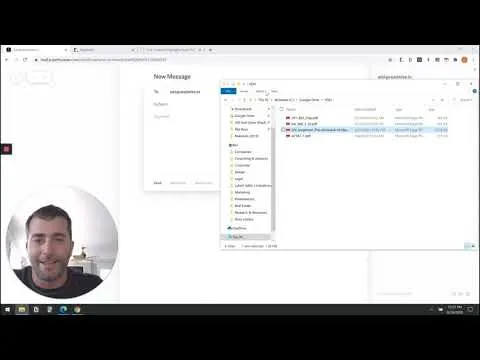
Once the highlighted PDF is saved, importing into Readwise is straightforward. On desktop, users can go to the Readwise dashboard, choose “Add highlights,” select “PDF import,” and drag-and-drop the file to upload it. On mobile, the alternative is email-based: send the PDF as an attachment to add highlights at readwise.io from an email address Readwise recognizes. After upload, Readwise reports whether parsing succeeded, which is especially useful when users forget to save the file or use an unsupported highlighting method.
After import, Readwise surfaces the highlight on the correct page, but PDF metadata can make the title and author look odd or missing. The solution is to edit the metadata—either immediately or after the fact—so the item displays cleanly in the Readwise library. The transcript notes that this matters more for PDFs because many documents don’t carry the same structured metadata that articles or books typically do.
For heavy PDF readers, the most powerful setup is a synced workflow using an iPad and a PDF annotation app. The recommended approach is to use an iPad (ideally an iPad Pro) with a Pencil, connect the PDF app to a cloud drive such as Google Drive, Dropbox, Box, or Apple iCloud, and keep a constantly synced folder of PDFs. Highlights made on the computer appear on the iPad, and after finishing, users can share the PDF to add highlights at readwise.io—automating the loop from reading to resurfacing. The transcript also emphasizes that PDF app choice is personal preference, with examples like PDF Expert and iAnnotate, and encourages sampling a few before committing.
Cornell Notes
Readwise can extract highlights from most PDFs (about 90%) and import them into the Readwise library so they resurface later like Kindle or Instapaper highlights. The crucial requirement is that the PDF app saves highlights as real PDF annotations inside the file; apps that only overlay drawings won’t work reliably. Importing is available via desktop drag-and-drop (Readwise dashboard → PDF import) or via mobile email to add highlights at readwise.io with an attachment. After import, users may need to fix missing or messy PDF metadata (title/author), which Readwise supports editing. For frequent PDF readers, the best workflow uses an iPad with Pencil and a cloud-synced PDF app so highlights flow from reading to Readwise with minimal friction.
What makes a PDF highlight “extractable” by Readwise?
How can someone import a highlighted PDF into Readwise on desktop?
What’s the mobile-friendly method for getting PDF highlights into Readwise?
Why might the imported item show an odd title or no author, and how is it fixed?
What workflow is recommended for people who read and highlight PDFs constantly?
Review Questions
- What two conditions must be true for Readwise to extract highlights from a PDF reliably?
- Compare the desktop import method and the mobile email method for getting PDF highlights into Readwise.
- How does metadata editing improve the usefulness of imported PDF highlights in Readwise?
Key Points
- 1
Readwise can parse and import highlights from about 90% of PDFs, turning them into resurfacing notes in the Readwise library.
- 2
Highlights must be saved as real PDF annotations inside the file; apps that only overlay drawings won’t work reliably.
- 3
Desktop import uses Readwise dashboard → Add highlights → PDF import, then drag-and-drop the PDF.
- 4
Mobile import uses email to add highlights at readwise.io with the PDF attached from a recognized email address.
- 5
After import, PDF metadata may need cleanup (title/author), and Readwise supports editing metadata after the fact.
- 6
A high-effort, high-reward workflow uses an iPad with Pencil plus a cloud-synced PDF annotation app, then shares the PDF to add highlights at readwise.io.