How to Link Databases in Notion to Build a Workflow
Based on Red Gregory's video on YouTube. If you like this content, support the original creators by watching, liking and subscribing to their content.
Create a relation between Job Listings and Companies so each job listing is tied to a specific company record.
Briefing
Notion can be turned into a multi-step job-search “data entry workflow” by linking related databases into one relational linked database—so new listings can be created and filled out without manually switching between the underlying tables. The core move is using Notion’s relation properties to connect a Job Listings database to a Companies database, then building step-by-step linked views that act like a guided form. When the user finishes each step, the workflow hides the completed entry and automatically surfaces the next one, keeping the process clean and focused.
The setup starts with two connected databases. Each job listing record links to a company record through a relation property (for example, a job listing has a relation to “companies,” and the company has a backlink that gathers all related job listings). This connection matters because the workflow later needs to pull company details into the same guided process where job details are entered.
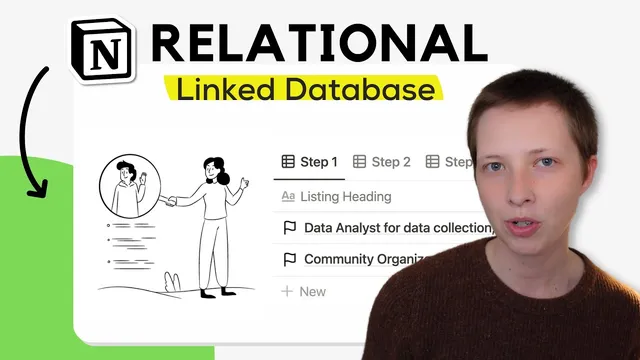
From there, the workflow is built as a linked database page. Notion supports creating a linked view either by inserting a “linked database” block or by copying a link from an existing database and pasting it into a new page, then choosing an existing view or creating a new empty view. The tutorial’s example uses a job search dashboard with a sequence of steps: Step 1 through Step 5. Each step is a linked view filtered to show only the current record being worked on.
To control which record appears in each step, the workflow introduces a “focus” property in the underlying databases. In the Saved Listings (job listings) database, focus is a checkbox. The Step 1 linked view shows only rows where focus is checked, and the view hides other properties not needed at that stage. After entering details for Step 1 (like job title and company relation), the user duplicates the Step 1 view to create Step 2, then changes which properties are visible and which fields are filled next (such as working time and remote status). The same duplication pattern continues through Step 3 and Step 5, each time adjusting visible columns and the specific properties required at that stage.
A key twist comes when the workflow needs to edit company information. For Step 4, the linked view switches its source from Saved Listings to Companies. Instead of a checkbox, the Companies database uses a rollup property (an advanced relation-based lookup). The rollup reads the “focus” checkbox from the related job listings, and the Step 4 view filters on that rollup value—so only the company tied to the currently focused job listing appears. This lets company fields be edited in the same guided flow without leaving the workflow page.
Finally, the workflow uses the focus checkbox as a “reset” mechanism. Once the last step is completed, focus is toggled off, causing the completed entry to disappear from every step view. The tutorial also highlights that linked databases can function like editable portals: users can work through the linked views while the original databases remain hidden, and the linked database can even be turned into its own standalone page (with a custom name and emoji) for a dedicated “Add new job listing” interface.
Cornell Notes
The workflow uses Notion relation properties to connect a Job Listings database to a Companies database, then builds a linked database “form” with multiple step-by-step views. A checkbox “focus” in the job listings table filters each step so only the active record appears. For the company-editing step, a rollup in the Companies database reads the job listing’s focus checkbox and filters the company view accordingly. Duplicating each step’s linked view keeps configuration consistent while changing which properties are shown and filled. Turning off focus at the end hides the completed entry across all steps, letting users add the next listing cleanly.
How does a relation property connect job listings to companies in this workflow?
What is the purpose of the “focus” checkbox, and how does it control which row appears in each step?
Why duplicate linked views to create Step 2 and Step 3 instead of building each from scratch?
How does Step 4 show only the company tied to the currently focused job listing?
What happens when focus is toggled off after the final step?
How can the linked database be used as a dedicated portal without exposing the original databases?
Review Questions
- In the workflow, what specific property type is used to filter job listings in steps, and what property type is used to filter companies in Step 4?
- How does duplicating a step-by-step linked view reduce setup work while keeping the workflow behavior consistent?
- What chain of relationships makes it possible for a company rollup to reflect the focus state of a related job listing?
Key Points
- 1
Create a relation between Job Listings and Companies so each job listing is tied to a specific company record.
- 2
Build a linked database page with multiple linked views that act like steps in a guided form.
- 3
Use a checkbox “focus” in the job listings database and filter each step view to show only rows where focus is checked.
- 4
Duplicate step views to reuse the same filter and configuration, then adjust visible properties for the next set of fields.
- 5
For the company-editing step, switch the linked view source to Companies and use a rollup that reads the job listing’s focus checkbox.
- 6
Turn off focus at the end to hide the completed entry across all step views and reset the workflow for the next listing.
- 7
Hide or isolate original databases so users interact only with the linked database portal for adding and editing records.