How to Set Up PARA in Capacities
Based on Capacities's video on YouTube. If you like this content, support the original creators by watching, liking and subscribing to their content.
Create a custom Project object type in Capacities and add standardized properties (like “intended outcome” and priority) so every project page follows the same structure.
Briefing
PAR’s folder-based logic doesn’t translate cleanly into Capacities, which lacks traditional folders. The workaround is to treat PAR elements as connected objects—using Projects as hubs and Tags as the organizing layer—so information resurfaces based on what it’s useful for rather than where it was stored.
The setup starts by creating a custom “Project” object type. Using a project template as a base, the creator adds standardized properties that every project will share, including an “intended outcome” text field and a priority number. This standardization matters because it ensures each project page has the same structure and the same places to record the same kinds of information, making it easier to manage many projects consistently.
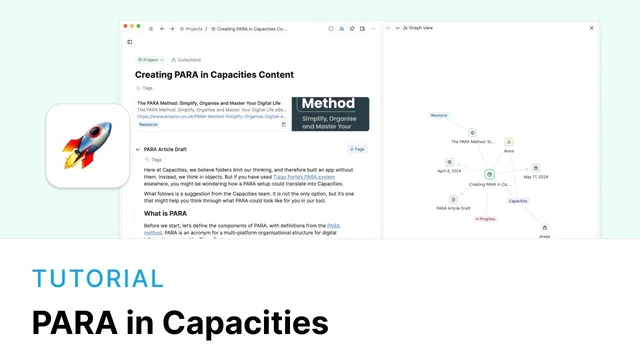
Next comes the core shift from folders to links. Existing notes and resources (like an itinerary, underground image, hotel article, and a person reference) are linked into two project pages—“Creating power in capacities content” and “Showing Anna around London.” In Capacities, those linked items aren’t moved into a single location; they remain where they already live and are simply connected to the project. Graph view makes these relationships visible, showing that one object (like “Anna”) can connect to multiple projects at once—something that’s awkward in folder systems because it forces a single “home” for each note.
To make project pages more than a list of links, the creator adjusts link presentation. Instead of showing a plain reference to Anna inside the project body, the link can be moved into a “collaborator” section. More importantly, links can be switched to an “embed” view so the draft content can be edited directly from the project page. This turns each project object into an operational hub: quick access to related materials on one screen, with the option to keep other context (like person pages) available without cluttering the main workspace.
Properties also support the PAR workflow. The creator fills in priority and uses a “fixed set” property setting for status tags so each project gets a clean, limited dropdown (e.g., only “in progress” rather than every tag in the system). Layout controls—small cards, drag-and-drop arrangement, and wide layouts—help shape a “bird’s-eye” project view that scales as the number of projects grows. Capacities’ list, wall, gallery, and table views plus filters and sorts can then be saved as reusable views, such as “in progress projects.”
Areas replace folder categories through tags. The method recommends creating an Areas property using multi-select tags with a fixed set, then tagging project objects with one or more area tags (e.g., “capacities job” and “travel”). Tag views provide the same filtering and sorting power as project views, and collections can be created and pinned for quick access.
Resources and archives follow the same tag-first logic. Resource tags can be created in bulk and applied to multiple items, then pinned for fast retrieval. For archiving, the simplest approach is adding an “archive” tag (or removing tags if something should disappear from active views). The result is a sustainable system where information is organized by usefulness—what it supports—rather than by rigid file placement, while still preserving the PAR method’s intent.
Cornell Notes
Capacities can implement PARA without folders by using Projects as hubs and Tags as the organizing mechanism. A custom Project object type is created with standardized properties like “intended outcome” and a priority number, then project pages are built by linking relevant existing notes and resources. Links can be embedded so drafts are editable directly from the project page, and properties like status use “fixed set” dropdowns to keep choices tidy. Areas, Resources, and Archive are handled through tags: multi-select area tags connect one item to multiple life areas, resource tags group long-term-use materials, and an “archive” tag cleanly hides or isolates outdated items. This approach makes resurfacing information depend on usefulness, not storage location.
How does the setup replace folder-based PARA structure in Capacities?
Why add standardized properties to the Project object type?
What’s the practical difference between a simple link and an embedded link in project pages?
How are status and other controlled fields kept from becoming messy over time?
How do Areas work without folders?
What’s the recommended approach for Resources and archiving?
Review Questions
- When would embedding a linked draft inside a project hub be more useful than keeping it as a plain link?
- How does using fixed sets for status tags improve scalability compared with using unrestricted tag dropdowns?
- What are the tradeoffs between removing tags to hide content and adding an “archive” tag to preserve it for later retrieval?
Key Points
- 1
Create a custom Project object type in Capacities and add standardized properties (like “intended outcome” and priority) so every project page follows the same structure.
- 2
Build PARA projects by linking relevant existing notes and resources into project pages rather than moving content into folders.
- 3
Use link view options—especially “embed”—to edit drafts directly from the project hub and reduce context switching.
- 4
Restrict dropdowns for properties such as status using “fixed set” so only relevant tags appear as choices.
- 5
Implement Areas as multi-select tags with fixed sets, allowing one item to connect to multiple areas at once.
- 6
Use tag views (and optionally saved filtered/sorted views) to create quick “bird’s-eye” dashboards like “in progress projects.”
- 7
Handle Resources and archiving through tags: apply resource tags for long-term retrieval and use an “archive” tag to isolate outdated items.